Restore and Recover your Autonomous AI Database
From the Oracle Cloud Infrastructure Console you can restore the database using the Restore operation, where you initiate recovery for your database.
Perform the following prerequisite steps as necessary:
-
Open the Oracle Cloud Infrastructure Console by clicking the
 next to Cloud.
 -
From the Oracle Cloud Infrastructure left navigation menu click Oracle AI Database and then click Autonomous AI Database.
-
On the Autonomous AI Databases page select an Autonomous AI Database from the links under the Display name column.
To restore and recover your database, do the following:
-
On the Autonomous AI Database Details page, from the More actions drop-down list, select Restore to display the Restore prompt.
-
In the Restore prompt, select Enter Timestamp or Select Backup to restore to a point in time or to restore from a specified backup.
-
Enter Timestamp: Enter a timestamp to restore to in the Enter Timestamp calendar field.
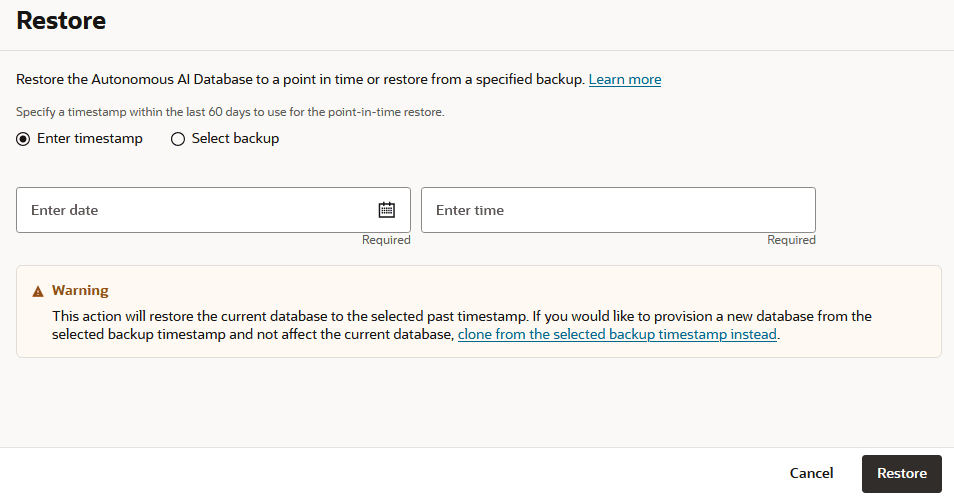
Description of the illustration adb_restore_timestamp.png
Click the Calendar icon to show the date and timestamp calendar selector. If automatic backups are enabled on your instance, you can select a timestamp to restore and recover your database to any point-in-time in the retention period.
Manually edit the values in the Enter Timestamp field if you prefer to use a more granular timestamp.
-
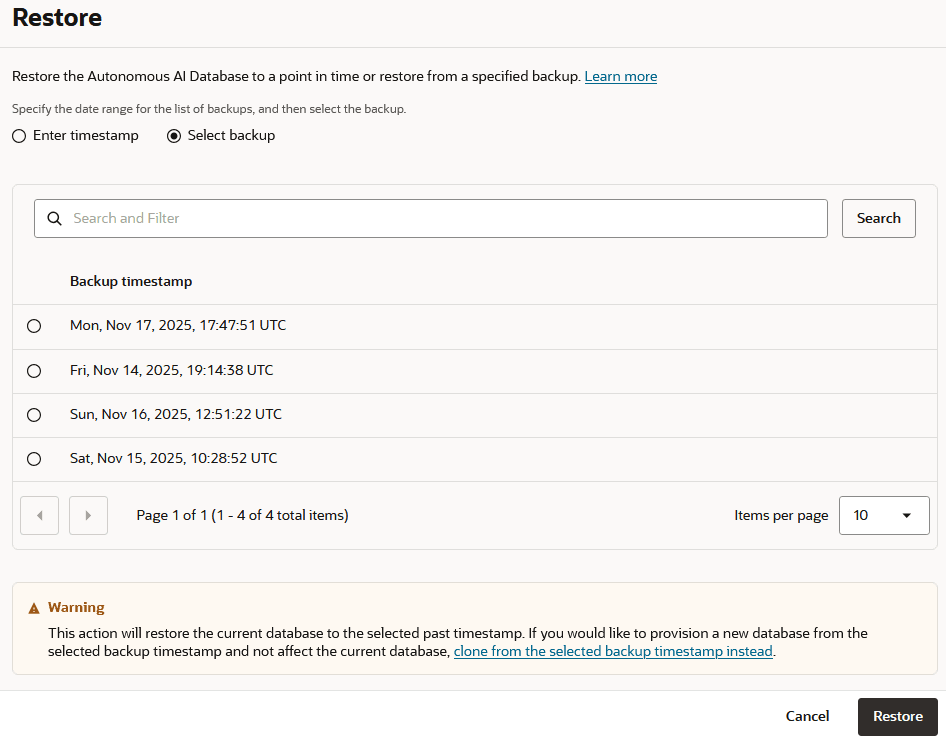
Select Backup: Select a backup from the list of backups. Limit the number of backups you see by specifying a period using the From and To calendar fields.
-
-
Click Restore.
Note: Restoring Autonomous AI Database puts the database in the unavailable state during the restore operation. You cannot connect to a database in that state. The only lifecycle management operation supported in unavailable state is Terminate.
When concurrent operations such as scaling are active, the confirmation also confirms either pausing or canceling the concurrent operation. See Concurrent Operations on Autonomous AI Database for more information.
The details page shows Lifecycle state: Restore In Progress
-
When the restore operation finishes your Autonomous AI Database instance opens and the Lifecycle state shows Available.
At this point you can connect to your Autonomous AI Database instance and check your data to validate that the restore point you specified was correct. After checking your data if you find that the restore date you specified was not the one you needed, you can initiate another restore operation to another point in time.
Notes:
-
The restore operation also restores the
DATA_PUMP_DIRdirectory and user defined directories to the timestamp you specified for the restore; files that were created after that timestamp would be lost. -
When you restore, the Oracle Machine Learning workspaces, projects, and notebooks are not restored.
-
For external tables, partitioned external tables, and the external partitions of hybrid partitioned tables a backup does not include the external files that reside on your Object Store. Thus, for operations where you use a backup to restore your database, such as Restore or Clone from a backup it is your responsibility to backup, and restore if necessary, the external files associated with external tables, external partitioned tables, or the external files for a hybrid partitioned table.
See Clone an Autonomous AI Database from a Backup for information on using Clone from a backup.