Manage Master Encryption Keys in AWS Key Management Service
Autonomous AI Database supports customer-managed Transparent Data Encryption (TDE) keys that reside in AWS Key Management Service (KMS).
Prerequisites to Use Customer-Managed Encryption Keys in AWS Key Management Service
Describes prerequisite steps to use customer-managed master encryption keys that reside in Amazon Web Services (AWS) Key Management Service (KMS) on Autonomous AI Database.
Limitations:
-
AWS KMS is only supported in commercial regions.
-
AWS KMS is not supported in cross region Autonomous Data Guard standbys.
Follow these steps:
-
Create an AWS policy that grants read access to AWS KMS.
See Creating an IAM policy to access AWS KMS for instructions, andPerform AWS Management Prerequisites to Use Amazon Resource Names (ARNs) for more information.
For example, the
ADBS_AWS_Policy1policy has been created: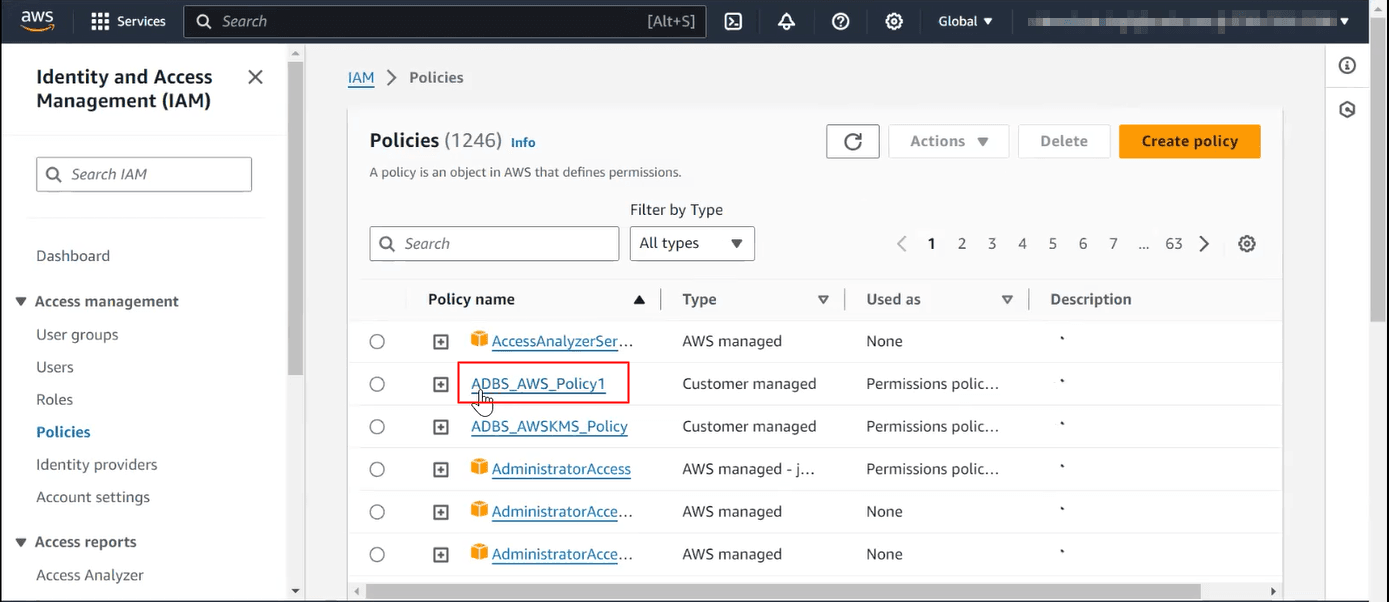
Description of the illustration sec_aws_policy.png
The
ADBS_AWS_Policy1policy includes permission to access KMS.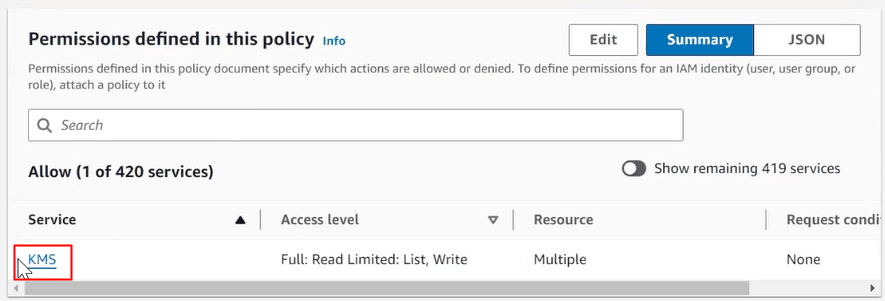
-
Create an AWS role and attach the policy to the role.
See Creating an IAM role to access AWS services for instructions.
For example, an
ADBS_AWS_Role1role has been created: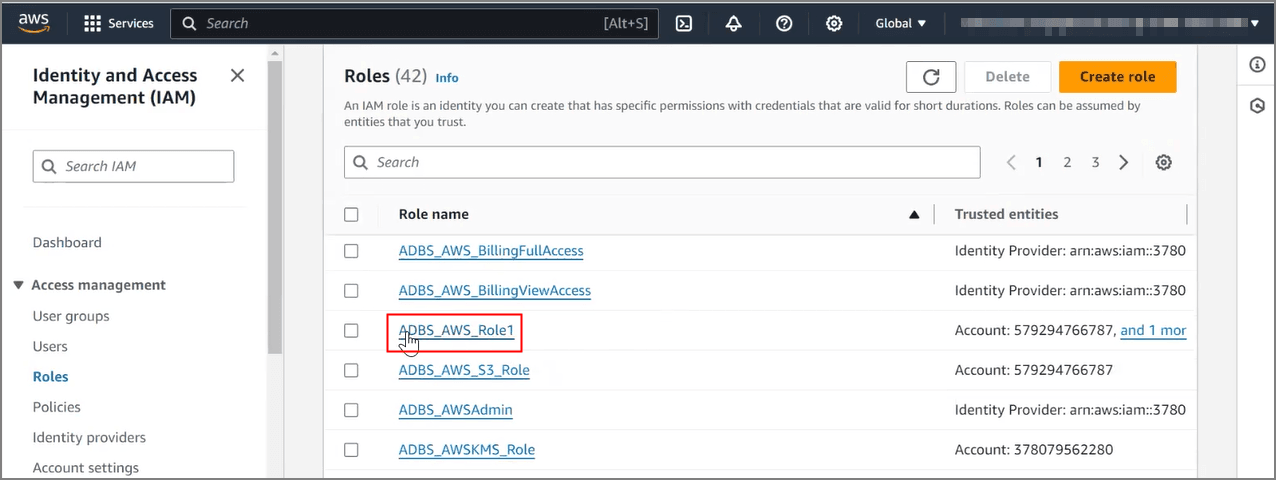
Description of the illustration sec_aws_role.png
In this example, the
ADBS_AWS_Policy1policy is attached to theADBS_AWS_Role1role: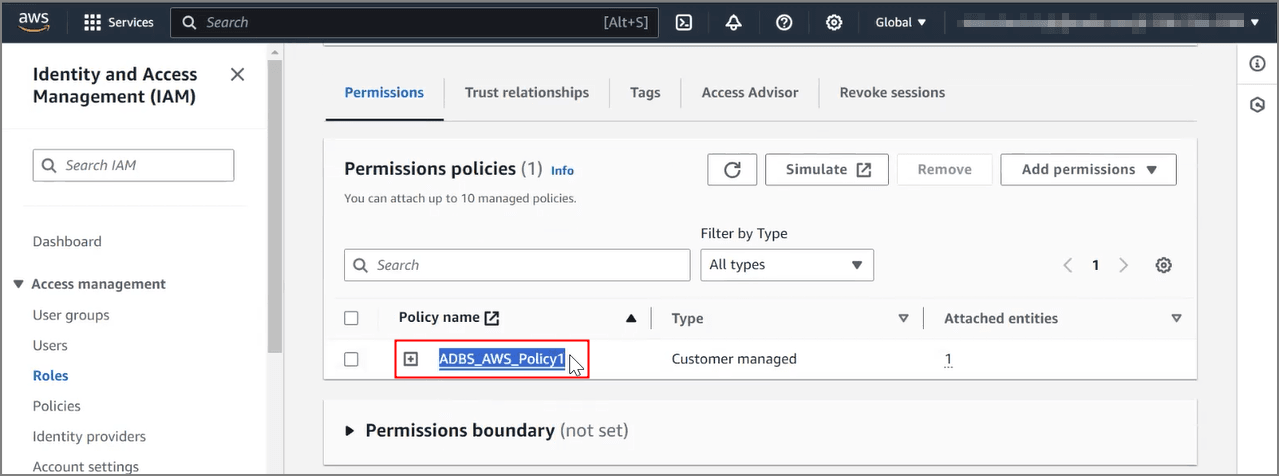
Description of the illustration sec_aws_att_policy.png
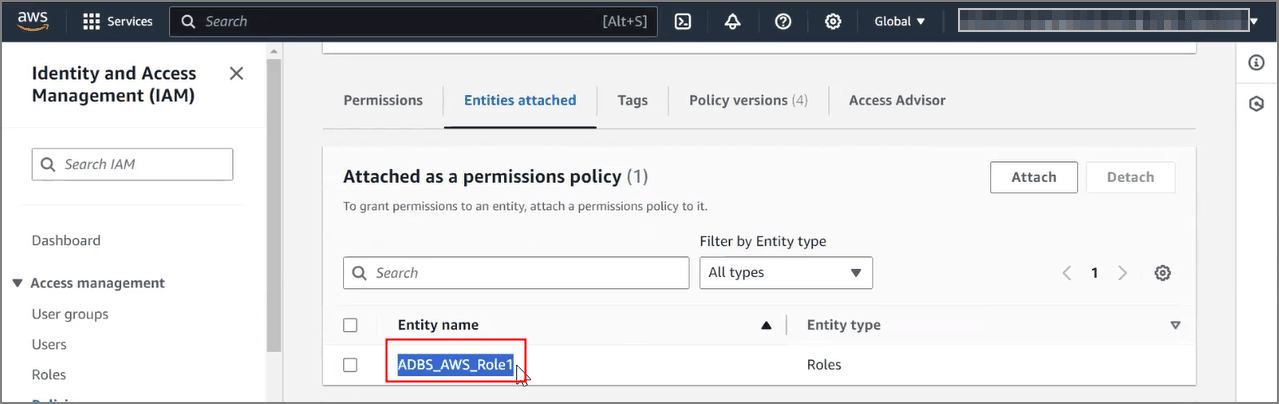
On the policy details page, for this example, the role is listed under Attached as permissions policy:
-
Specify a Trust Relationship for the role.
Edit the AWS Role’s Trust Relationship to include Oracle’s User ARN, and an External ID (tenancy OCID) for additional security.
-
On Autonomous AI Database query
CLOUD_INTEGRATIONS.For example:
SELECT * FROM CLOUD.INTEGRATIONS;SELECT * FROM CLOUD_INTEGRATIONS; PARAM_NAME PARAM_VALUE --------------- ------------------------------------------------------------------------------------------------------------------------------------------ aws_arn arn:aws:iam:...:user/oraclearnThe view
CLOUD_INTEGRATIONSis available to theADMINuser or to a user withDWROLErole. -
Copy the
PARAM_VALUEforaws_user_arnand save the value for a subsequent step. -
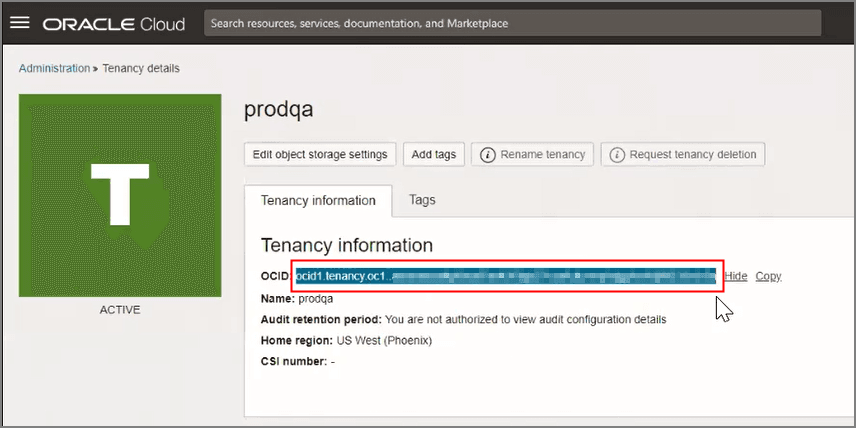
Get the tenancy OCID, needed for the External ID.
In the OCI console, click on your Profile, and select Tenancy to go to the tenancy details page. Copy the tenancy OCID and save it for a subsequent step.
For example:
-
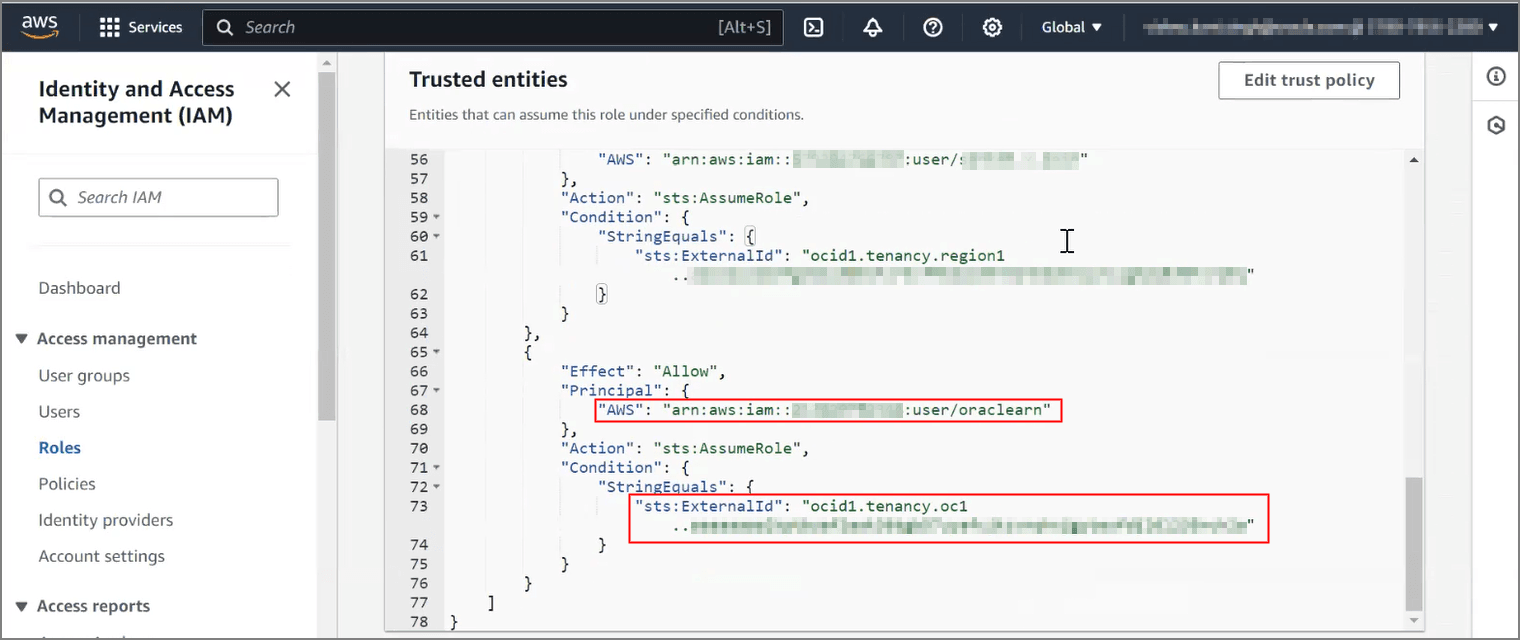
On the AWS portal, navigate to the Trusted entities for the role, and scroll to the “Principal” statement.
-
For
"Principal"specify “AWS” as the saved Oracle User ARN and for"Condition"specify “sts:ExternalId” as the saved OCID.For example:
-
Use Customer-Managed Encryption Keys on Autonomous AI Database with AWS Key Management Service
Shows the steps to encrypt your Autonomous AI Database using customer-managed master encryption keys that reside in AWS Key Management Service (KMS).
Follow these steps:
-
Perform the required customer-managed encryption key prerequisite steps as necessary. See Prerequisites to Use Customer-Managed Encryption Keys in AWS Key Management Service for details.
-
Create an Autonomous AI Database instance that uses the default Encryption key setting of Encrypt using an Oracle-managed key. See Provision an Autonomous AI Database Instance for more information.
Note: Encryption key settings for customer-managed keys in AWS Key Vault are not available during the Autonomous AI Database instance creation process. The options are available post provisioning, when editing the instance.
-
On the Details page for the Autonomous AI Database instance, click More actions, and select Manage encryption key.
Note: If you are already using customer-managed keys in AWS KMS and you want to rotate the TDE keys, follow these steps and select a different key (select a key that is different from the currently selected master encryption key).
-
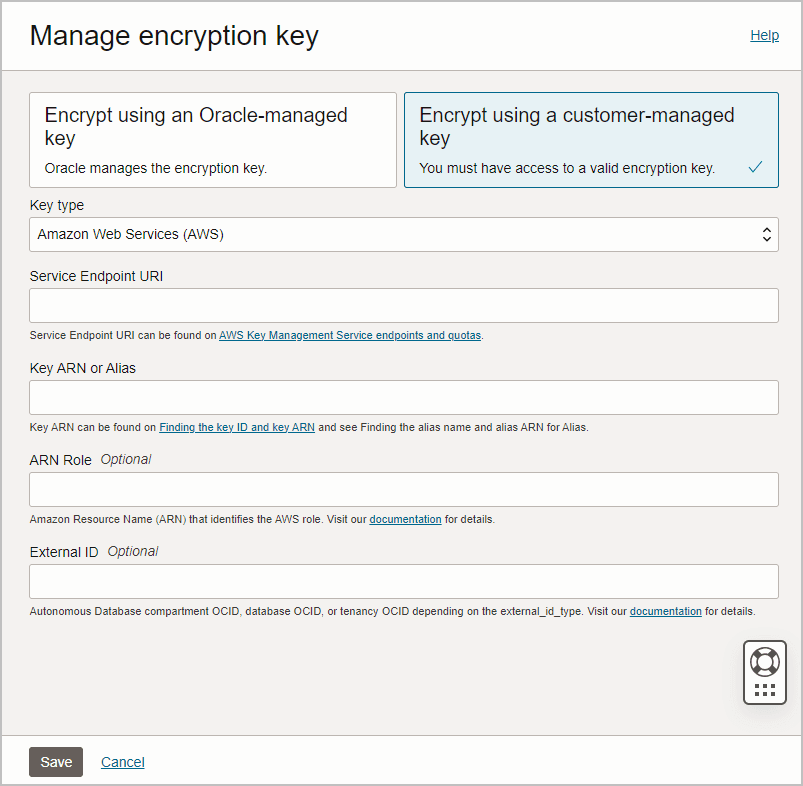
On the Manage encryption key page, select Encrypt using a customer-managed key.
-
From the Key type drop-down, select Amazon Web Services (AWS).
-
Enter the Service Endpoint URI.
The Service Endpoint URI is the AWS region where the AWS KMS is located.
-
Go to the AWS portal, navigate to the KMS where your key is located.
-
Find the region name listed in the top bar of the portal.
For example, this KMS is in the region named Ohio:

-
Look up the endpoint corresponding to the region. Go to AWS Key Management Service endpoints and quotas and find the endpoint for the AWS region name where your AWS KMS is located.
For example, if the AWS region name is
Ohiothe endpoint iskms.us-east-2.amazonaws.com. -
Enter the endpoint for the Service Endpoint URI.
-
-
Enter the Key ARN or Alias.
-
Navigate to the key details page on the AWS portal. Copy the key's Alias or ARN.
For example, the alias for
ADBS_TestAWSKMSKeyis selected: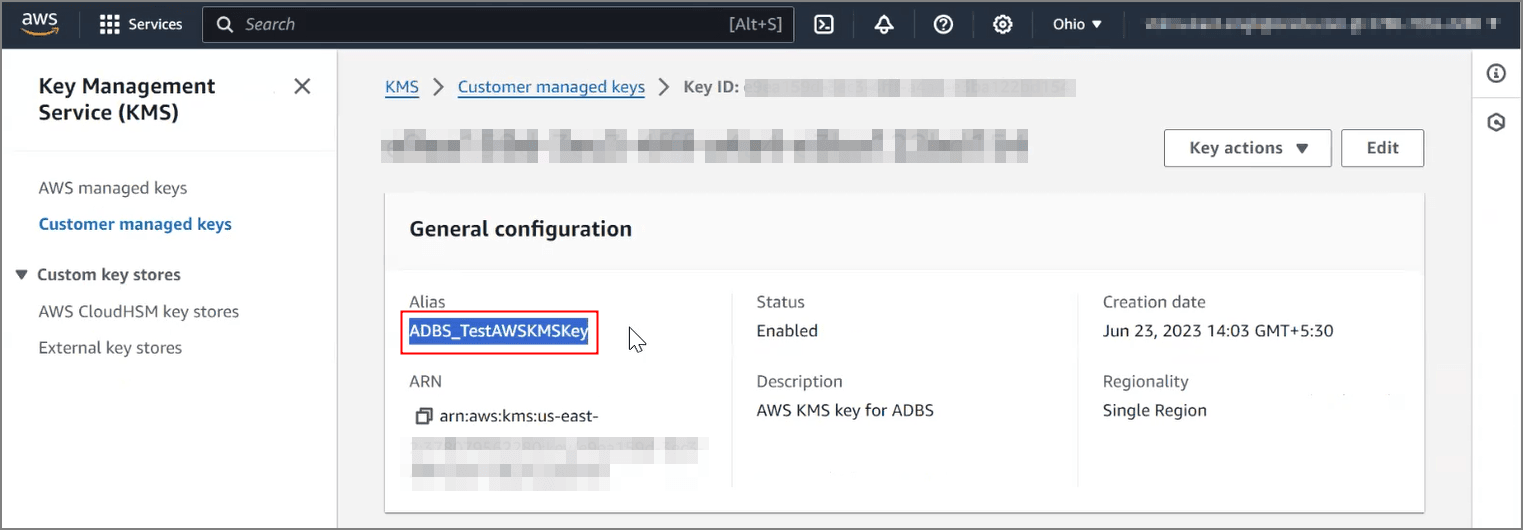
-
Enter the key's Alias or ARN into the Key ARN or Alias field.
If entering the Alias, prefix the entry with
alias/. For example, if the alias isADBS_TestAWSKMSKeyenter:alias/ADBS_TestAWSKMSKeyIf entering the ARN, no prefix is needed. For example, if the ARN is
arn.aws.kms.us-east-2:37807956...bd154enter:arn.aws.kms.us-east-2:37807956...bd154
-
-
Enter ARN Role (Optional).
-
Navigate to the role details page on the AWS portal.
-
Copy the role's ARN.
For example, the ARN for
ADBS_AWS_Role1is copied: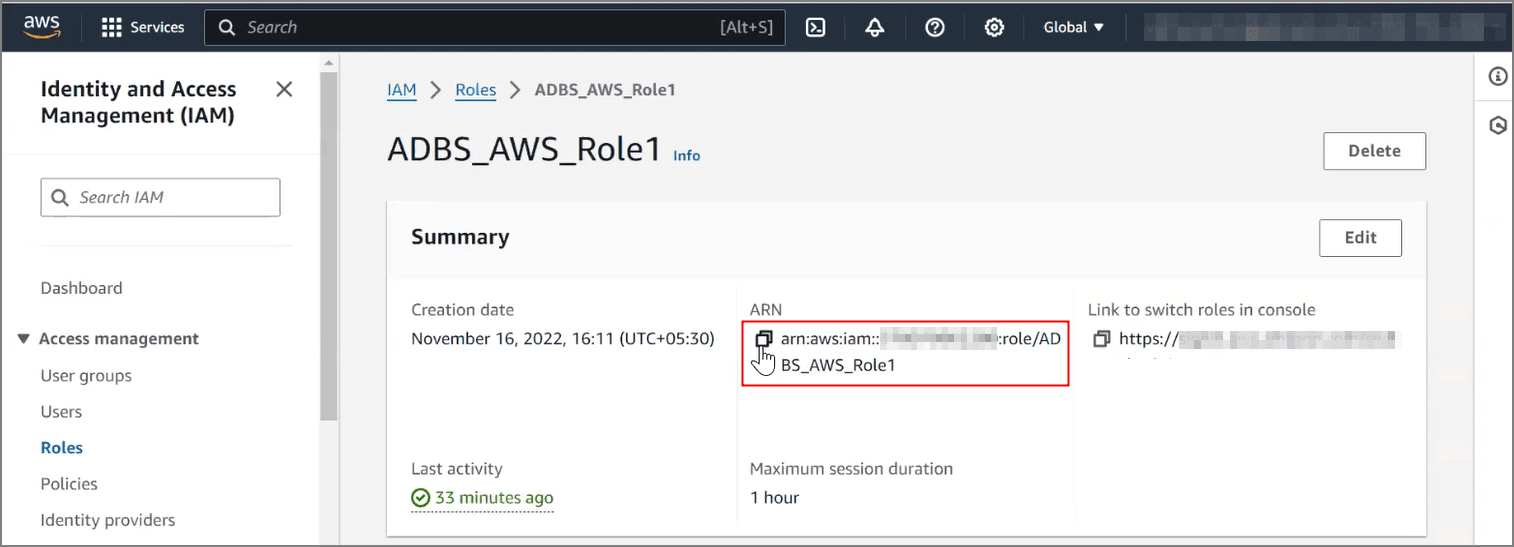
-
Enter the copied ARN into the ARN Role field.
-
-
Enter External ID (Optional).
For the External ID, enter
tenant_ocid. -
Click Save.
For example:
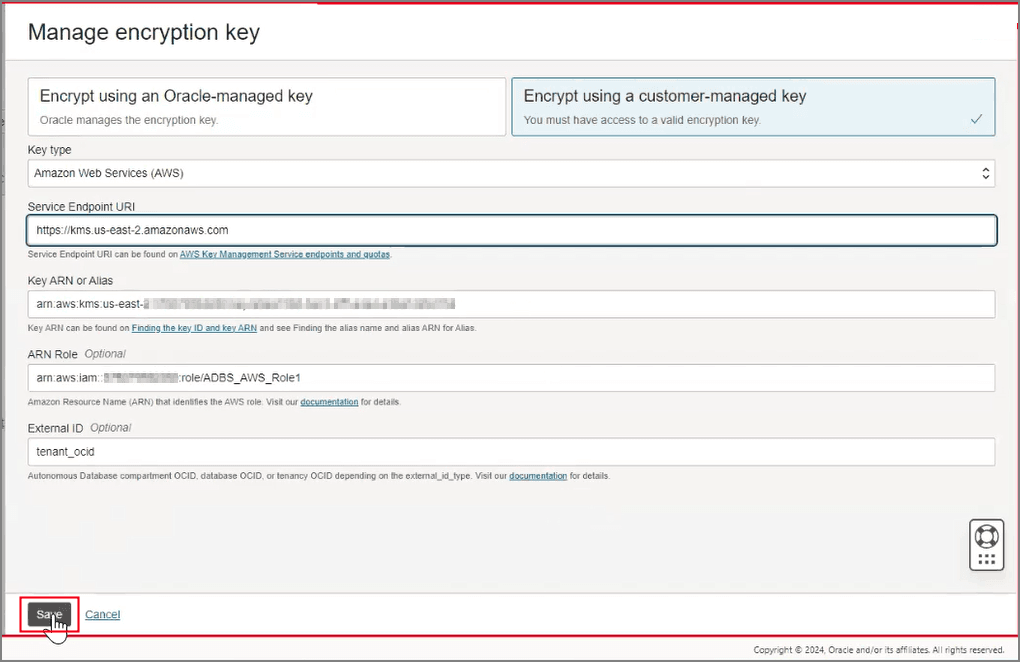
Description of the illustration sec_aws_save.png
The Lifecycle state changes to Updating. When the request completes, the Lifecycle state shows Available.
After the request completes, on the Oracle Cloud Infrastructure Console, the key information shows on the Autonomous AI Database instance details page under the heading Encryption.
For example:
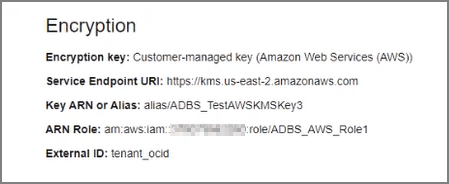
Description of the illustration sec_aws_done.png
See Notes for Using Customer-Managed Keys with Autonomous AI Database for more information.