Use Multifactor Authentication with Autonomous AI Database
Multifactor Authentication (MFA) is a method of authentication that requires the use of more than one factor to verify a user’s identity to gain access to a resource.
About Multifactor Authentication
Autonomous AI Database supports Multifactor Authentication (MFA) to enhance access security by requiring an additional verification step beyond the user password. You can enable MFA for database logins, for executing protected SQL statements, or for both.
With MFA enabled, when you connect to your database, you provide your username and password, which is the first factor - something that you know or can memorize. You are then required to provide a second verification code from a registered MFA device, which is the second factor - something that you have. The two factors work together to add an additional layer of security by using either additional information or a second device to verify your identity and complete the sign in process.
Autonomous AI Database enhances security by integrating MFA into the authentication and SQL execution lifecycle. This approach helps reduce the risk of unauthorized access and limits the impact of compromised credentials by ensuring that only authenticated, verified users can connect and execute SQL operations. By enforcing token or push notification based MFA for both sign-in and SQL workflows, Autonomous AI Database strengthens protection against credential theft, malicious activity, and potential data exposure.
MFA is enabled on your Autonomous AI Database through the DBMS_MFA_* packages, which allow layered verification methods to be used during authentication. This includes a primary credential, such as a username and password, combined with a second authentication factor, such as a one-time passcode (OTP) or verification through a mobile authenticator application. This ensures that only authorized and verified identities can access the database and perform SQL operations.
Autonomous AI Database supports two MFA enforcement options, allowing you to choose the level of protection based on your security needs:
-
Login-Time MFA, which requires MFA during database login before a database session is established.
-
SQL Access MFA (SQL Access Tokens), which allows login with primary credentials and enforces MFA only when sensitive SQL statements are executed.
Key benefits of using MFA with Autonomous AI Database
-
Stronger Protection for Database Access: MFA improves security by adding extra verification steps during authentication or running a SQL statement. Even if a password is compromised, access is still blocked unless the additional authentication factor, such as a one-time passcode (OTP) or approval from an authenticator application, is successfully completed. This reduces the risk of unauthorized access to database resources.
-
Defense Against Common Attacks: MFA helps protect against common attack methods such as phishing and brute-force attempts. While attackers may attempt to steal or guess passwords, MFA adds an extra barrier that prevents access without the second authentication factor, making these attacks far less effective.
-
Support for Regulatory Requirements: Many industries, including finance, insurance, and healthcare, require strong authentication controls to protect sensitive data. Enabling MFA in Autonomous AI Database helps organizations meet these regulatory requirements while demonstrating adherence to security best practices.
-
Improved Visibility and Monitoring: MFA includes monitoring capabilities that provide visibility into authentication activity. These capability help identify unusual or suspicious access attempts, allowing you to maintain a strong security posture.
Concepts Related to Multifactor Authentication
The following are key concepts used in MFA:
-
Multifactor Authentication (MFA): MFA is a security mechanism that requires users to provide two or more distinct forms of verification before gaining access to a system, application, or data. The verification factors include:
-
Something you know – A password, PIN, or security question.
-
Something you have – A physical device like a smartphone, hardware token, or security key.
-
Something you are – Biometrics, such as a fingerprint, facial recognition, or voice recognition.
-
-
Authenticator App: An app you install on your mobile device that can provide software-based secure tokens for identity verification. For example, Oracle Mobile Authenticator. To enable MFA for your Autonomous AI Database, you will need a device with an authenticator app installed. You will use the app to register your device and then you will use the same app (on the same device) to receive a push notification or every time you connect to your Autonomous AI Database.
-
The following authenticator apps are supported with Autonomous AI Database:
-
Oracle Mobile Authenticator
-
Cisco Duo Mobile app
You can find these apps in your mobile device's app store. You must install one of these apps on your mobile device before you can enable MFA.
See the following for more information:
-
-
-
Registered Mobile Device: MFA is enabled for a specific user and for a specific device. The procedure to enable MFA for a user includes the registration of the mobile device. This same device must be used to generate the time-based one-time passcode every time the user signs in. If the registered mobile device becomes unavailable, an administrator must disable MFA for the user so that MFA can be re-enabled with a new device.
-
SQL Access Token: SQL Access Tokens provide secure MFA for Autonomous AI Database by using industry-standard, one-time passwords (OTP). These tokens are required to access the database or run protected SQL operations, significantly reducing the risk of unauthorized access.
-
Push Notification: Push notifications are clickable, short, pop-up messages sent from apps or websites to a user’s mobile device, even when the browser or app is not active.
Multifactor Authentication Types in Autonomous AI Database
Describes the available MFA options in Autonomous AI Database and how each applies to database access, either during login or when running protected SQL statements.
Login-Time MFA
Login-time MFA in Autonomous AI Database can only be implemented using secure push notifications delivered to user’s registered mobile device through the Oracle Mobile Authenticator (OMA) or Cisco Duo Mobile app. Alternative methods, such as email or Slack, are not supported for this workflow. This ensures that only users possessing both valid credentials and the authorized mobile device can access the database, providing robust protection against credential theft and supporting regulatory compliance for MFA.
When you attempt to register an existing database user for login-time MFA, Oracle sends a one-time enrollment email to the user’s email address. The enrollment content depends on the selected authenticator: OMA emails include an enrollment link and QR code to enroll the user’s device in the OMA app, while DUO emails provide the enrollment link and instructions to complete device registration. The user must install the appropriate authenticator app and complete registration by either clicking the link or scanning the QR code in the app. Email is sent in a fixed format in English only, and customization to the email is not allowed.
After successful device registration, the user can log in to the database using their password as the primary authentication factor. Once the password is validated, the database server sends a push notification to the registered app. If the user accepts the push notification, the authentication process is completed and the login session is successfully established.
SQL Access Token
SQL Access Token type authentication in Autonomous AI Database is an MFA method that requires users to verify their identity using both their credentials and a second factor, either a one-time SQL Access Token or a push notification, before they can run SQL statements. After logging in with a username and password, the user must request a one-time passcode or push notification, which is delivered through an authenticator app, email, or Slack, to authenticate the session and allow the running of protected SQL statements. SQL Access Token MFA strengthens database security by ensuring that sensitive SQL statements can only be run by users who possess both the correct credentials and the verified second factor, reducing the risk of unauthorized access and supporting compliance requirements.
After you connect to Autonomous AI Database using your standard authentication method, such as a local database username/password or an external identity provider including OCI IAM, Azure Entra, or Kerberos, the following describes the SQL Access Token MFA authorization flow.
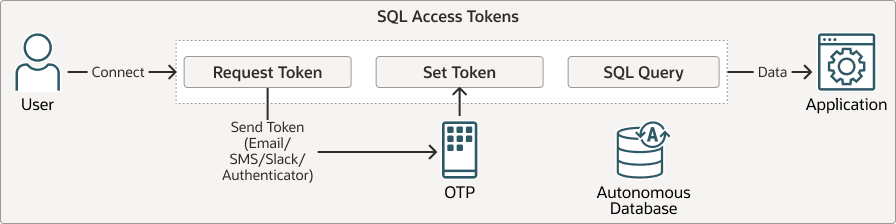
Description of the illustration autonomous-sqlaccesstoken-workflow.png
-
Request a SQL Access Token
After your session is established, request a SQL Access Token in order to enable SQL operations.
-
Receive the OTP or Push notification
Oracle generates an OTP only when you select an OTP-based delivery channel, email or Slack. These OTPs are time-limited and must be retrieved from the selected channel before they expire. For app-based authentication, Oracle Mobile Authenticator (OMA) and Cisco Duo are supported authenticator apps. They use push notifications as the second factor rather than generating OTPs. As a result, for SQL Access Token MFA, OTPs are delivered only through email or Slack, while OMA and Duo provide approval using push notifications.
-
Authenticate the session
Enter the OTP you received to verify your identity and activate the SQL session. This step is only required for email or Slack OTP authentication and is not needed when using app-based authentication, which uses a push notification instead.
-
Run SQL statements
After the token is verified, you can run SQL statements on the database as allowed.
Note: You can register a user for both login-time MFA and SQL Access Token MFA. With this setup, the user must complete MFA when logging in, approving a push notification on their mobile device, and also verify a SQL access token through their chosen delivery channel before running SQL statements.
Prerequisites
Lists the prerequisites for enabling MFA on your Autonomous AI Database.
Depending on the selected MFA type, perform the necessary setup steps:
-
Log-in Time MFA: Log-in time MFA is only supported through push notifications using OMA and Duo. Download, install, and configure your chosen app on your mobile device before use.
-
SQL Access Token: At least one token delivery channel must be configured for SQL Access Tokens. Supported delivery methods include Email, Slack, Duo, and OMA authenticator.
-
Authenticator App: Download and install OMA or Duo on your mobile device. You must set up MFA on a device you can access every time you sign in; MFA cannot be enabled for you by another user.
-
Email: Ensure email delivery is enabled and that all database users have valid, configured email addresses.
See Send Email on Autonomous AI Database for more information.
-
Slack: Configure the Slack plugin and register each user’s Slack ID to enable OTP delivery through Slack.
See Send Slack Notifications from Autonomous AI Database for more information.
-
-
You must be logged in as the
ADMINuser or have the required privileges on theDBMS_MFA_ADMINpackage to register users for MFA and manage token attributes. -
For SQL Access Token workflows, users must have the required privileges on the
DBMS_MFApackage to initialize an MFA session and validate a SQL Access Token.
Configure MFA for Autonomous AI Database
Describes how to set up MFA for your Autonomous AI Database, including setting up required credentials, configuring notification channels, registering users for LOGON MFA or SQL Access MFA, and managing SQL access tokens.
Configure Notification Channels for MFA
Describes how to configure notification channels for MFA, such as Email, Slack, and Oracle Mobile Authenticator (OMA), for delivering OTPs or push notifications.
A notification channel is the mechanism used to deliver MFA challenges to users, such as push approvals or OTPs, in both login-time (LOGON) MFA and SQL Access Token MFA flows. Supported channels include email, SMS, Slack, and authenticator applications, and each channel requires specific configuration attributes, for example, SMTP details for email delivery or a Slack workspace configuration for Slack, to ensure messages are delivered securely and reliably to the intended user.
Before configuring notification channels, ensure you have set up the required credentials for the channels you plan to use. Note that some channels apply only to LOGON MFA, for example, OMA and Duo, while others apply only to SQL Access Token MFA, for example, OMA, Duo, Slack and email, so configure only what you need for your chosen MFA flow.
The following table summarizes the available MFA notification channels and shows which MFA type each channel supports (MFA Logon and/or SQL Access Token MFA), along with the corresponding notification method (OTP delivery or push-approval).
| Notification channel | MFA Logon | SQL Access Token MFA | Notification Method |
|---|---|---|---|
| Yes (MFA enrollment emails only) | Yes | SQL Access Token: OTP delivered by email. Logon: not supported as a second factor, email sent only for enrollment notifications. |
|
| Slack | No | Yes | OTP delivered through Slack. |
| Oracle Mobile Authenticator (OMA) | Yes | Yes | Push notification approval. No OTP generated. |
| Cisco Duo | Yes | Yes | Push notification through Duo. |
Use the DBMS_MFA_ADMIN.CONFIGURE_NOTIFICATION procedure to define the notification channels used to deliver MFA messages (for example, SQL Access Token challenges). In this procedure, you specify the channel type, such as email, Slack, or an authenticator and provide the required channel-specific attributes or credential references needed for secure and reliable delivery. Because each channel has different requirements, the attribute values you supply depend on the channel you configure; see the following examples for the expected inputs per channel.
Email Notification
Configure the email credential object and SMTP notification settings so Oracle can send MFA related emails. This is required for MFA logon setup (OMA and Duo), including device registration emails; without it, users will not receive required registration notifications. Email is not a supported second factor for MFA logon-email OTP delivery is supported only for SQL Access Token MFA.
To configure a custom email provider for sending MFA Access Tokens, you need to create an email provider credential in the database using the DBMS_CLOUD.CREATE_CREDENTIAL procedure. For example:
BEGIN
   DBMS_CLOUD.CREATE_CREDENTIAL(
       credential_name => 'EMAIL_CRED_01',
       username        => '<username>',
       password        => '<password>'
   );
END;
/
This sets up the necessary credentials to enable communication between the Autonomous AI Database and your custom email provider.
Grant the database permission to connect to your SMTP host for sending emails by updating the Access Control List (ACL). For example:
BEGIN
  DBMS_NETWORK_ACL_ADMIN.APPEND_HOST_ACE(
    host        => 'smtp.email.us-ashburn-1.oci.oraclecloud.com',
    lower_port  => 587,
    upper_port  => 587,
    ace         => xs$ace_type(
                     privilege_list  => xs$name_list('SMTP'),
                     principal_name  => 'ADMIN',
                     principal_type  => xs_acl.ptype_db
                   )
  );
END;
/
This allows you to connect to the SMTP host on port 587 for sending emails.
Define the settings for the email channel to deliver MFA Access Tokens using the credentials you created. For example:
BEGIN
  DBMS_MFA_ADMIN.CONFIGURE_NOTIFICATION(
    notification_type => 'EMAIL',
    attributes       => JSON_OBJECT(
      'credential_name'                 VALUE 'EMAIL_CRED_01',
      'smtp_host'                       VALUE 'smtp.email.us-ashburn-1.oci.oraclecloud.com',
      'smtp_port'                       VALUE 465,
      'sender'                          VALUE 'mfa_alerts@example.com',
      'sender_email_display_name'       VALUE 'DB MFA ALERTS'
    )
  );
END;
/
This configures the email notification settings for MFA token delivery, linking the email channel to your custom credentials and enabling the database to send one-time passcodes via email; note that MFA token delivery by email is available only for SQL Access.
Slack Notification
Create a credential to securely store authentication details for your Slack integration. For example:
BEGIN
  DBMS_CLOUD.CREATE_CREDENTIAL(
    credential_name => 'SLACK_CRED',
    username        => '<username>',
    password        => '<password>'
  );
END;
/
This registers the credentials required to authenticate with your Slack integration.
Allow the database to connect to Slack’s API endpoint by updating the Access Control List (ACL) for outbound HTTPS calls. For example:
BEGIN
  DBMS_NETWORK_ACL_ADMIN.APPEND_HOST_ACE (
    host           => 'slack.com',
    lower_port     => 443,
    upper_port     => 443,
    ace            => xs$ace_type(
                        privilege_list  => xs$name_list('http'),
                        principal_name  => 'ADMIN',
                        principal_type  => xs_acl.ptype_db
                      )
  );
END;
/
This permits you to connect to Slack over HTTPS (port 443) for sending notifications.
Configure the Slack channel for MFA token delivery by referencing the credential you created. For example:
BEGIN
  DBMS_MFA_ADMIN.CONFIGURE_NOTIFICATION(
    notification_type => 'SLACK',
    attributes        => JSON_OBJECT(
      'credential_name' VALUE 'SLACK_CRED'
    )
  );
END;
/
This links your Slack credential to the notification channel, enabling MFA token delivery using Slack.
Oracle Mobile Authenticator (OMA) Notification
Create a credential to securely store the OMA client ID and client secret. For example:
BEGIN
  DBMS_CLOUD.CREATE_CREDENTIAL(
    credential_name => 'OMA_CRED',
    username        => '<username>',
    password        => '<password>'
  );
END;
/
This registers your OMA application’s client credentials in the database.
Define the OMA notification channel and associate it with the credential and OMA API endpoint you created. For example:
BEGIN
  DBMS_MFA_ADMIN.CONFIGURE_NOTIFICATION(
    notification_type => 'OMA',
    attributes        => JSON_OBJECT(
      'credential_name' VALUE 'OMA_CRED',
      'api_endpoint'    VALUE 'https://idcs-c*****************60.identity.oraclecloud.com'
    )
  );
END;
/
This step configures the database to deliver MFA tokens using Oracle Mobile Authenticator through your specified endpoint.
Cisco DUO Notification
Create a credential to securely store the DUO integration key and secret key. For example:
BEGIN
  DBMS_CLOUD.CREATE_CREDENTIAL(
    credential_name => 'DUO_CRED',
    username        => '<username>',
    password        => '<password>'
  );
END;
/
This registers your DUO application’s integration key and secret key as a credential in the database.
Set up the DUO notification channel by associating it with the created credential and specifying the DUO API endpoint.
BEGIN
  DBMS_MFA_ADMIN.CONFIGURE_NOTIFICATION(
    notification_type => 'DUO',
    attributes        => JSON_OBJECT(
      'credential_name' VALUE 'DUO_CRED',
      'api_endpoint'    VALUE 'api-855fd6a0.duosecurity.com'
    )
  );
END;
/
This configures the database to deliver MFA tokens via DUO using your provided application credentials and API endpoint.
See the following for more information:
Register a User
Shows the steps to register a database user for MFA.
After configuring the notification channel, the next step is to register an existing database user for MFA. When registering, set the MFA type to either Login-Time MFA or SQL Access Token MFA. You can optionally specify the notification channel; if not provided, email is used by default. However, for logon-type MFA, you must specify either OMA or Duo as the channel.
Use DBMS_MFA_ADMIN.REGISTER_USER to register an existing database user for MFA. When you register the user, set the MFA authentication type to specify which flow to enable:
-
LOGONfor login-time MFA during database sign-in, or -
The SQL Access Token type for token-based MFA. If you provide the optional
attributesJSON, note that supported attributes vary by MFA authentication type, for example,LOGONsupports logon-specific settings such as the authenticator method (for example,auth_method => 'duo_push'), but it does not support token validity attributes likeduration_min, which apply only to SQL Access Token MFA.
See DBMS_MFA_ADMIN.REGISTER_USER for reference.
Example to register the existing database user SCOTT for log-in time MFA using OMA as the notification channel
BEGIN
  DBMS_MFA_ADMIN.REGISTER_USER(
    username   => 'SCOTT',
    type       => 'LOGON',
    email      => 'scott@example.com',
    attributes => JSON_OBJECT(
                          'auth_method' VALUE 'oma_push')
  );
END;
/
In this example, if SCOTT is already enrolled with the authenticator, no new enrollment email is sent. If SCOTT isn’t enrolled yet, this example starts MFA enrollment by sending a one-time email to scott@example.com with an enrollment link and QR code for Oracle Mobile Authenticator (OMA).
SCOTT installs the OMA app and completes device enrollment using the link or QR code. After enrollment, SCOTT logs in with a password and then approves the OMA push notification to complete the LOGON MFA authentication.
Example to register the existing database user SCOTT for log-in time MFA using Duo as the notification channel
BEGIN
  DBMS_MFA_ADMIN.REGISTER_USER(
    username   => 'SCOTT',
    type       => 'LOGON',
    email      => 'scott@example.com',
    attributes => JSON_OBJECT(
                    'auth_method' VALUE 'duo_push')
  );
END;
/
In this example, if SCOTT is already enrolled with the authenticator, no new enrollment email is sent. If SCOTT isn’t enrolled yet, this example starts MFA enrollment by sending a one-time email to the specified address with an enrollment link.
SCOTT installs the Cisco Duo app and completes device enrollment using the link. After enrollment, SCOTT logs in with a password and then approves the Duo push notification to complete the login with two-factor authentication.
Note: For log-in time MFA (LOGON), auth_method is the only supported attribute.
Example to register SCOTT for SQL Access Token MFA using Slack as the notification channel
BEGIN
  DBMS_MFA_ADMIN.REGISTER_USER(
    username   => 'SCOTT',
    type       => 'SQL ACCESS',
    email      => 'scott@example.com',
    attributes => JSON_OBJECT(
      'duration_min'   VALUE 720,
      'read_only'      VALUE TRUE,
      'roles'          VALUE JSON_ARRAY('DEVELOPER_ROLE', 'INFRA_ROLE'),
      'scope'          VALUE 'SESSION',
      'slack_member_id' VALUE '<slack_member_id>'
    )
  );
END;
/
This example registers the user SCOTT with SQL Access MFA. It sets the token duration to 720 minutes, grants read-only access, associates specific roles, defines the token scope as session-based, specifies a Slack member ID for notifications.
Note: read_only is applicable only when scope is set to SESSION. If scope is not SESSION, the read_only attribute is not supported.
Example to register SCOTT for SQL Access Token MFA using OMA as the notification channel
BEGIN
  DBMS_MFA_ADMIN.REGISTER_USER(
    username   => 'scott',
    type       => 'SQL ACCESS',
    email      => 'scott@example.com',
    attributes => JSON_OBJECT(
      'scope'            VALUE 'USER',
      'duration_min'     VALUE 5,
      'idle_timeout_min' VALUE 2,
      'auth_method'      VALUE 'OMA_PUSH')
  );
END;
/
This example registers user SCOTT for SQL Access Token MFA. It also configures the token to be short-lived which is valid for 5 minutes and expires after 2 minutes of inactivity and requires approval using an OMA push notification.
Note: You can register the same user for both Logon MFA and SQL Access Token MFA by registering them separately with same email addresses. This approach allows the user to use multiple MFA types as needed.
Validate Session for SQL Access Token Authentication
Shows the steps to validate a session for SQL Access Token authentication.
To run SQL statements in a session protected by SQL Access Token authentication, you must validate your session using a one-time passcode delivered through your configured notification channel, and the user must have the required privilege on DBMS_MFA.
To validate the session:
-
Log in to the database with your standard credentials.
CONNECT scott/<password>@<adbs_connect_string>; -
Attempt to run a SQL statement
SELECT COUNT(*) FROM SCOTT.EMP;If SQL Access Token validation is pending, you will encounter an error such as,
ORA-64660: Token Authorization is not complete for the user or the session. -
Initialize the session and request a SQL Access Token. Depending on your configured notification channel, this process will send you either a one-time passcode (OTP) or a push notification.
BEGIN
DBMS_MFA.INITIALIZE_SESSION(
  email => 'scott_alert@example.com'
);
END;
/
See INITIALIZE_SESSION Procedure for more information.
-
Set the token in the session. This step is not required if the user is registered to use an authenticator app for MFA; in this case, the user receives a push notification and simply approves the authentication request.
BEGIN
  DBMS_MFA.SET_TOKEN(
    token => '98475683'
  );
END;
/
See SET_TOKEN Procedure.
-
After the token is validated, you can run SQL statements as permitted.
SELECT COUNT(*) FROM SCOTT.EMP;Count _________ 15
Manage MFA Users and Token Attributes
This section explains how to manage users enrolled in MFA, including how to deregister users when they no longer require MFA access, and how to configure or update Token attributes.
Set Token Attributes
This section explains how to configure MFA token behavior, such as scope, validity duration, idle timeout, delivery method, and access restrictions, using global defaults (SQL Access Tokens only) and per-user overrides (for both logon and SQL Access Tokens).
Token attributes control how SQL Access Tokens behave, including token scope, validity duration, idle timeout, delivery method, and access restrictions. These attributes can be configured at two levels: globally or per user.
-
Global token attributes define the default token behavior for all users registered for SQL Access Token MFA. When set globally, these defaults apply to every eligible user unless explicitly overridden by user-specific settings, helping enforce consistent security policies across the database. Global token attributes can only be set for SQL Access Tokens.
-
User-specific token attributes let you customize token behavior for an individual user. These settings override the global defaults and can be used to apply stricter or more flexible controls based on the user’s role and access requirements.
Using both global and user-level token attributes helps balance centralized security enforcement with the flexibility to meet individual access needs.
Set global SQL Access Token attributes
Use the DBMS_MFA_ADMIN.SET_GLOBAL_TOKEN_ATTRIBUTES procedure to configure global default SQL Access Token attributes. This procedure sets a global set of token attribute values (provided as JSON) that the database applies automatically whenever a SQL Access Token is issued for users registered for SQL Access Token MFA. You can also set user-specific token attributes to override these global defaults when needed.
BEGIN
  DBMS_MFA_ADMIN.SET_GLOBAL_TOKEN_ATTRIBUTES(
    attributes => '{
      "duration_min": 60,
      "scope": "session",
      "idle_timeout_min": 15,
      "read_only": false
    }'
  );
END;
/
This sets global token attributes for all users registered for SQL Access Token MFA, such as token duration, scope, idle timeout, and read-only access. These global attributes serve as default settings and are automatically applied to every user enabled for SQL Access Token MFA, unless user-specific attributes are defined to override them.
See SET_GLOBAL_TOKEN_ATTRIBUTES Procedure for more information.
Set token attributes for both logon and SQL Access Token
Use the DBMS_MFA_ADMIN.SET_ATTRIBUTES and DBMS_MFA_ADMIN.SET_ATTRIBUTE procedures to set token attributes for a specific user. These user-level settings apply to the specified MFA type (for example, LOGON or SQL ACCESS TOKEN) and override any applicable defaults.
-
Use
DBMS_MFA_ADMIN.SET_ATTRIBUTESto set one or more token attributes for a user in a single call (by passing a JSON object of attribute name/value pairs). -
Use
DBMS_MFA_ADMIN.SET_ATTRIBUTEto set one token attribute at a time for a user (by specifying a singleattribute_nameandattribute_value). -
auth_methodindicates which configured MFA provider is used to deliver and validate the login challenge for the session (for example, OMA, Duo, or Slack). For login-time MFA,auth_methodis the only supported attribute; other MFA-related attributes are not applicable for login-time MFA.
Example 5-1 Use DBMS_MFA_ADMIN.SET_ATTRIBUTES to set one or more token attributes for a specified user
Provide the user name, the MFA type, and a JSON attributes object containing the attribute names and values. The specified settings are applied for that user and override any applicable defaults.
BEGIN
  DBMS_MFA_ADMIN.SET_ATTRIBUTES (
    username   => 'SCOTT3',
    type       => 'SQL ACCESS',
    attributes => JSON_OBJECT(
      'duration_min'     VALUE 30,
      'email'            VALUE 'scott3_alerts@example.com',
      'scope'            VALUE 'session',
      'idle_timeout_min' VALUE 20
    )
  );
END;
/
This example configures user-specific SQL Access Token attributes for SCOTT3, setting a 30-minute token duration, a 20-minute idle timeout, session scope, and the email address used for token delivery, overriding any global defaults.
See SET_ATTRIBUTES Procedure for more information.
Example 5-2 Use DBMS_MFA_ADMIN.SET_ATTRIBUTE to set a single token attribute for a specified user
Provide the user name, the MFA type, email ID, attribute name, and the attribute value. The setting is applied for that user and overrides any applicable defaults.
BEGIN
  DBMS_MFA_ADMIN.SET_ATTRIBUTE(
    username        => 'SCOTT4',
    type            => 'SQL ACCESS',
    email           => 'scott4_alerts@example.com',
    attribute_name  => 'duration_min',
    attribute_value => '25'
  );
END;
/
This example sets the duration_min attribute for SCOTT4, setting the SQL Access Token validity period to 25 minutes and specifying the delivery email address. This user-level setting overrides any applicable defaults (including global SQL Access Token defaults, if configured).
See SET_ATTRIBUTE Procedure for more information.
Deregister a User
Shows how to use the DBMS_MFA_ADMIN.DEREGISTER_USER procedure to remove a database user from MFA.
Deregistering the user disables Access Tokens for the specified schema and stops MFA enforcement for the user.
For example:
BEGIN
  DBMS_MFA_ADMIN.DEREGISTER_USER(
    username => 'SCOTT',
    type     => 'SQL ACCESS',
    email    => 'scott@example.com'
  );
END;
/
This removes the user SCOTT from SQL Access MFA. MFA enforcement and access tokens are no longer required for this user. However, if SCOTT is registered for MFA with multiple emails, you will need to deregister each entry separately for complete removal.
See DEREGISTER_USER Procedure for more information.
Limitations for Multifactor Authentication on Autonomous AI Database
Lists the limitations with multifactor authentication on Autonomous AI Database.
The following limitations apply when you use multifactor authentication with Autonomous AI Database:
-
SQL Access Tokens are not supported for RAS (Remote Application Service) users. These are non-interactive application accounts, which cannot provide the second factor required for MFA.
-
With Application Continuity or Transparent Application Continuity, session continuity is not maintained. If a user session is terminated, the session disconnects even if the SQL Access Token was valid.
-
Scheduler jobs must be created within a valid, authenticated session. Once created, these jobs run independently and do not require SQL Access Tokens to run.
-
Users not registered for SQL Access Token MFA cannot run SQL over a database link owned by a user registered for SQL Access Token MFA, because SQL Access Tokens are not propagated across database links. Oracle recommends avoiding database links owned by SQL Access Token MFA registered users; instead, use a dedicated database link owner that is not configured for SQL Access Token MFA.
-
Registered users cannot perform import/export of their own schema after setting a SQL Access Token. Export operations fail with a token authorization error because token validation is required to run SQL statements.
-
SQL ACCESS registered users are not supported for use with DBActions tools.