Apply Custom Map Symbols to a Map Layer
You can apply custom map symbols for styling your map layer.
However, note that if a point dataset is being styled by custom symbols, then it can no longer use any of the built-in symbols. Essentially, you cannot mix both custom and built-in symbols on a map layer in the map visualization.
Perform the following steps to style your map layer using custom map symbols.
The instructions assume that a map layer is displayed on the Active Project page and the custom map symbols are already added in Spatial Studio. See Upload a Map Symbol for more information.
-
Click
 against the map layer in the Layers tab of the Layers list.
 -
Select Settings in the context menu.
-
Configure Style and select Symbol as the Render Style.
-
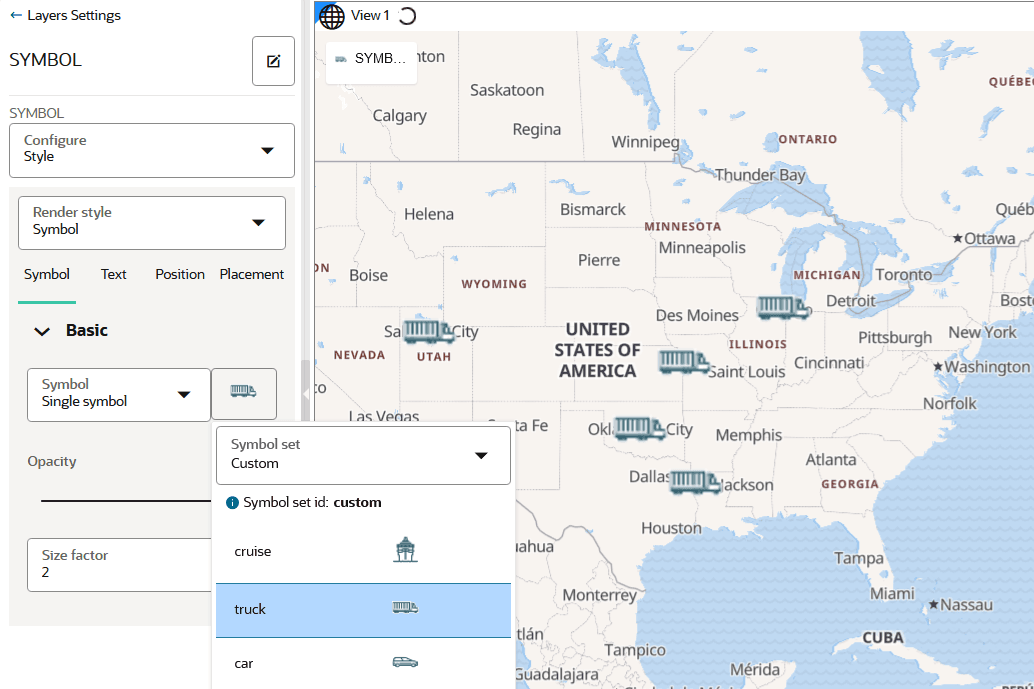
Click the image button next to the Symbol drop-down list.
The Symbol set drop-down appears.
-
Select Custom under Custom symbols in the Symbol set drop-down list.
The uploaded custom symbols list appears.
-
Select the required custom symbol.
The symbol gets applied to the map layer as shown in the following figure: