Apply Map Backgrounds
Spatial Studio provides ready-to-use map backgrounds to enhance your visualization.
You can select one of the following map backgrounds for your project visualization:
-
MapTiler Vector Basemaps
-
Oracle Raster Basemaps
-
Blank Basemaps
-
User-defined Basemaps
As an administrator, you can also register custom basemaps and use them in map visualizations. They may be raster or vector tiles that are typically hosted on third party servers, or they be created using a WMS OGC web service. See Add a Custom Basemap for more information.
The labels on the the basemap are displayed in English along with the local language of the region. However, you can change the language for the basemap labels. See Configure a Map Visualization for more information.
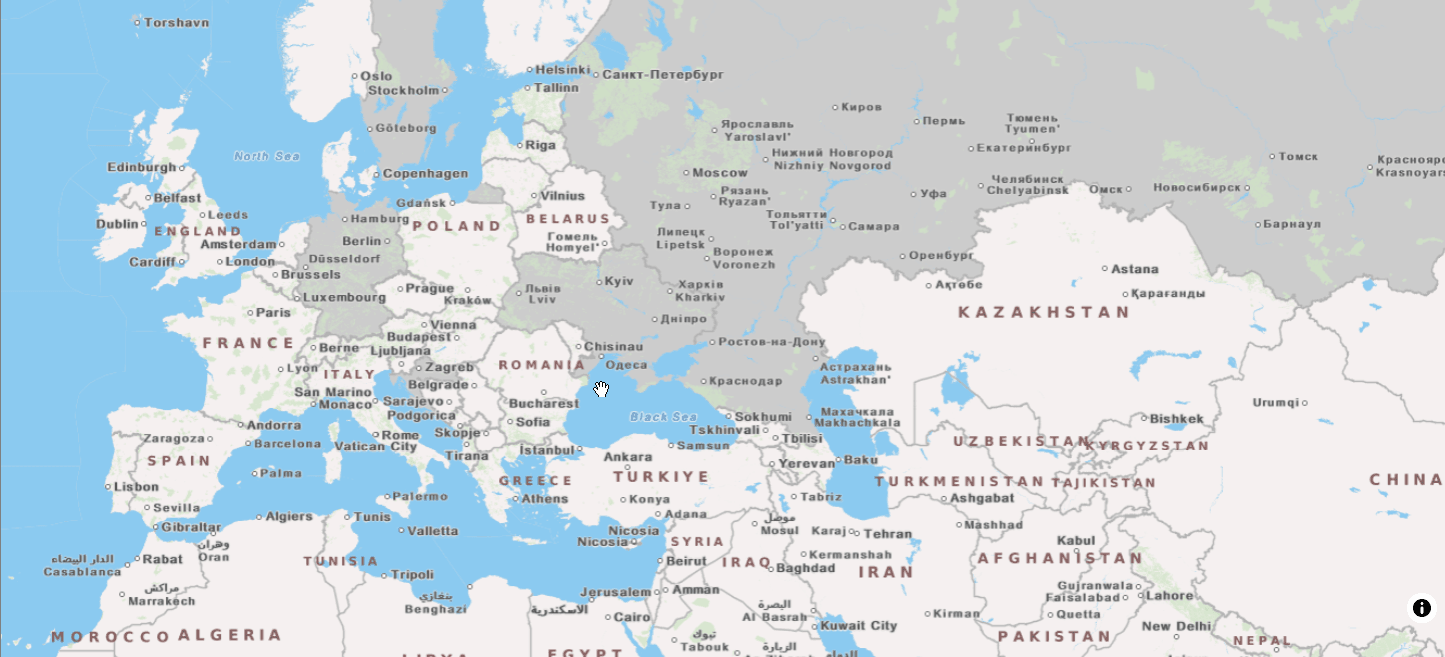
Description of the illustration basemap_local_lang.png
The following section describes how to apply a specific map background for your project:
Change Map Backgrounds
The following steps enable you to apply different map backgrounds in your project visualization.
The instructions assume that you have a project opened on your Active Project page.
-
Click
 in the Background tab of the Layers list.
 -
Select Settings in the context menu.
-
Click the Change the Background Map Style drop-down and select your required background map as shown.
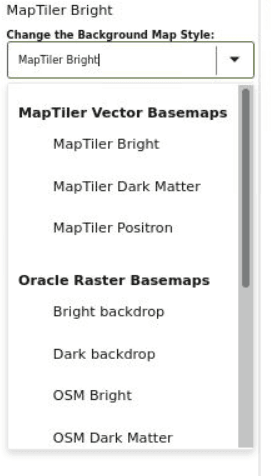
Description of the illustration map_background.png
All custom basemaps appear under User-defined Basemaps in the drop-down list.
The selected map background gets applied to your project visualization.