Apply Style for a GeoRaster Layer
You can style a GeoRaster map layer using the following steps.
The instructions assume that you have a GeoRaster map layer displayed on your Active Project page.
-
Click
 against the dataset in the Data tab of the Layers list.
 -
Select Settings in the context menu.
The Layer Settings panel opens.
-
Optionally, modify any of the following options in the Style:
- Opacity
- Maximum Brightness
- Minimum Brightness
- Saturation
- Contrast
- Hue Rotate
- Fade Duration
-
Optionally, modify any of the following rendering options in the Raster tab:
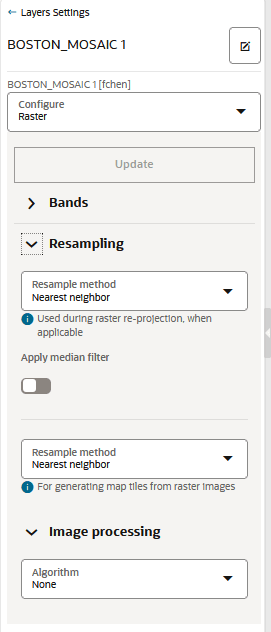
Description of the illustration georaster_style.png
-
Bands: Spatial Studio, by default supports the following bands:
- Red
- Blue
- Green
- Alpha
For GeoRaster images that have more than three layers, you can choose which three layers you want to visualize.
-
Resampling: The following two types of resampling processes are supported:
- Image Reprojection: This represents the interpolation method to be used when transforming an image from one SRS (Spatial Reference System) to another. This applies only if the SRS of the source image in the database table is different from Spatial Studio’s base map projection.
- Map Image Tile Generation: This represents the image interpolation value that determines how each image cell’s value on a view port is interpolated using the original image pixels. During an image tile generation, resampling occurs (although the provided images are in the same SRS) as the spatial resolution of the two images may be different.
The following interpolation algorithm options are supported:
- NEAREST NEIGHBOR: This option has no interpolation by taking the nearest image pixel's value directly. - BI-LINEAR: This option will consider 4 neighboring pixels to determine the image cell's value. - CUBIC: This option uses cubic convolution function to estimate image cell's value. Since a 4x4 neighboring pixels participate in the interpolation, it results in a smoother image. -
Image Processing: represents the subprogram to be used to enhance the visual quality of the images.
You can choose the Terrain RGB algorithm and enable the Use as terrain toggle to render GeoRaster images with GeoRaster Digital Elevation Model (DEM) data as 3D terrains on the map.
The GeoRaster map layer is rendered with the updated settings.
-