Create an AI Labeling Project
You can create an AI Labeling project in Spatial Studio using defined labels.
Ensure that you meet all the prerequisites as described in Prepare for AI Labeling.
Perform the following steps to create an AI Labeling project:
-
Navigate to the AI Labeling page.
-
Click Create Project.
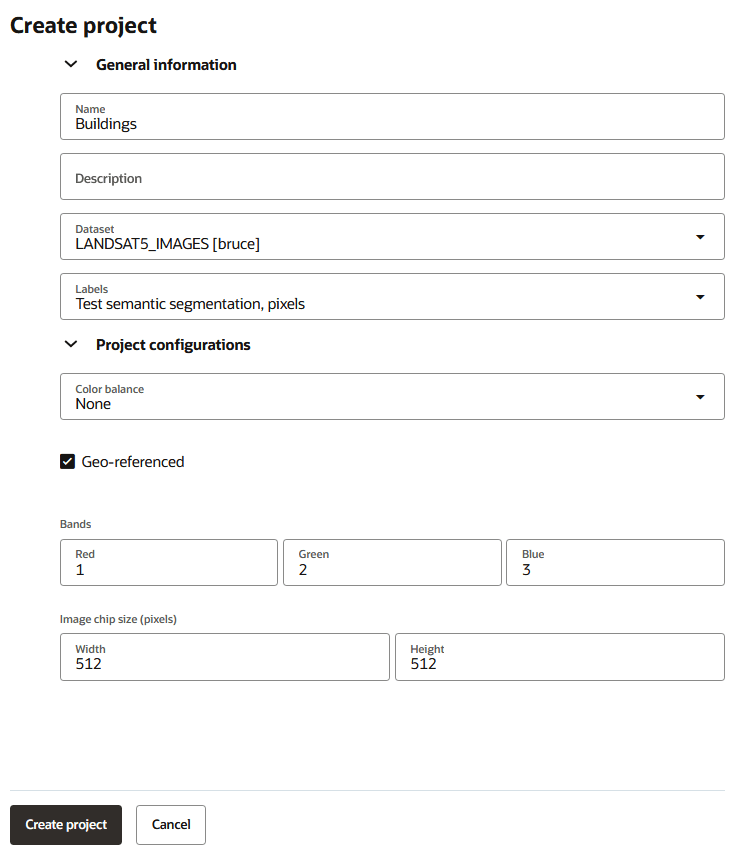
The Create Project slider opens as shown:
-
Enter the project Name and optionally, Description.
-
Select the GeoRaster Dataset from the drop-down.
Note the following about the datasets:
-
For a GeoRaster dataset created from Oracle Spatial GeoRaster database, you need to specify the chip size to control how the geospatial raster is split into chips for labeling.
-
For a GeoRaster dataset created from OCI Object Storage, chips are provided as part of the dataset. They may include georeferencing through embedded formats (GeoTIFF) or a world file.
-
Both the preceding dataset types can be georeferenced or non-georeferenced.
-
-
Select a label from the Labels drop-down.
-
Configure the geospatial raster display.
-
Select the bands for RGB rendering (default: bands 1, 2, and 3).
-
Optionally, apply normalization or enhancement functions from the Color balance drop-down.
The supported values are:
-
Automatic linear stretch
-
Manual linear stretch
-
Piecewise linear stretch
-
Normalization
-
Equalization
-
-
Optionally, specify the Image chip size (Width and Height) if you are using a GeoRaster dataset created from Oracle Spatial GeoRaster database.
-
-
Click Create Project.
The project gets created and is shown listed on the AI Labeling page.