Create and Manage Tokens
The script content on this page is for navigation purposes only and does not alter the content in any way.
Spatial Studio allows you to create different types of access tokens.
The following describes the supported token types:
-
Access Tokens:
-
General-purpose token: Full access to all resources. The token grants read-only or read-write access as required.
In most cases you should avoid using a general-purpose token as it grants too much access. Instead, generate and use a specific token that applies to your scenario.
- Streaming-only token: Access only to REST endpoints related to dataset streaming. Also, the token grants read-only access that be used only with
HTTP GETmethods. - Streaming and tile refreshing token: The scope of this token is extended to refresh the existing vector tiles of the streaming dataset on the recent updates.
- Embedding Published Projects token: This token allows embedding of private published projects.
See Generating an Access Token to create the preceding access tokens.
-
-
Access-Generator token: This is a special type of token that is used to (programmatically) create short-lived access tokens (of types shown in the preceding list under Access Tokens).
This token cannot be created or deleted directly. You can only copy the system generated access-generator token. Note that the system generates this token on a per-user basis. This implies that different Spatial Studio users will have different access-generator tokens.
Also, you can request Spatial Studio to regenerate the access-generator token for you.
- See Copy the Access-Generator Token to copy the token.
- See Generate Access Tokens Programmatically for using the access-generator token.
Generating an Access Token
To generate an access token:
-
Navigate to the Console page.
-
Click Access Tokens under Security.
The Access Tokens slider opens and the existing tokens are displayed.
-
Click Create New Token.
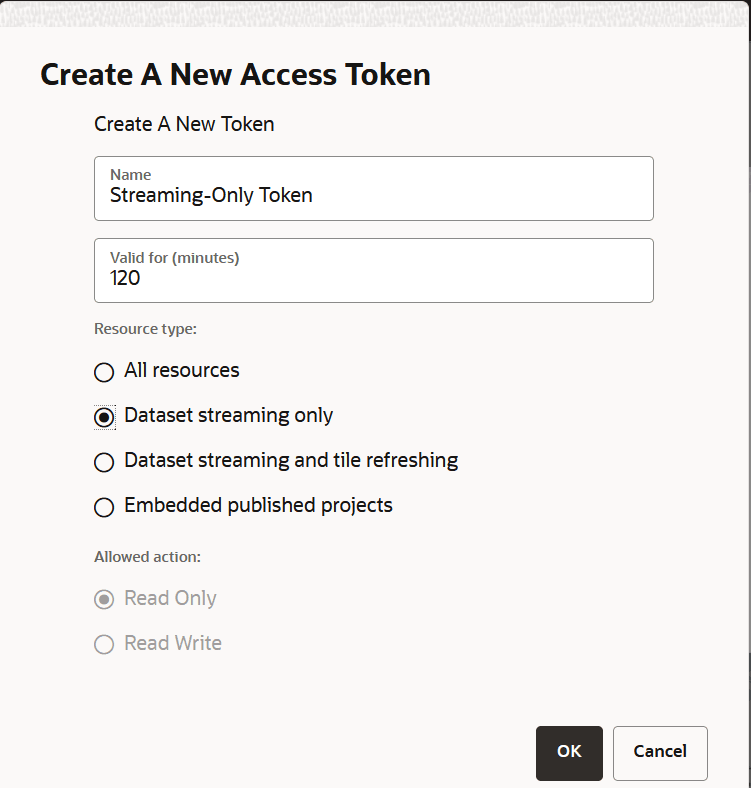
Create A New Access Token dialog opens as shown:
-
Enter the token Name.
-
Enter the time Valid for (minutes) after which the token expires.
If you specify
-1, then Spatial Studio will never expire the token, unless you explicitly revoke it. -
Select Resource type.
-
Optionally, select the Allowed action for granting access to a general-purpose token.
-
Click OK to create the token.
The token gets created successfully.
Generate Access Tokens Programmatically
Your web application can also create or obtain a short-lived access token from Spatial Studio programmatically, by using an Access-Generator Token.
The following provides the Spatial Studio REST API endpoint details to create an access token:
Endpoint: /spatialstudio/oauth/v1/user/token?name=<NAME>&validTime=<MINUTES>&action=<ACTION>&resourceType=<RESOURCE>
Required HTTP Request Header: Name of the header must be Authorization and its value must start with Bearer followed by a space, then followed by a valid access-generator token string.
The following table describes the query parameters used in the preceding endpoint.
| Query ParametersFoot 1 | Data Type | Description |
|---|---|---|
name |
Up to 128 chars (non-null) | Specifies the name of the token to be created. |
validTime |
An integer x, where -1 >= x >= 9999 |
Specifies for how many minutes the new token remains valid. A value of -1 indicates that the token will not expire. |
action |
enum[read_only, read_write] |
Specifies the actions the new token is allowed to perform. |
resourceType |
enum[dataset_streaming, dataset_streaming_refreshing , embedded_published_project, all |
Specifies the types of resources the new token is allowed to access (act on). |
Footnote 1 All the query parameters are mandatory.
It is important to note that currently only five different types of tokens can be created with the following combinations of action and resourceType:
action=read_only&resourceType=allaction=read_write&resourceType=allaction=read_only&resourceType=dataset_streamingaction=read_write&resourceType=dataset_streaming_refreshingaction=read_only&resourceType=embedded_published_project
Any other combination of action and resourceType (outside the valid combinations shown in preceding list) will be rejected.
The following shows a sample request (using Curl command line) to obtain an access token that allows a web application to get the streaming access to a dataset as well as allowing the refreshing of the dataset’s vector tiles.
curl -X POST 'http://localhost:8080/spatialstudio/oauth/v1/user/token?name=test123&validTime=60&action=read_write&resourceType=dataset_streaming_refreshing' --header 'Authorization: Bearer $GENERATORTOKEN'
The preceding request returns a JSON document containing the new token. Its value is stored in the token field in the response:
{"name":"test123","token":"eyJ0eXAiOiJzZ3RlY2...", ... }
Copy the Access-Generator Token
Perform the following steps to copy the access-generator token:
-
Click
 on the top right corner of the page.
 -
Click Access Tokens from the drop-down menu.
The Access Tokens dialog opens.
-
Click Show Access-Generator Token.
The Access-Generator Token dialog opens which shows the existing access-generator token.
-
Click Copy Token to copy the token string.
-
Optionally, click Regenerate Token to request the system to regenerate the access-generator token, and then copy the token.