Create a Connection to an Autonomous AI Database Instance
You can create a custom connection to an Autonomous AI Database instance in Spatial Studio.
-
Navigate to the Connections page.
-
Click Create Connection.
The Create Connection dialog opens.
-
Select Oracle Autonomous Database as the connection type and click Next.
The Select ADB authentication type dialog opens.
-
Select an authentication type as desired and click OK.
Depending on your choice, perform one of the following to create a custom connection to your Autonomous AI Database instance:
Note: You can create only one custom connection to your Autonomous AI Database instance at a time. If you wish to create another one, then you must delete any existing custom connection.
-
Wallet-based: See Use a Wallet-Based mTLS Connection for more information.
-
Wallet-less (TLS): See Use a Walletless TLS Connection for more information.
-
Use a Wallet-Based mTLS Connection
You can create a Spatial Studio connection to an Autonomous AI Database instance using a wallet-based mutual Transport Layer Security (mTLS) authentication.
Before you begin, ensure you meet the following prerequisites:
-
Download and save the wallet for your Autonomous AI Database instance from the Oracle Cloud Infrastructure (OCI) console. See Download Client Credentials (Wallets) for more information.
-
The instructions in this section assume that you have already performed the steps described in Create a Connection to an Autonomous AI Database Instance and you chose to create a Wallet-based connection.
You can then continue to perform the following steps to set up a cloud connection to your Autonomous AI Database instance using the downloaded wallet.
-
Drag and drop your saved wallet file or click to upload the wallet from your system in the Upload wallet dialog.
-
Click OK.
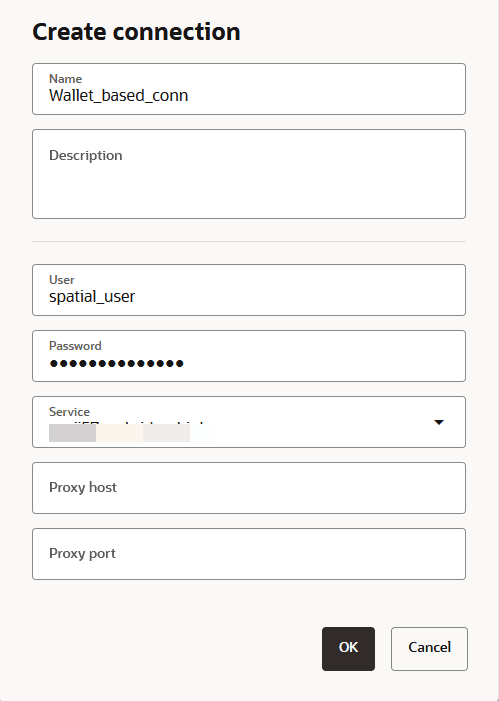
The Create Connection dialog opens as shown:
-
Optionally, change the default Spatial Studio connection Name.
-
Optionally, enter a Description.
-
Enter the Autonomous AI Database User name and the Password for the user.
-
Select the appropriate Service from the drop-down list.
-
Optionally, enter the Proxy Host and Proxy Port details.
-
Click OK.
The connection to the Autonomous AI Database instance gets created and is displayed on the Connections page.
Use a Walletless TLS Connection
You can create a Spatial Studio connection to an Autonomous AI Database instance using a walletless Transport Layer Security (TLS) authentication.
Before you begin, ensure you meet the following prerequisites:
- Obtain the connection string for your Autonomous AI Database instance:
-
Navigate to you Autonomous AI Database details page and locate the Network section.
-
Specify an access control rule.
-
Click Edit next to the Access Control List (ACL).
-
Click Add access control and add the IP address of your client machine to configure an access control rule.
-
Click Save.
-
-
Disable Mutual TLS (mTLS) Authentication if it is not already disabled.
-
Click Edit next to the Mutual TLS (mTLS) Authentication.
-
Uncheck Require mutual TLS (mTLS) authentication.
-
Click Save.
-
-
Obtain the database connection string.
-
Click Database Connection on the Autonomous AI Database details page.
-
Select TLS under TLS Authentication to view the list of connection strings.
-
Copy the required Connection String.
The connection string follows a format as shown:
(description=(retry_count=20)(retry_delay=3)(address=(protocol=tcps)(port=1522)(host=<host_name>.oraclecloud.com))(connect_data=(service_name=<service_name>.adb.oraclecloud.com))(security=(ssl_server_dn_match=yes))
-
-
- The instructions in this section assume that you have already performed the steps described in Create a Connection to an Autonomous AI Database Instance and you chose to create a Wallet-less (TLS) connection.
You can then continue to perform the following steps to set up a cloud connection to your Autonomous AI Database instance in the Create Connection dialog.
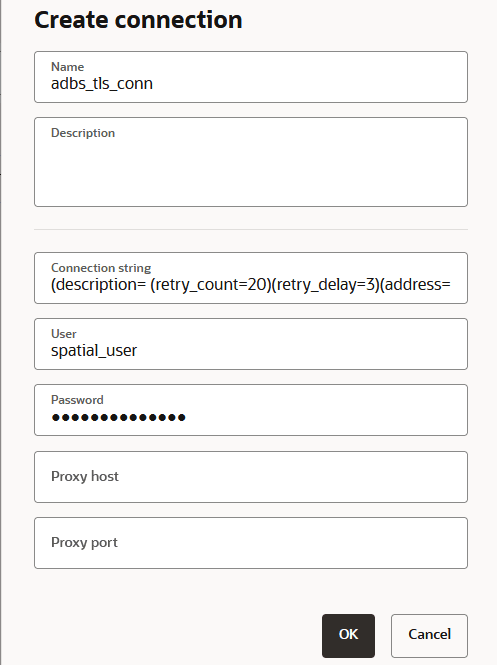
Description of the illustration walletless_conn.png
-
Optionally, change the default Spatial Studio connection Name.
-
Optionally, enter a Description.
-
Enter the Connection string obtained at the beginning of the section.
-
Enter the Autonomous AI Database User name and the Password for the user.
-
Optionally, enter the Proxy Host and Proxy Port details.
-
Click OK.
The connection to the Autonomous AI Database instance gets created and is displayed on the Connections page.