Create a Dataset by Uploading a File
You can create a dataset by uploading a file in a format supported by Spatial Studio.
The supported file formats are as follows:
-
Excel file
-
Shapefile
-
GeoJSON file
-
CSV file
-
KML file
Note: Compute environment is required if you are uploading a large file that exceeds 50 MB. See Create a Compute Environment for more information.
Also, note the following:
-
WKT or GeoJSON geometry text values in Excel or CSV files are supported.
If you are uploading a file with WKT text values, then only WKT strings representing geodetic coordinates (longitude and latitude) are supported.
-
Three dimensional coordinates are supported in GeoJSON files.
-
Navigate to the Datasets page.
-
Click Create Dataset.
The Create Dataset window opens.
-
Select the Local File option.
-
Upload any one of the supported file types.
-
Click Create.
The Create Dataset window opens displaying the data columns.
-
Select a value in Upload to connection drop-down.
-
Optionally, review and edit any other parameters as required.
-
Click Submit.
The new dataset gets added and listed on the Datasets page.
Upload a Shapefile
You can create a dataset by uploading a shapefile.
A shapefile contains the geospatial data which can be referenced in multiple files with specific file extensions. The following lists a few selected files that contribute to shapefile format:
-
.shp - Stores the geometry data
-
.shx - Stores the index of the geometry
-
.dbf - Stores the attribute information of geometry features
-
.prj - Stores the coordinate system information
-
.cpg - Specifies the character set to be used
Note that shapefiles containing WKT v2 projection files are supported in Spatial Studio.
-
Navigate to the Datasets page and click Create Dataset.
-
Select Local File.
-
Click
 to upload the shape file.
The File Upload window opens.
-
Select all the required files from your system.
Note: It is mandatory to upload
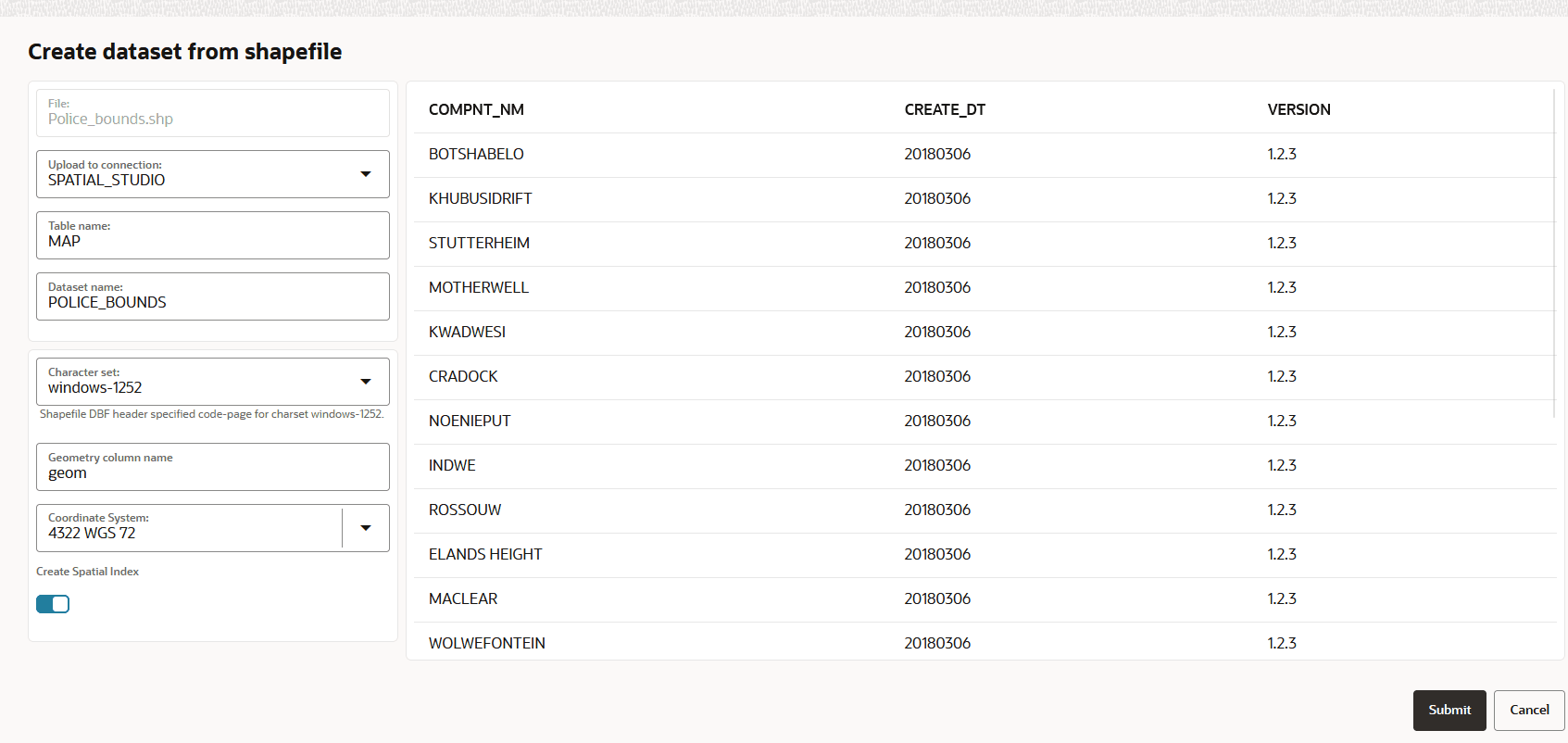
.shp,.shx, and.dbffiles.The Create dataset from shapefile dialog opens as shown:
Figure 1: Create dataset from shapefile
-
Select the connection to upload the shapefile from the Upload to connection drop-down list.
-
Optionally, change the Table name.
-
Optionally, change the destination Dataset name.
-
Optionally, select the Coordinate System to be used.
-
If your shapefile includes a
.prjfile referencing a custom Geographic Coordinate System (GEOGCS), then Spatial Studio will assign a best-matched geodetic SRID from the target Spatial database, as shown in the preceding figure. -
If your shapefile does not contain a
.prjfile, then the system uses the defaultEPSG:4326GEOGCS.
-
-
Optionally, select the required Character set.
Spatial Studio automatically detects the character set to be used in the following order of priority:
-
Extracts the
charset-namefrom a.cpgfile, if present. -
Uses the character set specified in the
.dbffile header. -
Otherwise, uses the default ISO-8859-1.
You can preview the file attributes using the detected character set. However, you can still choose to switch to a different Character set and preview the refreshed contents.
-
-
Click Submit.
The dataset gets created from a shapefile.