Create Labels Manually
You can add labels to chips manually in Spatial Studio.
Perform the following steps to manually label a chip.
The following instructions assume that an AI Labeling project created using a dataset containing multiple image chips exists in Spatial Studio. Also, the related label to be applied onto the chips is already defined (see Prepare for AI Labeling).
-
Navigate to the AI Labeling page.
The page displays all the AI Labeling projects created in your Spatial Studio instance.
-
Click to open the project you wish to start labeling.
Alternatively, click
 against the desired project and select Go to labeling.
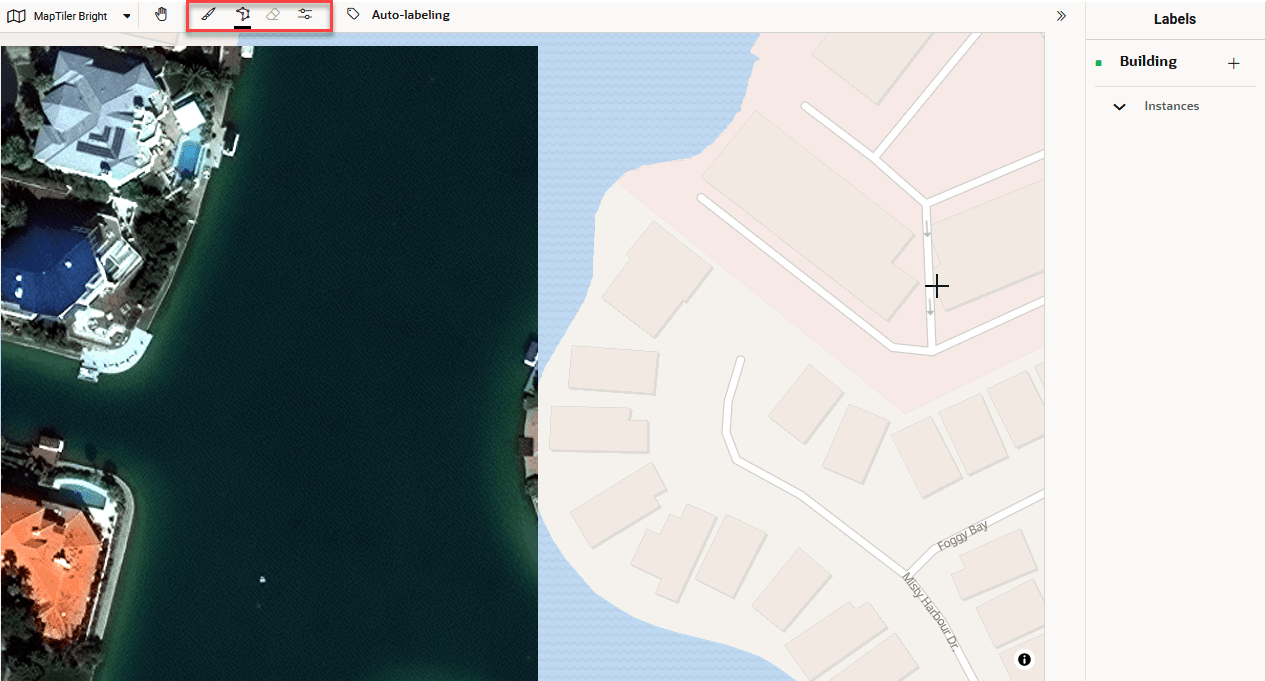
The project opens displaying the first chip in the dataset. For example:
-
Click View all images (at the bottom of the page) to review the chips in the dataset.
Note that you can logically delete or restore the chips within the project.
-
Select the chip for labeling and go back to the labeling page.
-
Label the chip manually as shown:
-
Perform the following step depending on your project type.
-
Object Detection: Click + next to the label name (on the right side of the page) to create a new instance. Labels are created, moved, resized, and deleted using bounding boxes.
-
Instance Segmentation: Click + next to the label name (on the right side of the page) to create a new instance. The drawing tools (Brush, Polygon, Eraser) for manual labeling appear at the top of the chip.
-
Semantic Segmentation: The drawing tools (Brush, Polygon, Fill Color, Eraser) are available without creating instances.
-
-
Choose the tool of your choice and manually mark the chip for labeling.
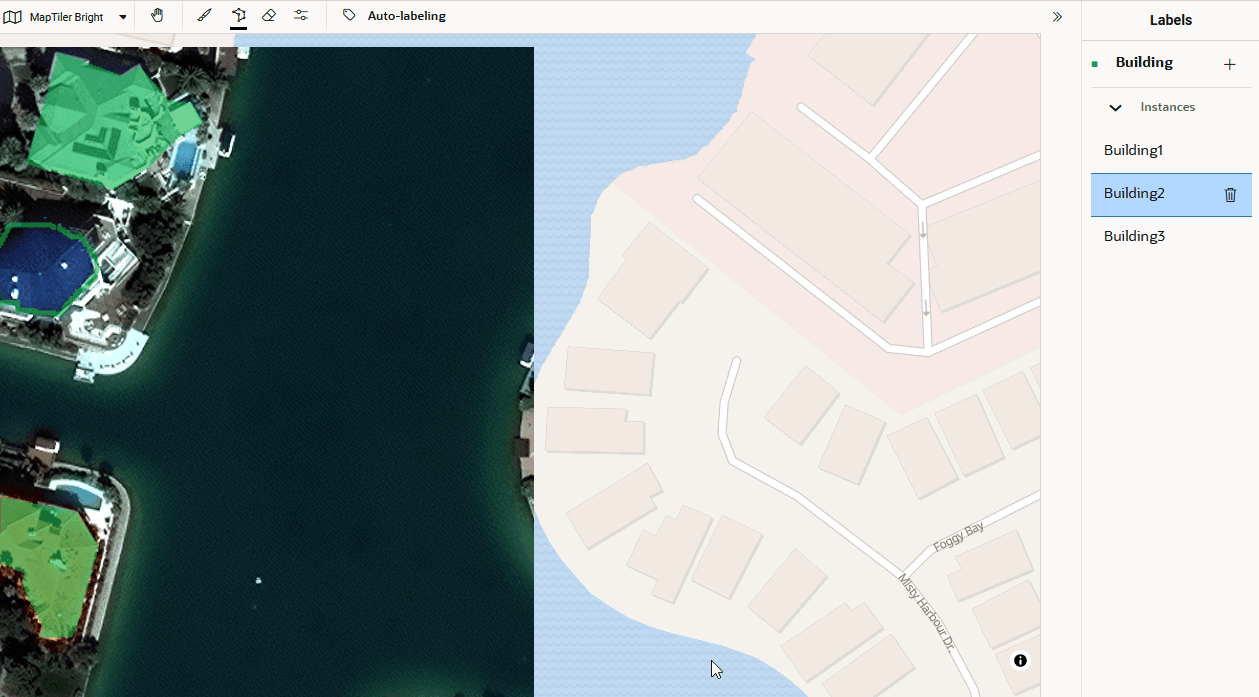
For example the following image shows three labeling instances - two using polygons and one using brush on a chip that belongs to an AI Labeling project of type Instance Segmentation.
-
-
Click Save to store the labels along with the other Spatial Studio data in the database.
-
Repeat step-3 to step-6 for all the required chips in the project.