Add New Data
You can configure an integrated workbook so that a business user adds new rows in a Table layout or in the table portion of a Form-over-Table layout. For an Action Table layout, you can also configure the workbook so that a business user creates pending action request rows from a data source.
For the user of the integrated workbook that you develop, the following options are available to add new rows or action request rows:
- The Insert Rows option in the add-in’s Table Row Changes menu, or Excel’s Insert option. See Create New Rows to Upload to the Web Application.
-
The Create Child Rows option in the add-in’s Table Row Changes menu
Using this option, the add-in launches a wizard to help create new child rows in a child layout for the parent rows selected in the parent layout. See Create New Rows for a Set of Dependent Layouts.
-
The Create Rows from Data Source option in the add-in’s Table Row Changes menu
Use of this option requires version 4.6 and later of the add-in. The add-in fetches data from a designated data source (different from the one used for Download) and appends new rows to the target table. You can’t use this option to create new business object rows in an Action Table layout or use a child business object as the data source.
-
The Create Action Request Rows from Data Source option in the add-in’s Action Request Changes menu
The add-in fetches data from a designated data source and appends pending action request rows to an Action Table layout. The business user can review and edit the generated payload values before uploading the action requests.
Create Rows from Data Source
You can configure Create Rows from Data Source for a Table layout or for the table portion of a Form-over-Table layout.
When a business user clicks the Create Rows from Data Source option in the add-in’s Table Row Changes menu, the add-in fetches data from a configured data source, uses part or all of it as initial values of new rows, and appends those rows to the Table layout. The appended rows are pending Create rows that can be reviewed, edited, and later uploaded.
For example, you have two layouts in your workbook: Departments (Table) and Employees (Table). You wish to use data rows from another business object (the data source business object), Candidates, as initial values for a set of pending Create rows in Employees table. You configure Create Rows from Data Source for the Employees table (the target table).
To configure Create Rows from Data Source:
-
Make sure the data source business object is added to the same business object catalog as the target table.
Note: If you need to add the source business object to your catalog, see Add Business Objects to an Existing Catalog.
-
Open Layout Designer, go to the Advanced tab, under Create Options, find Create Rows from Data Source.
This property is visible only when Create Enabled is checked under Table Capabilities.
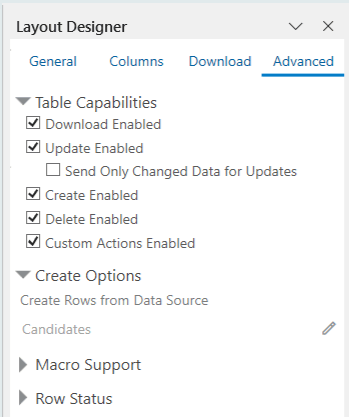
Description of the illustration vbafe-create-rows-001.png
Note: For a Form-over-Table layout, the property applies to the table under the form.
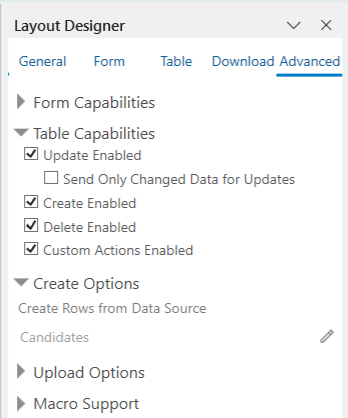
-
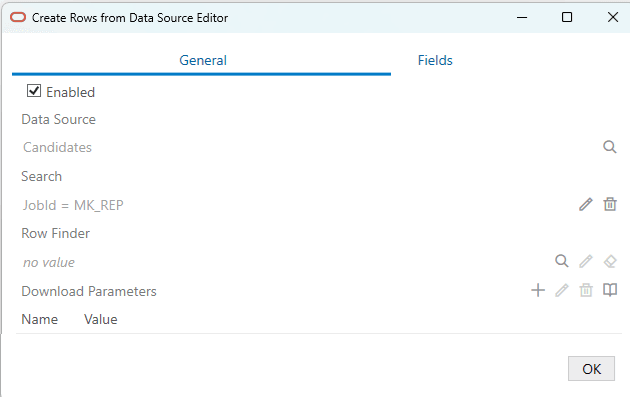
To open the Create Rows from Data Source Editor, click the Edit icon (
 ).
).
-
Select the Enabled check box.
-
Click the Choose a Data Source icon (
 ) next to the Data Source field, then pick an appropriate data source from the Choose a Data Source window.
 -
Configure Search, Row Finder, and Download Parameters as needed.
These are applied to the data source (not the target table) when downloading data. See Configure Search Options for Download.
-
Click the Fields tab to configure field mappings.
Each field mapping has a source field from the data source and a target column in the target table. The data from the source field is used as the initial value of the target column.
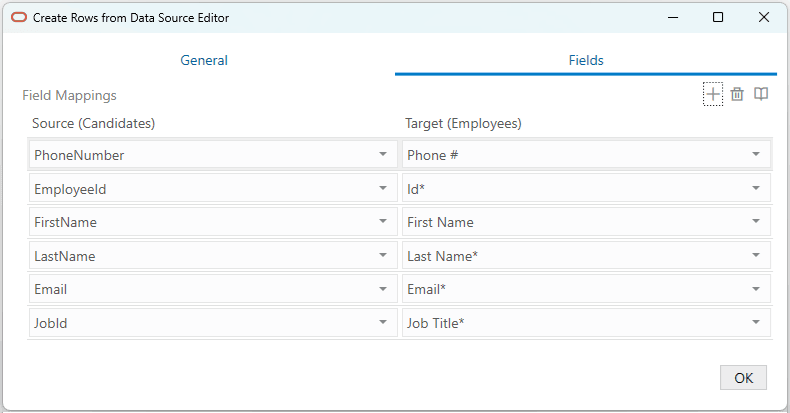
Description of the illustration vbafe-create-rows-004.png
The add-in automatically finds field mappings based on field IDs once a data source is picked.
-
Click the Add Field Mapping icon (
 ) or Remove Field Mapping icon (
 ) to add or remove selected field mapping as needed.
The following fields are not supported as field mapping source fields:
- Polymorphic fields
- Fields with Object as Data Type (including subfields)
- Fields with unsupported Data Type
These fields are not supported as field mapping target column fields:
- Hidden fields
- Custom action payload fields
- Row variables
- Polymorphic fields
- Fields with Object as Data Type (including subfields)
- Fields with unsupported Data Type
Create Action Request Rows from Data Source
You can configure Create Action Request Rows from Data Source for an Action Table layout. This option helps business users create pending action request rows from values that already exist in a configured data source.
When a business user clicks Create Action Request Rows from Data Source in the add-in’s Action Request Changes menu, the add-in downloads data from the configured data source, maps source values to the action table’s payload field columns, and appends one pending action request row for each processed source item. The generated rows are not uploaded immediately. The business user can review and edit them, then click Upload Action Requests when ready.
To configure Create Action Request Rows from Data Source:
-
Make sure the data source business object is added to the same business object catalog as the action table.
Note: If you need to add the source business object to your catalog, see Add Business Objects to an Existing Catalog.
-
Select the Action Table layout, then click Designer from the Oracle Visual Builder tab to open the Layout Designer.
-
Go to the Advanced tab, then under Action Request Options, find Create Action Request Rows from Data Source.
-
Click the Edit icon (
) to open the Create Action Request Rows from Data Source Editor. -
Select the Enabled check box.
-
Click the Choose a Data Source icon (
) next to the Data Source field, then pick an appropriate data source from the Choose a Data Source window. -
Configure Search, Row Finder, and Download Parameters as needed.
These are applied to the data source when downloading data. See Configure Search Options for Download.
-
Click the Fields tab to configure field mappings.
Each field mapping has a source field from the data source and a target payload field column in the action table. The data from the source field is used as the initial value of the target payload field.
The Source label identifies the selected data source business object. The Payload Fields label identifies the action table’s custom action. The target list contains visible payload field columns for that custom action.
-
Click the Add Field Mapping icon (
) or Remove Field Mapping icon () to add or remove selected field mapping as needed.
The following fields are not supported as field mapping source fields:
- Polymorphic fields
- Fields with Object as Data Type (including subfields)
- Fields with unsupported Data Type
These fields are not supported as field mapping target payload fields:
- Hidden payload field columns
- Payload fields for a different custom action
- Polymorphic fields
- Fields with Object as Data Type (including subfields)
- Fields with unsupported Data Type
If no valid field mappings are configured, the runtime command stops before downloading data and asks the business user to contact the workbook developer to configure field mappings for the action table.