Create New Rows to Upload to the Web Application
Create new rows in the table using the Insert Rows option in the add-in’s Table Row Changes menu or by using Excel options to insert a full row.
You can create new rows in an empty table or after downloading data to your workbook:
-
To create new rows in a table with downloaded data, click Table Row Changes and select Insert Rows, or right-click and choose Insert from the Excel context menu (you can choose any Excel option to insert a row). You can create new rows either at the end of the data table or in the middle.
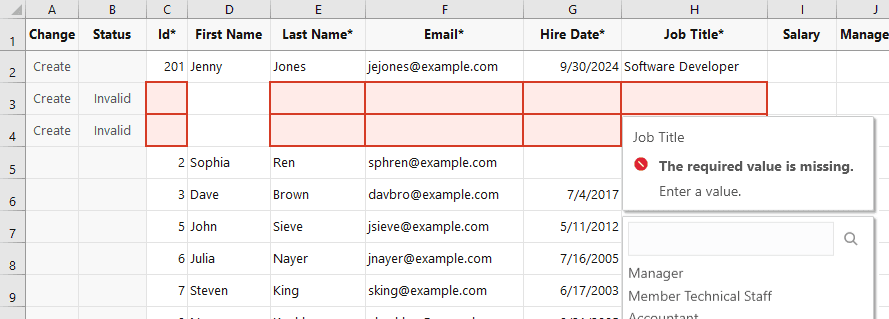
Tip: To insert multiple rows, select cells from multiple rows, then select Table Row Changes > Insert Rows. The add-in will create multiple pending Create rows for you to fill out as needed, as shown here:
-
To create several new rows without downloading data, if create is enabled for the Table, add values in the empty row that appears below the column headers. This empty row is known as the placeholder row:

Description of the illustration excel-placeholder-user.png
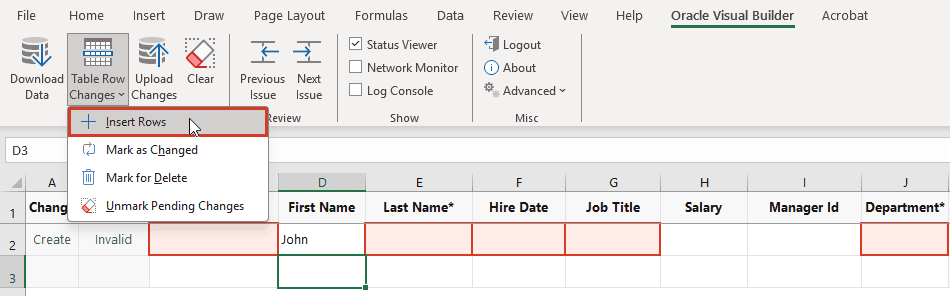
Once you enter data in the placeholder row (for example, in the cell for First Name), the add-in automatically recognizes the row as a pending Create row. To insert more rows, select a cell in the first row after the table and select Table Row Changes > Insert Rows.
-
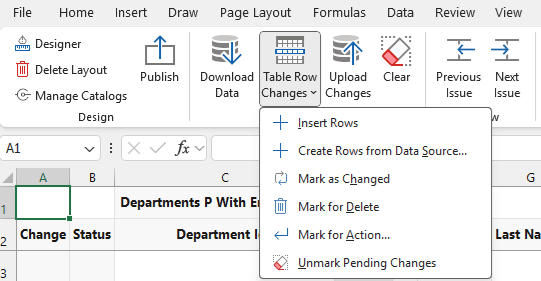
To create new rows based on data from a different data source than the one used for Download, click Table Row Changes and select Create Rows from Data Source.
You may be prompted to log in. Provide search criteria, if requested. New rows are added to the end of the table with data. Review the rows and make edits as needed.
Description of the illustration vbafe-create-new-rows-from-source.png
Note:
- This advanced option only appears in your integrated workbook if the developer of the workbook enabled the Create Rows from Data Source option in the source workbook.
- If the target table is a dependent table, you may need to provide values in ancestor columns.
Click Upload Changes to upload the newly-created rows.
Any time a new row is created, it is validated for data entry. An Invalid message appears in the Status column if the row contains a cell where you are required to enter a value and have yet to do so. A red border also appears around the cell where a value is required or invalid. See Understanding Data Validation.
Warning: Never insert partial rows into a table layout as this can lead to data corruption. Also, never use the Excel Insert option to shift cells down or to the right.