Create Layouts for Attachment Business Objects
Create a Table layout using an attachment business object that lets your business users upload and download attachments.
You can create a standalone Table layout, the Table layout of a Form-over-Table layout, or a Table layout in a set of dependent layouts based on an attachment business object. You cannot use the form in a Form-over-Table layout.
Service Requirements
Oracle Visual Builder Add-in for Excel supports attachments in integrated workbooks if the REST service has:
- An Attachment Record Business Object that contains the metadata for attachments, such as the attachment type, file name, and file size.
- The following fields in the Attachment Record Business Object:
- Type: A string field representing the attachment type. Valid values for this field are
TEXT,FILE, andWEB_PAGE. These values are case-sensitive. - File Name: A string field representing the attachment file name. This field is used by text and file type attachments.
- Url: A string field representing the attachment URL. This field is used by web page type attachments.
- Type: A string field representing the attachment type. Valid values for this field are
- An Attachment Data Business Object that is a child of the attachment record business object and allows for the sending and receiving of attachments
When you create a Table layout based on an attachment business object, the add-in can properly configure the layout as long as the attachment record business object includes:
- An Attachment Data Business Object as a child business object with a path ending in
/enclosure/FileContents; and, - Fields with field Ids of
DatatypeCode(for the Type field),FileName(File Name), andUrl(Url).
Configure an Attachment
If the workbook was created before version 2.8 of the add-in or the naming does not match, configure the attachment record business object manually from the Business Object Editor.
-
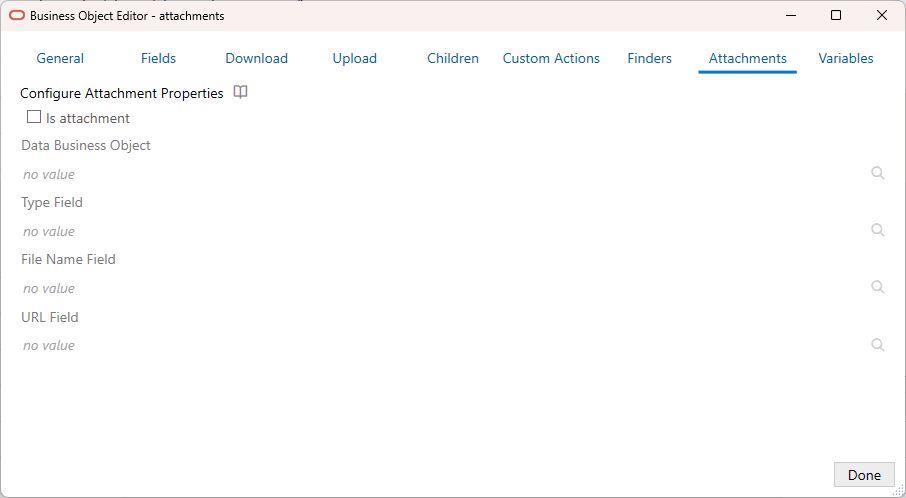
Open the Business Object Editor for an attachment business object and click the Attachments tab.
-
Select Is attachment.
-
Click the Choose icon (
 ) next to Data Business Object to open the Choose a Business Object dialog.
The dialog displays the paths for all child business objects for the Attachment Record Business Object.
-
Select the required child Attachment Data Business Object from the list, then click OK.
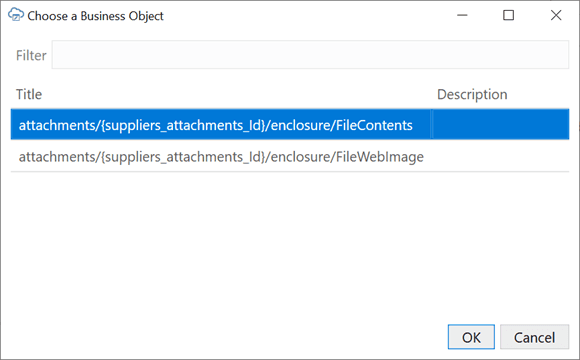
Description of the illustration child-bo-dialog.png
The child business object must support sending and receiving attachment data. This means that the child endpoint has a collection path that supports:
- GET to retrieve attachment data
- PUT to send attachment data
- Request content type of
application/octet-stream
The path may be similar to this:
{parent attachment record item path}/enclosure/FileContents. -
Click the Choose icon (
) next to Type Field to open the Available Business Object Fields dialog. -
Select the field to represent the attachment type, then click OK.
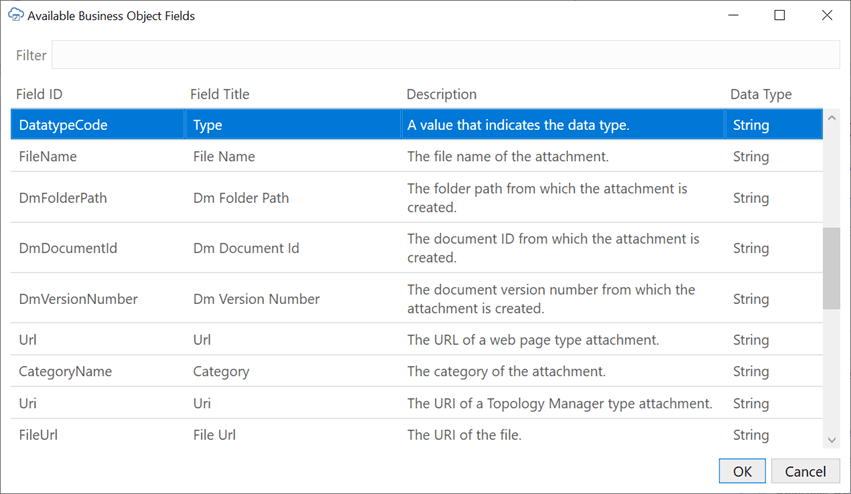
Description of the illustration available-bo-fields.png
This field must be a string field with valid values of
TEXT(text type attachment),FILE(file type attachment), andWEB_PAGE(web url-based attachment). Typically, the field ID for this field isDatatypeCode. -
Use the available Choose icons to set the File Name and URL fields.
Field Description File Name Field A string field representing the attachment file name. This field is used for text and file type attachments. Typically the field ID for this field is FileName.URL Field A string field representing the attachment URL. This field is used by web page type attachments. Typically the field ID for this field is Url. -
When finished, close the open editors using the Done buttons.
If properly configured, the resulting Table layout includes a Local File Path column that keeps track of the location of local copies of attachments. Selecting cells in the table opens an attachment pop-up that can be used to interact with attachments. See Manage Attachments in Managing Data Using Oracle Visual Builder Add-in for Excel.
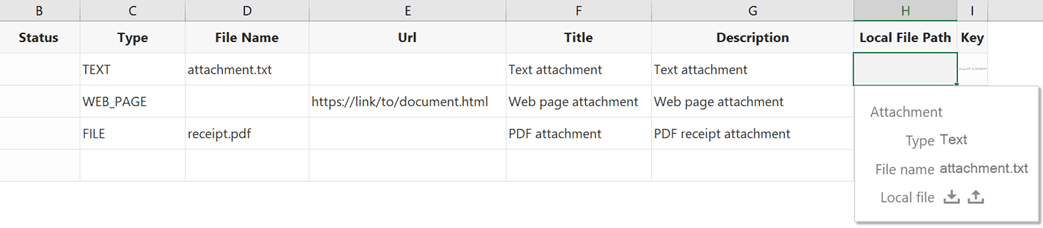
Description of the illustration local-file-attachment-table.png
Known Limitations
- See Service Requirements in this topic for the limitations on services that support this feature.
- Binding an attachment record business object to the form portion of a Form-over-Table layout is not supported.
- The only supported attachment types are file, text, and web page. The specific supported values for the field are
TEXT,FILE, andWEB_PAGE. These values are case sensitive. Unknown attachment types are treated as file type attachments. - File download is not asynchronous and may make the UI appear frozen for large attachment files.
- It is not possible to change the position of the Local File Path column in the table. It always appears at the end of the table before the Key column.
- Manually editing the file path in the Local File Path column is not supported. The attachment pop-up should always be used to specify the local file location.
- For some services, create may fail for text-based attachments. Ensuring all required attachment metadata, such as the
Title, is present and resubmitting the record generally resolves this issue. - Attachment metadata records may have additional fields, such as
DmDocumentId,UploadedFileContentType, that should generally be managed by the service and not altered by the business user. It is recommended that you mark these fields as read-only in the Business Object Editor if they aren’t already or omit them from the Table layout.