Internationalization
Oracle Visual Builder Add-in for Excel includes several features that support distributing your integrated workbook to other locales and in other languages.
These features include:
- A localized add-in
- Support for a user’s preferred regional data formats
- Support for translating the integrated workbook using resource bundle files
If a business user opens an integrated workbook in the Chinese edition of Excel, the add-in displays all add-in labels such as icon labels, menu items, and buttons in the Chinese language.
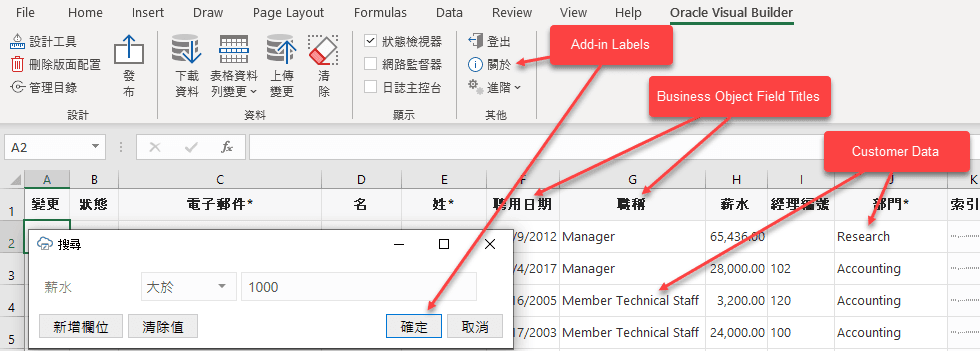
Description of the illustration excel-language.png
If the workbook itself has been translated, the add-in can display Chinese text for strings such as business object field titles, the form label in a Form-over-Table layout, and workbook’s help text.
Languages and Formats
Refer to this table for the settings used for Add-in, workbook, and REST languages and formats.
| Area | Description | Controlled By | Notes |
|---|---|---|---|
| Add-in labels: language | Preferred Add-in Language | ||
| Add-in windows: text orientation | Add-in windows include designer windows, task panes, and pop-ups displayed to business users such as Search. Text orientation is left-to-right or right-to-left. | Preferred Add-in Language | |
| Workbook labels: language | Workbook labels include column headers, help text, and so on. This does not include data from the services. | Preferred Add-in Language | If translations are available. See Manage Workbook Translations. |
| REST requests: accept-language header | Preferred Add-in Language | Results depend on the service. | |
| Worksheet Cells: non-string formats | Cell styles and Windows Regional formats | See Appearance of an Integrated Excel Workbook. | |
| Add-in windows: non-string formats | Add-in windows include designer windows, task panes, and pop-ups displayed to business users such as Search | Windows Regional formats | |
| Add-in installer: language | Windows display language | ||
| Login web browser: language | Preferred Add-in Language | You may need to clear the browser cache when the preferred language is changed. |
Refer to the following table for internationalization/localization terms and definitions.
| Language or Format | Definition |
|---|---|
| Preferred Add-in Language | The preferred Add-in Language defaults to Excel’s display language. Users may change the preferred language. See Change the Add-in’s Language. |
| Windows Regional formats | Defined by Microsoft Windows system settings. Refer to your Microsoft documentation for the steps to adjust these settings. |
| Windows display language | Windows display language is set from the Language page. Open Settings and search for “Language”. |
Add-in Localization
The add-in is available in over 30 languages. By default, it automatically detects the user’s preferred language from Microsoft Excel and uses that language where possible. When a business user opens an integrated workbook in Excel, everything in the add-in is displayed in the desired language—from the Oracle Visual Builder ribbon’s icon labels and menu commands to add-in windows such as the Status Viewer and the Network Monitor.
The date, date-time, and number formats used by the add-in are also culture-sensitive. These data format types depend on the business user’s preferences as defined in the Windows region settings. So a US user will see US dates and a French user will see French dates. See Appearance of an Integrated Excel Workbook.
REST Service Localization
The add-in also supports retrieving localized text from your REST service if the service supports it.
Every request the add-in makes to the service includes the accept-language header. The preferred add-in language is used for requests, including the describe requests that fetch the initial business object field titles. See Natural Language Support.
Workbook Translations
The add-in also supports localizing text strings in the integrated workbook, such as business object field titles, variable names, and help text for fields and finders. See Manage Workbook Translations.
Date-Time Value Handling
The add-in considers all date-time values in Excel to be in the local (machine) time zone. Date-time values are converted to UTC and sent in canonical ISO 8601 format to the REST service.
Date-time values retrieved from the REST service are expected to be in UTC with canonical ISO 8601 format. The add-in converts them to the local time zone before inserting them into the spreadsheet.