Manage Workbook Translations
If you plan to distribute your integrated workbook in another language, you can extract the base language file from the workbook and send it for translation. This translation file includes workbook-specific text strings such as field titles and help text for you to translate into your target language.
Once translated, simply import translation files for each required language through the add-in. When you distribute your localized workbook to your business users, the add-in displays the translated strings if the preferred language is available.
Alternately, you can deploy your translation files to a server. See Fetch Translations from a Remote Translation Service.
Translate Your Integrated Workbook
To translate your integrated workbook into another language, extract the workbook’s translation file using Oracle Visual Builder Add-in for Excel and send it for translation. When you get the translated files back, import them into your workbook.
The extracted translation file only includes text strings that are currently used in your workbook’s layouts. Field titles, variable names, and help text for fields and finders that are not in use are not included in the translation file. Hidden custom actions are included only when business users can encounter them through a configured layout, such as an action table, custom action payload columns, or a row status custom action. If you change the configuration of the workbook, extract the translation file again to pick up any new strings.
To translate your workbook:
-
Open the workbook you want to translate.
-
Click the Oracle Visual Builder tab from the Excel ribbon.
-
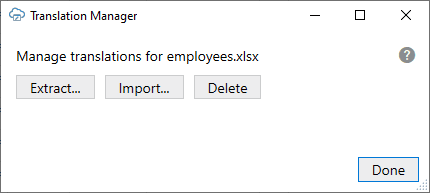
Choose Manage Translations… from the Advanced menu to open the Translation Manager.
-
From the Translation Manager, click Extract… and save the translation JSON file to your local drive.
-
Submit the file to your translation team for translation.
When creating a translation file for a specific locale, your translators will translate the strings and set the locale for the file before sending it back.
-
When you get the translated files back, open the Translation Manager and click Import….
-
From the Import Translations dialog, navigate to the location of the translated file or files, then select them.
You can use the Shift and Ctrl keys to select multiple files for import.
-
Click Open to import the files.
-
Save and publish the workbook before distributing it to your business users.
About Translation Files
A translation file is a JSON file in Application Resource Bundle (ARB) format that stores the workbook’s translatable strings for a given language. Each translatable string is stored in a key-value pair and includes additional attributes that help you and your translators understand the context.
Here’s an example of an entry for a Business Object field, “First Name”, in an Employees workbook:
"50689d80-c95c-4353-9032-cf4251d4abec.Title": "First Name",
"@50689d80-c95c-4353-9032-cf4251d4abec.Title": {
  "context": "layout: TBL731992735, business object: Employees, field: firstName",
  "description": "The field title used as a column header or a form label.",
  "source_text": "First Name"
},
The first line contains the translation key (50689d80-c95c-4353-9032-cf4251d4abec.Title) and translatable string value (First Name) separated by a colon. The key is a unique ID for the string in the workbook. The value is the string that your translator will translate into the target language, for example, “Prénom” for French.
Keep in mind that translation keys are different for each workbook. Two workbooks may have the same translatable string—say, “First Name”—but these strings will have different keys. For this reason, you can’t share translation files between workbooks.
Each key-value pair also includes some additional attributes that help translators understand how to translate the text string: context, description, and source_text. The context and description provide information about where in the workbook the string is used.
The source text is the original value for the string in the base language. In the base language file, the source text is always the same as the value. In the translated files, the value is translated but the source value remains unchanged. The source text value allows someone to inspect the translations and compare the strings easily.
The translation file also includes some global attributes (prefixed with @@) that apply to the translation file as a whole. Here is an example of the global attributes (locale, context, and last_modified) for an Employees workbook:
{
  "@@locale": "en-US",
  "@@context": "Integrated Excel Workbook: employees.xlsx",
  "@@last_modified": "2022-12-07T15:19:16.8664548-05:00",
The locale attribute provides the language code for the text strings stored in this file; in this case U.S. English (en-US). This is the value that you’ll need to change to indicate the new language when you translate the file. For Brazilian Portuguese, you’d use the value “pt-BR”. The locale attribute requires an IETF BCP 47 language tag.
On import, the add-in relies on the value of @@locale to identify the language for the translation file. The file name is not used for this purpose.
Fetch Translations from a Remote Translation Service
Fetch workbook translation files from a remote service/server on demand when a workbook language change is detected.
The initial translation process remains the same as in releases prior to 4.6. However, if you configure your workbook to fetch translations from a remote translation service, you can skip the import step. Instead, you will deploy the translation files to your remote translation service. The details of deploying translations to a service are outside the scope of this documentation.
The add-in requires the following of the remote translation service:
- Supports GET
- If the service requires authentication, it must support the catalog’s authentication method
- Provides the expected translation file (JSON) as documented
- The service should either use the locale on the path or the Accept-Language header value to determine the requested language.
- The service must provide a complete set of strings specific to the current workbook and no more.
The implementation and maintenance of the translation service is outside the scope of the add-in, and while the base file may contain annotation members (identified by a single @ sign), these are optional and not used by the add-in. Also, the translation service is not necessarily a REST service; it could be a set of files hosted on a CDN or server. The key point is that it complies with the specified requirements.
To fetch translations from a remote translation service:
-
Open the workbook you want to translate.
-
Click the Oracle Visual Builder tab from the Excel ribbon.
-
Choose Manage Translations… from the Advanced menu to open the Translation Manager.
-
In the Translation Endpoint property, enter a valid value, and click Done.
This property is optional. It may be left empty. The default value is empty. If not empty, the value must be a valid path available at the primary catalog’s service host. The value must not include the host or protocol. Optionally, the path may include a placeholder,
{locale}.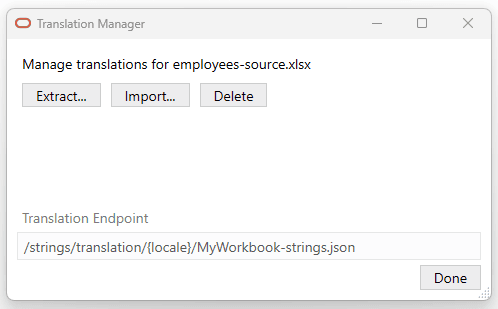
Description of the illustration vbafe-translation-endpoint.png
Note: The add-in does not URL-encode literal characters in the translation endpoint. If your path includes any characters that require URL encoding, be sure to enter the encoded values, as illustrated in the following fictitious examples. The add-in URL-encodes the value that replaces the
{locale}placeholder.
/strings/translation/{locale}/MyWorkbook-strings.json/strings/translation/MyWorkbook-strings.json/strings/translation/MyWorkbook-strings-{locale}.json/strings/translations?bundle=MyWorkbook&locale={locale}
Once the translations for a language are cached in a workbook, they are used by that workbook indefinitely. To clear the translation cache, click Delete in the Translation Manager.
Language Change When Fetching Translations from a Remote Endpoint
When the add-in detects that the language has changed for a given workbook, as described in Language Change Detection, the following occurs:
If the workbook already has translations for the preferred language, it uses them and there is no request to the translation service. The add-in offers the business user an opportunity to redraw all the layouts in the workbook.
If the workbook does not yet have translations for the preferred language and the translation endpoint is configured, the add-in attempts to fetch the translations as follows:
First, the add-in asks the business user to confirm the attempt to fetch and redraw.
Next, the add-in attempts to log into the host of the workbook’s primary catalog (i.e. the first catalog in the catalog manager). Note: this login prompt may appear before the spreadsheet is visible to the business user.
If login fails or is canceled, there is no attempt to fetch the translations.
If login succeeds, the add-in proceeds as follows:
- The add-in replaces {locale} in the translation endpoint with the current preferred language using an IETF BCP 47 language tag with URL encoding.
- The add-in combines the updated endpoint with the host from the primary catalog.
-
The add-in issues a single GET request to the complete endpoint
Headers of note:
- Accept: application/json
- Accept-Language: preferred add-in language using an IETF BCP 47 language tag
-
If the request is successful, the add-in harvests and caches the translations in the workbook
The strings are cached under the
@@localemember value if present, or the requested language otherwise.
Note: If there are any request failures or problems processing the response, the issues are logged and the add-in displays a simple warning to the business user.
Special cases
- If the current preferred language is English, there is no attempt to fetch translations.
- If the current preferred language is not supported by the add-in, there is no attempt to fetch translations.
Locale Fallback
If the fetch request fails with a 404 not found error, the add-in may retry with the parent locale if available.
For example, if the current preferred locale is ‘de-DE’ (German-Germany) and the server does not have translations for that specific locale, the add-in will retry with just ‘de’.
Troubleshooting
In the event of a problem with getting the translations to appear in the workbook:
- Verify the Translation Endpoint property value
- Confirm that the endpoint is available at the host of the primary catalog
- Use the Network Monitor to view the translation request:
- Open Excel with a new blank workbook
- Open the Network Monitor.
- Open the target integrated workbook.
- View the translation request in the Network Monitor.
- The diagnostic report has detailed information on various language-related properties
- Verify that the translation file is in the expected format
- Verify that the service is returning translations for the correct workbook. Translations cannot be shared across workbooks since the translation keys are unique.
- Review the add-in logs for any issues that occurred during the translation response processing.