Download Data to the Workbook
Download data to the workbook using the Download Data button on the Oracle Visual Builder ribbon. When you connect to the web application for the first time, you may be prompted to log in. Provide your user name and password in the available fields.
If the workbook requires you to provide a bearer token for authentication, paste the bearer token value into the Token field, then click Continue. If you were not provided with a bearer token, contact your workbook developer.
Note: This token is used for all subsequent requests sent during the session. If you log out, close the workbook, or quit Excel, you’ll be prompted to provide the token again the next time you download or upload data.
If search options were configured for download, specify the value(s) to search on, as shown in the following example where data for the Sales department will be downloaded:
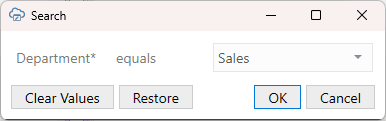
Description of the illustration excel-basic-filter-lov.png
Required search fields are marked with an asterisk (*). You must provide values for these fields before you can proceed.
If the Search prompt is configured for editing, you’ll be able to change the operator and value for a search condition. For example, to return data for all departments other than Sales, modify the Department search condition to use “not equals” for the operator and “Sales” for the value.
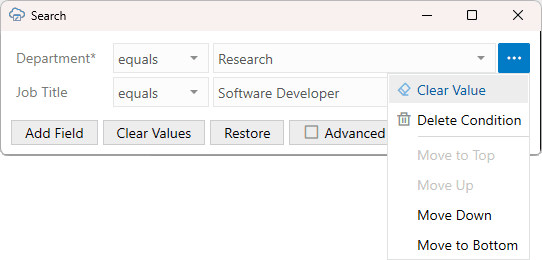
Description of the illustration excel-search-filter.png
You can also:
- Add or delete a search condition
- Clear a value for a search condition or clear all values in the prompt
- Clear a List of Values selection
- Display or hide additional search conditions if the Advanced button is present
- Move search conditions up or down in the list
- Restore the Search prompt to the configured defaults. All changes are discarded and configured properties are reinstated:
- Search condition values, including empty values, are restored.
- Configured expression-based values are restored. Any expressions are re-evaluated and the results displayed.
- Deleted search conditions are re-added.
Use Child Fields in Search Conditions
If your workbook includes this capability, the Search prompt can let you choose fields from related child data when you add or edit a search condition.
When available, select Tree View to switch from the default field list to the hierarchy view, expand the related items, and select the field you want.
Use this option when the value you need to search on is in related child data instead of the main row.
Keep these points in mind:
- The default field list is still available for common searches.
- In hierarchy view, select a field (not a group node).
- You can use the filter box to find a field by name faster.
- Search results still return main rows; the child-field condition is used to decide which main rows match.
Use the IN Operator in Search Conditions
A search may be configured to use the “in” operator. This operator returns items matching any of the values in a comma-separated list. Such a search condition may look like this:
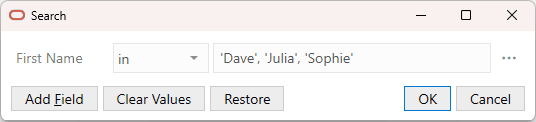
Description of the illustration search-operator.png
In this case, the search returns employee items where the first name matches either “Dave”, “Julia”, or “Sophie”.
If you decide to change the values in the list, make sure you separate them with a comma (,) and enclose string values in single quotes (‘ ‘). Do not enclose integer values. If you need to enter a lot of values, you can use the Values editor. See Edit Values for an IN Operator Search.
If the search returns lots of rows, confirm if you want to continue downloading more rows:
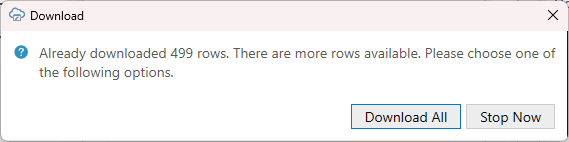
Description of the illustration excel-download-data-png.png
When download is complete, the add-in updates the table in the worksheet with data retrieved from the web application.

Description of the illustration addin-download.png
If the download fails, review the Status column and Status Viewer for details. For example, if the web application rejects the request, the add-in reports the row or layout as a failed download with details in Status Viewer. Check any search values that you supplied, then retry the download or contact the workbook creator for help.
If you want to refresh only a few rows that are already in the table, use Download Selected Rows instead of running a full table download. See Download Selected Rows in a Table.