Introduction to Oracle Visual Builder Add-in for Excel
Oracle Visual Builder Add-in for Excel integrates Excel spreadsheets with your web application to retrieve, analyze, and edit business data from the application. You download your data to an Excel spreadsheet, work with it, then upload your changes back to the application.
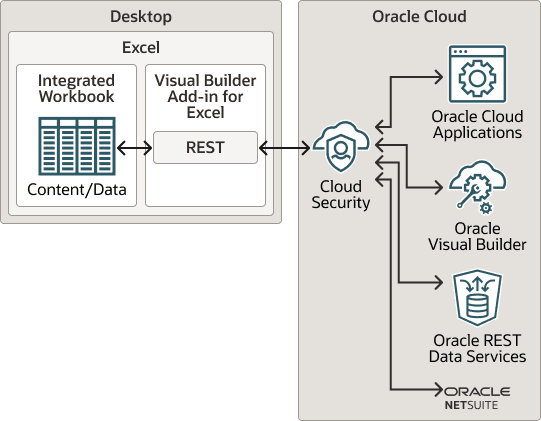
Description of the illustration vbafe-architecture.png
Key Concepts and Terms
Before you use this Excel add-in, it helps to become familiar with these key concepts, components, and terms.
| Term | Description |
|---|---|
| Integrated workbook | An Excel workbook configured to work with one or more business objects from a web application. |
| Business object | A set of related data, such as purchase orders or invoices, with fields that hold values from your web application. |
| Web application | A business application that provides the data and operations used by the integrated workbook. |
| Layout | A way to display workbook content in an Excel worksheet. Common data layouts include Table, Form-over-Table, and Action Table layouts. Layouts are created by workbook developers and are visible to data entry users in their workbooks. |
| Workbook creator | The person or team that integrated a particular workbook with a web application. The creator creates layouts, configures workbook behavior, and publishes the workbook. |
Installation
To install the latest version of Oracle Visual Builder Add-in for Excel, download and run the installer.
You can find the latest version of the installer at the Downloads page on Oracle.com.
For more information, refer to Install Oracle Visual Builder Add-in for Excel.
Next Steps
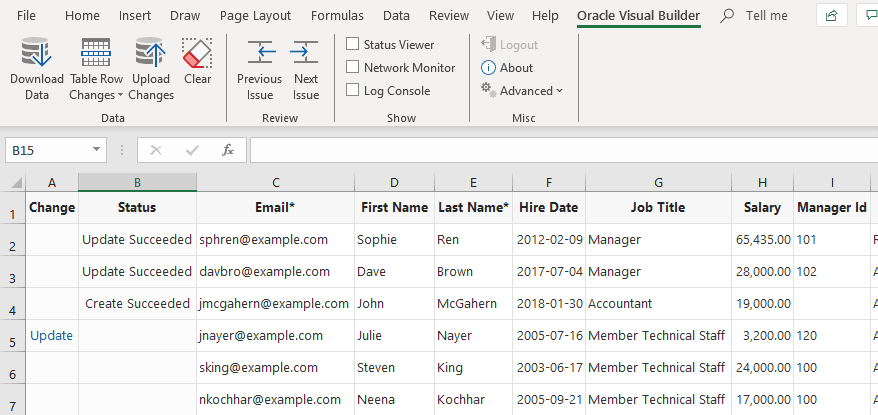
After you install the Excel add-in, a new Oracle Visual Builder ribbon tab appears in Microsoft Excel. As a business user who performs data entry, you use the options in this ribbon tab to download and work with a web application’s data exposed in a workbook. You can review, modify, and create data in the workbook, then upload your changes to the web application.
This image shows a worksheet that manages employees:
Description of the illustration excel-docexample-pub.png
In this example, the user has updated two rows and created a new row with employee data. These changes have been successfully uploaded to the web application, as indicated by messages in the Status column. The user has also updated data in another row that has yet to be uploaded, as indicated by the Update message in the Change column.