Create an integrated Excel workbook to manage data from a REST service
Introduction
In this tutorial, you install Oracle Visual Builder Add-in for Excel, create a Microsoft Excel workbook that retrieves data from a REST service, and publish the workbook so business users can perform data entry tasks. This tutorial takes approximately 10 minutes to complete.
Oracle Visual Builder Add-in for Excel helps you download data from a REST service to a table in an Excel workbook, where users can modify, create, or delete data before sending those changes back to the service. After you install the add-in, you enter the service endpoint to download data from the service to the Excel workbook. You also see a new Oracle Visual Builder ribbon tab with commands to manage downloaded data.
Objectives
By completing this tutorial, you will:
- Install Oracle Visual Builder Add-in for Excel.
- Configure an integrated workbook that downloads data from a REST service.
- Customize the workbook layout and search behavior.
- Publish the workbook for distribution.
- Perform create, read, update, and delete operations in the published workbook.
Prerequisites
- Windows 11 and Microsoft Excel 365 (or another supported version; see Supported Platforms).
Task 1: Import the sample visual application into Oracle Visual Builder
In this task, you download and import a sample visual application that provides the Employees business object used later in this tutorial.
Before you start this task, make sure that:
- You can access your Oracle Visual Builder instance.
- You have permission to import a sample visual application into Oracle Visual Builder.
Note: If you already have a REST service with OpenAPI metadata, you can skip this task and start with Task 2.
-
Right-click this file and download it to your computer.
The
Personnel_Manager.zipfile contains a visual application with an Employees business object and sample data. - In your browser, sign in to Oracle Visual Builder.
- On the Visual Applications page, click Import, select Application from file, browse to
Personnel_Manager.zip, and click Import. - On the Visual Applications page, click Personnel Manager in the Name column.
-
Click Business Objects
 , then click Menu
  , and select Data Manager.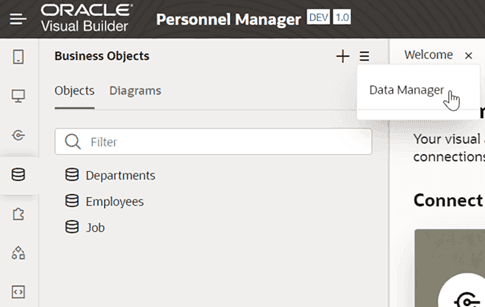
Task 2: Install Oracle Visual Builder Add-in for Excel
- Download the latest version of the add-in from the Downloads page.
- Quit Excel before running the installer.
-
Double-click the downloaded installer file to begin installation, click Next, and then click Close after the add-in is installed.
A successful installation enables the add-in in Excel, and a new Oracle Visual Builder tab appears when you start Excel.

For more details, see Install Oracle Visual Builder Add-in for Excel.
Task 3: Configure an Excel workbook to download data from a REST service
In this task, you create a table in an Excel workbook that downloads employee data from the REST service associated with the visual application you imported.
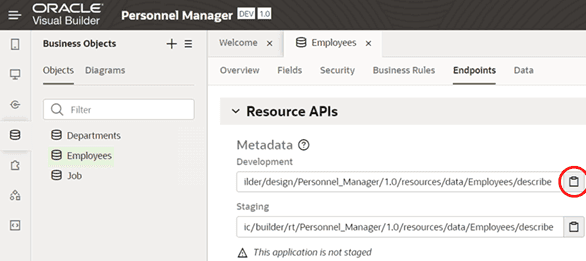
- In Oracle Visual Builder, open the Business Objects tab, click Employees, then click Endpoints.
-
Expand Resource APIs, then click the Clipboard icon to copy the entire URL for the metadata resource API.
- Create an Excel workbook named
employees-source.xlsxin a directory on your computer, and open it. - Click the cell where you want to place the data table.
- In the Oracle Visual Builder tab, click Designer to launch the New Layout Setup wizard.
-
In the first wizard screen, enter the URL that you copied in the Web Address field, then click Next.
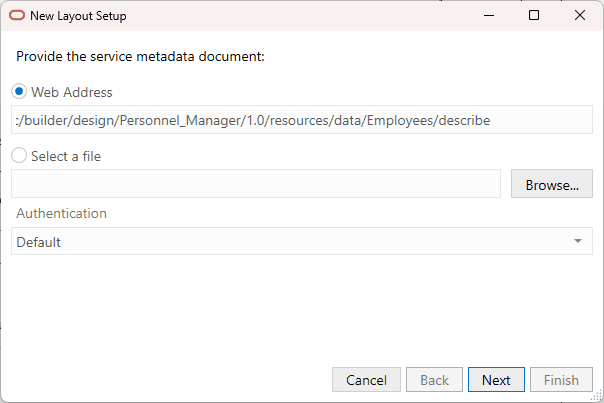
Description of the illustration vb_wizard_screen1.png
Leave the authentication setting as Default.
Note: If you are using a different REST service, enter the service’s OpenAPI metadata URL. For Visual Builder business objects and ADF REST services, this URL typically ends with
/describe. -
In the Sign In dialog, enter the user name and password that you use to access Oracle Visual Builder, and click Sign In.
The add-in connects to your Oracle Visual Builder instance and retrieves service metadata.
- Click Next to continue.
-
In the next screen, select Employees, then click Next.
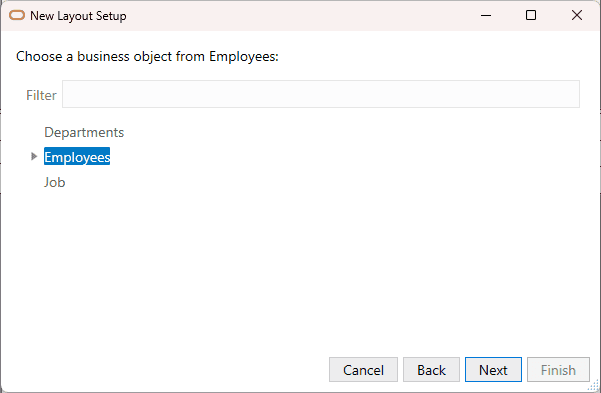
Description of the illustration vb_wizard_screen2.png
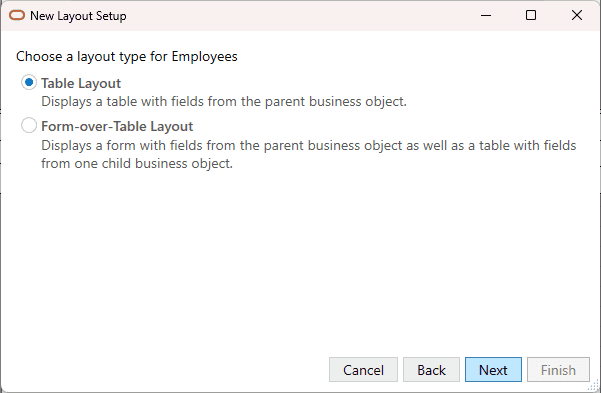
The next screen prompts you to choose the layout type.
-
Select Table Layout, then click Next.
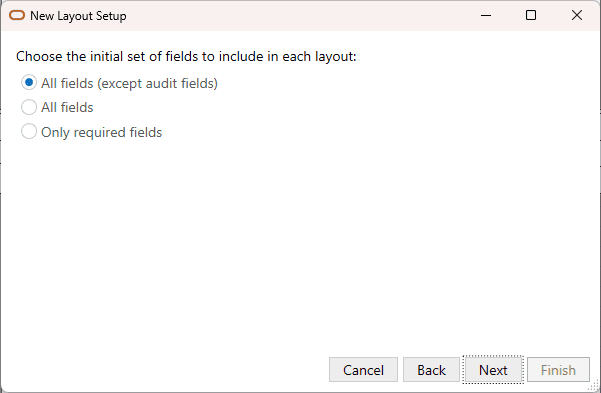
The next screen prompts you to choose the initial field set for the layout.
-
Select All fields (except audit fields), then click Next.
The next screen prompts you to choose additional business objects for dependent layouts.
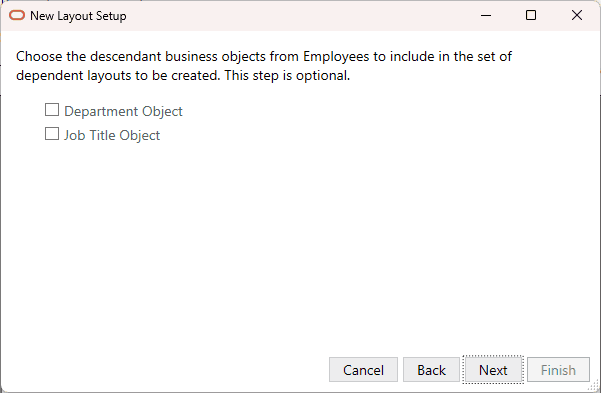
- Leave this screen blank and click Next.
-
In the final screen, confirm layout details and click Finish.
A new table appears in your workbook with a placeholder row, and Layout Designer appears on the right.
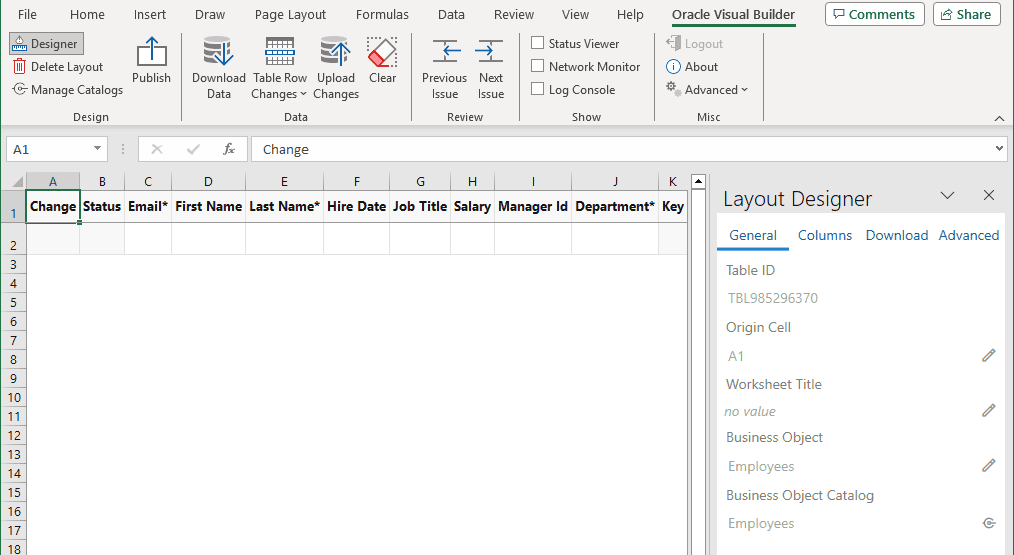
Description of the illustration excel-layout-designer.png
Note: If the layout origin cell is in the first 10 rows, the header row is frozen so column headers remain visible while you scroll.
-
Click Download Data to download data for the Employees business object.
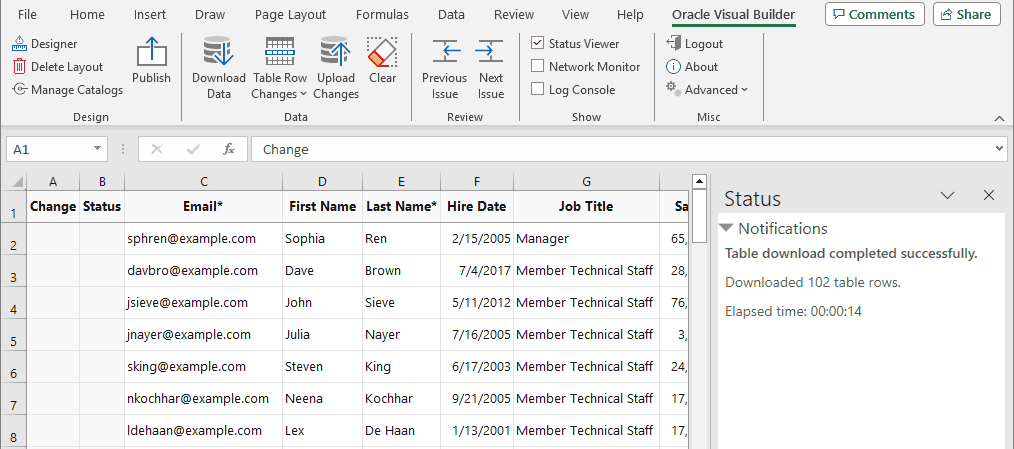
Description of the illustration excel-download-data-author.png
Task 4: Customize the table before publishing
Before publishing, customize the generated table. In this task, you reorder columns and add a search query.
- In the Oracle Visual Builder tab, click Designer if needed, then click the Columns tab in Layout Designer.
-
Reorder columns by dragging the icon to the left of Email.
Tip: Right-click a column for additional reorder options.
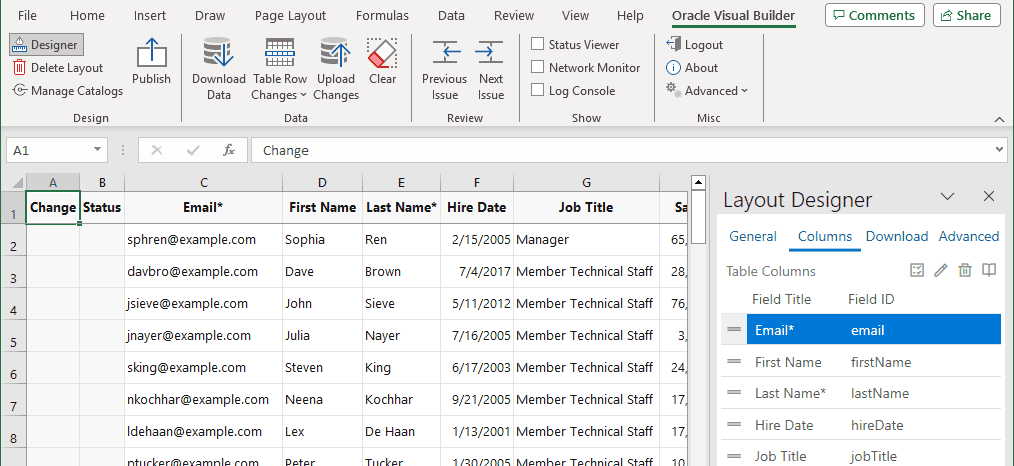
Description of the illustration excel-layout-designer02.png
Note: The Change, Status, and Key columns are generated automatically. You cannot customize or remove these columns.
- Click the Download tab.
-
Click the Edit icon next to Search.
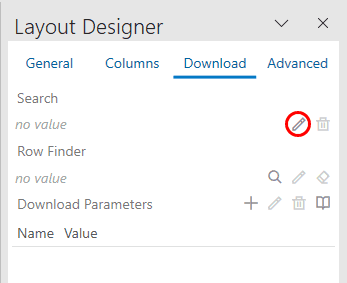
- In the Available Business Objects Field Editor, select Salary and click OK.
- In Search Editor, select greater than in the comparator list and leave the value empty.
- Clear Editor enabled at download so search editor controls are disabled at download.
- Click OK to save settings and close Search Editor.
- Click Download Data.
-
In the Search dialog box, enter
10000and click OK.The add-in downloads only employee records with salary greater than 10,000.
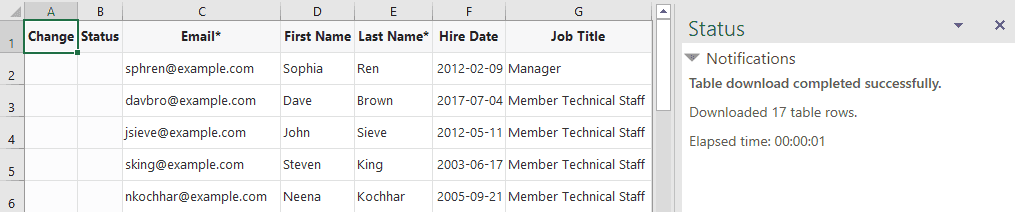
Description of the illustration excel_query_search_download.png
Task 5: Publish and distribute the workbook
After creating and configuring the workbook, publish it for distribution. Publishing can remove design tools (Designer, Delete Layout, and Publish) and enable worksheet protection.
Note: Consider publishing a copy for distribution even if you do not want to disable design tools or enable worksheet protection. Publishing clears visible and hidden data, which can help protect privacy.
-
In the Oracle Visual Builder tab, click Publish.

-
In the Publish Workbook window, accept the workbook location and file name.
When the source workbook name ends with
-source(for example,employees-source.xlsx), the add-in proposes the same name without-source.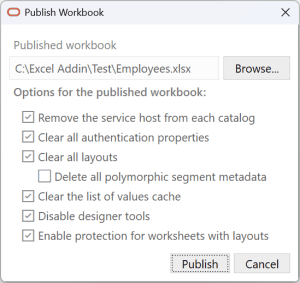
- Clear Remove the service host from each catalog and leave other publishing options unchanged.
-
Click Publish.
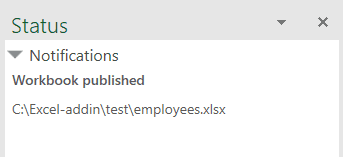
A confirmation appears in the Status pane.
-
Save and close the source workbook.
You can now distribute the published workbook to users for data entry. Each user needs credentials that grant access to the REST service used by the workbook.
For more details, see Publish an Integrated Excel Workbook.
Task 6: Create, read, update, and delete data in the published workbook
Users who receive the published workbook must install Oracle Visual Builder Add-in for Excel. After installation, they can create, read, update, and delete downloaded data before uploading changes.
-
Open the published workbook from the directory where you saved it.
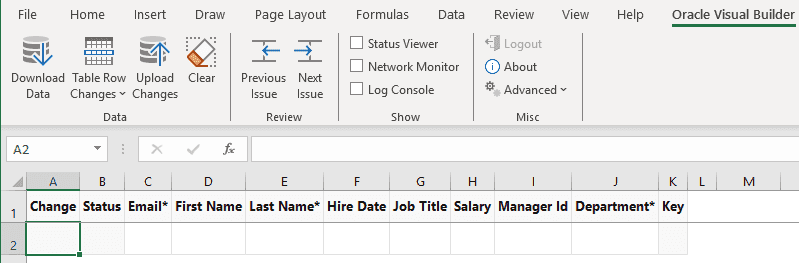
Description of the illustration excel-publish-user.png
The Design section does not appear in the Oracle Visual Builder tab because design tools were disabled. The table displays column headers but no data because layouts were cleared during publishing.
- Click Download Data.
- Enter user name and password in the Sign In dialog, then click OK.
-
Because the layout includes a salary-based search query, enter a query value when prompted. Leave it empty and click OK.
The add-in downloads all employee data.
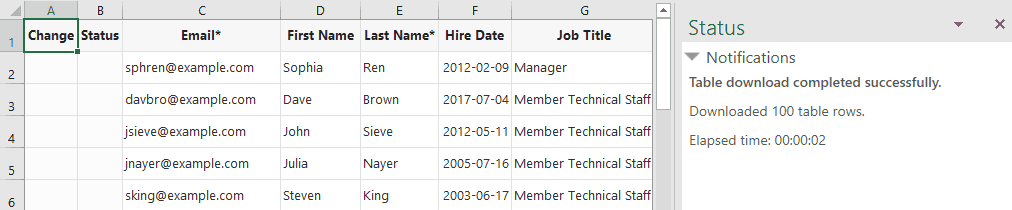
-
Make the following changes:
- In the row for Sophia Ren, change First Name from
SophiatoSophie. - In the row for Dave Brown, select Manager from the list of values in the Job Title cell.
- Select the row for John Sieve, click Table Row Changes, and click Mark for Delete.
- Select the row below John Sieve, right-click, choose Insert, and enter: Email =
jmcgahern@example.com, First Name =John, Last Name =McGahern, Hire Date =2018-01-30, Job Title =Accountant, Salary =19,000, Department =Accounting. - Select the row for Ken Ster at the end of the table, click Table Row Changes, and click Mark for Delete.
Note: Another way to add rows is to select the row below the last downloaded row, click Table Row Changes, then click Insert Rows.
After these updates, the table is similar to the following image. An
Update,Delete, orCreatevalue appears in the Change column for each modified row.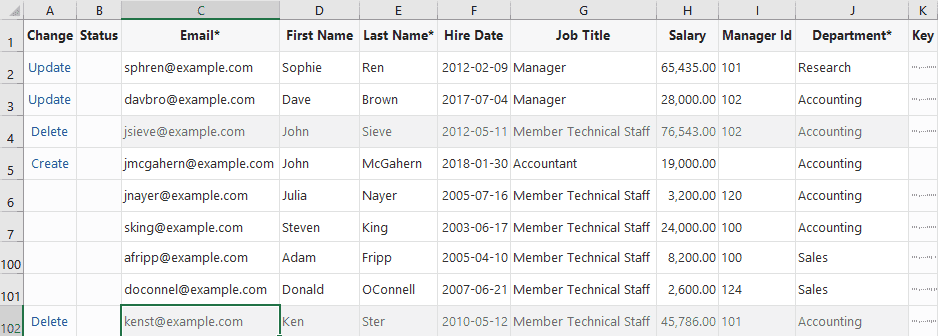
- In the row for Sophia Ren, change First Name from
-
In the Oracle Visual Builder tab, click Upload Changes.
If prompted that the table has pending deletions, click Yes to confirm. After upload completes, the Status column is refreshed for each modified row.
The new row creates a new record for John McGahern. The rows marked for deletion (John Sieve and Ken Ster) no longer appear because the service deleted those records.
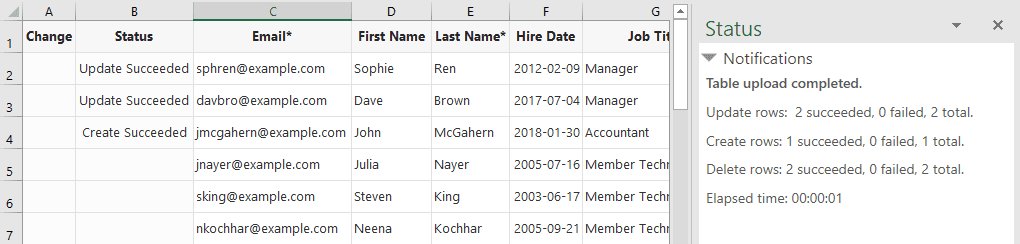
Description of the illustration excel-publish-crud3.png
Note: All data is validated before upload. If errors occur, fix the errors and upload again. For partial errors (for example, updates and deletes succeed but create fails), you only need to fix data for failed rows.
To verify that workbook changes were uploaded successfully, go to the Data tab of the Business Objects page in your visual application.
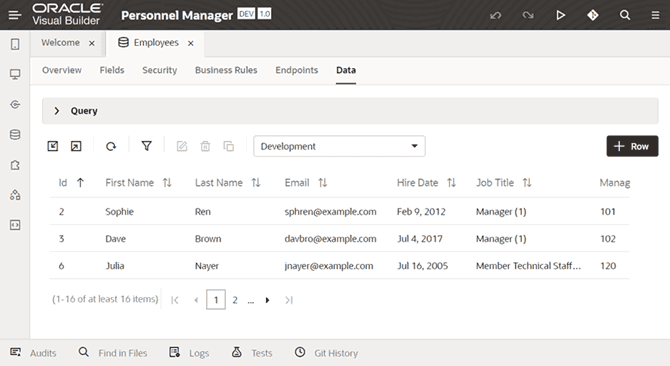
Description of the illustration excel-publish-crud-redwood.png
Related Links
- Introduction to Oracle Visual Builder Add-in for Excel
- Configure Search Options for Download
- Managing Data Using Oracle Visual Builder Add-in for Excel
More Learning Resources
Explore other labs on docs.oracle.com/learn or access more free learning content on the Oracle Learning YouTube channel. Additionally, visit education.oracle.com/learning-explorer to become an Oracle Learning Explorer.
For product documentation, visit Oracle Help Center.
Create an Integrated Excel Workbook to Manage Data from a REST Service, Latest
G55535-02