Manage Your Simple Extension
Now that you’ve created and published your simple extension, let’s look at how you can promote it to other environments, and how you can delete it once your setup testing is complete. To do both tasks, you’ll use the Manage Extension Lifecycle page.
-
From the menu in the Designer’s header, click Extension Lifecycle.
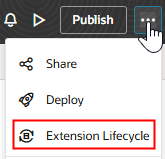
You should now see the Manage Extension Lifecycle page, which lists all the environments that are available for you to deploy to.
At this point in your setup testing, you’ll probably see only your DEV environment. You can create additional environments (for example, for your TEST and PROD instances) from the Environment’s page. See Add an Oracle Cloud Application Instance to an Environment and Add the Oracle Cloud Application’s Production Instance to an Environment. Or, you can add a new environment right from this page (see step 2).
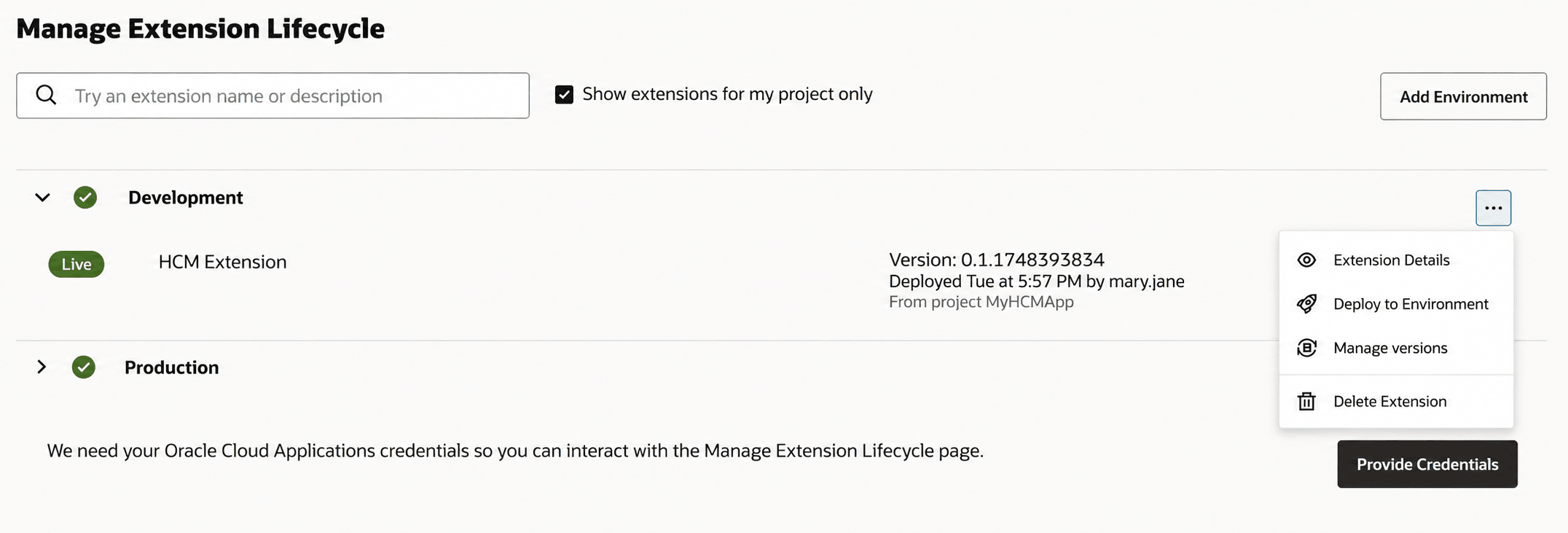
Note If you see a Provide Credentials button next to an environment, you must first sign in before you can work with that environment on this page.
- If you’d like to deploy to an Oracle Cloud Applications instance but it’s not listed on this page, you can add it.
- Click Add Environment.
- In the Add Environment panel, enter basic environment details, such as the environment’s base URL, environment name, and user name and password for the target Oracle Cloud Applications instance. When you add an environment from this page, the authentication method for its Oracle Cloud Applications instance is automatically set to OAuth.
- Click Add.
You also have the option to add an environment from the Environment’s page. See Add the Oracle Cloud Application’s Production Instance to an Environment.
- Once you’ve got an environment set up, you can now try deploying your simple extension to it:
- Find your simple extension and click
 .
. - Choose the environment that points to the instance you want to deploy to.
- Click Deploy.
- Find your simple extension and click
-
Note that you can delete the credentials that let you work with an instance from this page. Why might you do this? Maybe you need to authenticate with the Manage Extension Lifecycle page as a different Oracle Cloud Applications user—perhaps someone who has the privileges to deploy and delete extensions. Or, maybe you just need to start over again with a different login.
To delete existing credentials, click the three dots at the end of an environment’s row and then click Delete Extension Lifecycle Credentials > Delete. The three dots display for an environment as long as the authentication method for its Oracle Cloud Applications instance is OAuth.
Once you delete the existing credentials, you can click Provide Credentials to authenticate with this page as a different Oracle Cloud Applications user.
-
As this was just a simple test and not a real extension, you may want to remove it. To delete the extension, click
 .
Deleting an extension restores your application to its original state.
.
Deleting an extension restores your application to its original state.For more information, see Manage Your Published Extensions in Extending Oracle Cloud Applications with Visual Builder Studio.
-
To preview a previously deployed version of an extension, open the extension’s actions menu and select Manage versions. Locate the version you want to inspect, then click Preview. The selected version opens in a new browser tab without affecting the currently active extension.
Note: Preview is available only for extension versions that contain at least one App UI.
Rollback
Use rollback when a recent deployment introduces problems and you want to restore an earlier version that worked.
To roll back an extension:
- Open the Manage Extension Lifecycle page.
- Expand the environment containing the extension.
- Open the extension’s actions menu and select Manage versions.
- Find the version you want to restore and select Rollback.
- Confirm the rollback.
Rollback creates a new Live version with the selected version’s content. For example, if V1.5 is Live and you roll back to V1.4, VB Studio creates V1.6 from V1.4 and makes V1.6 Live. The original versions remain in the extension’s version history.
Rollback always creates a Live version; it cannot create a Staged version.