Update Pagination Behavior for a Table
You can improve a table’s performance and usability by controlling the number of records that appear on a page and the total number of records displayed.
Here are some things to consider before adjusting the total number of records and pagination for your table:
-
You can either choose to load more records initially with slight delays in scrolling later or have an initial delay when you load records, which will allow for smoother scrolling later. The
scroll-policy-options.fetch-sizeproperty controls the number of records fetched initially. For example, if you set this property to a high number, it will fetch many records at the start and scrolling through them will be smooth, but the initial fetch might be a bit slower and you will consume more memory on the client. -
You might also want to limit the number of total records a user can fetch to control the amount of network traffic and memory consumption on the client. The default is set to 500 but you can modify this with the
scroll-policy-options.max-countproperty.
Note: To further improve the table’s usability, consider adding filtering controls to allow users to define search criteria to display the records they want listed.
To adjust pagination and total records displayed, you can:
-
Add pagination controls to your table to limit the number of records shown on each page and control the total number of records shown.
-
Set the table to load all records to fetch all records when the table loads on the page.
Add Pagination Control to Your Table
While users can use the browser’s scroll bar to scroll through the rows displayed in table, in most cases you’ll want to limit the table’s height, so that only a certain number of records are shown at a time.
When you set the table’s height, paging is automatically implemented and a fixed number of records is fetched at a time (25 is the default).
Note: For pagination to work efficiently, your backend server needs to support pagination – VB Studio’s business objects and SaaS services support this out of the box. For other REST services that support pagination, you’ll need to define a transform function as part of the service definition.
To add pagination control to your table:
-
Define a new CSS class in
app.css. Open your application in the Designer, then expand the Resources and css nodes. Paste this line intoapp.cssand change the height from 500px to the height that would show the number of rows you want:.tableheight {height : 500px;}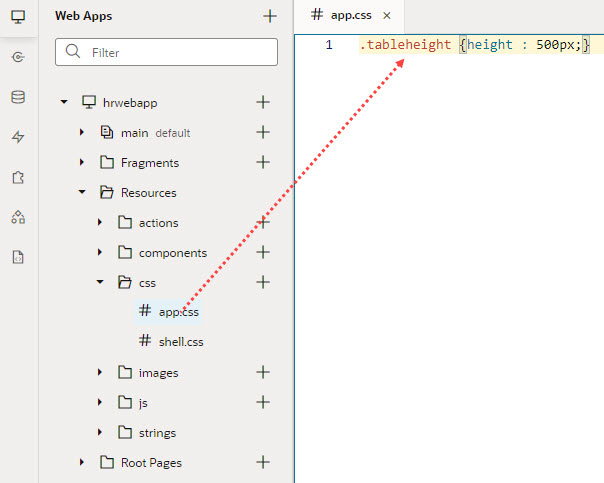
Description of the illustration add-pagination-css-tableheight1.jpg
-
Go to your page’s Page Designer tab, select the table on the canvas, then select the All tab in the Properties pane. Enter
classin the search box to bring up the class property for the table, then entertableheightin the class property:
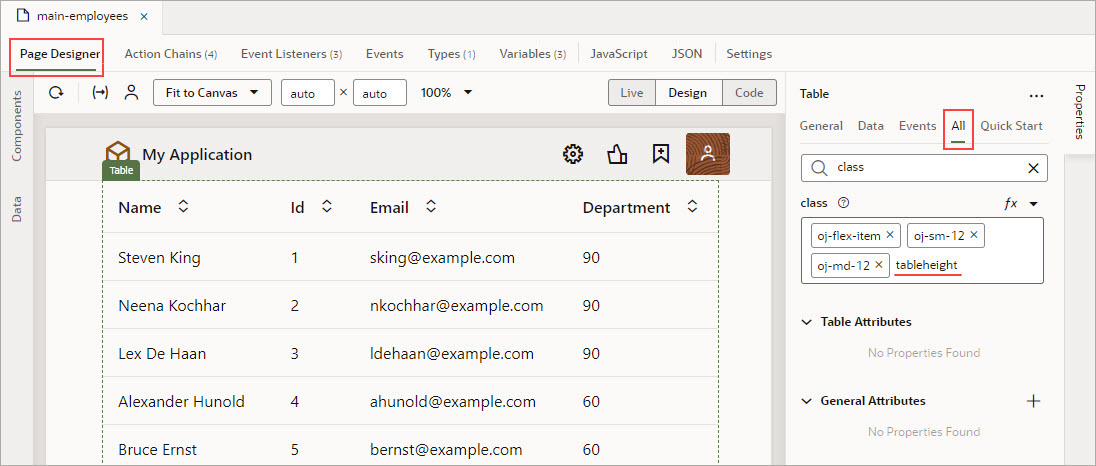
Description of the illustration add-pagination-tableheight-property-pane.jpg
To fine-tune how many total rows are displayed and how many rows are fetched at a time:
-
With the table selected on the canvas, click All in the Properties pane, then enter
scrollin the search box. -
Click the arrow on the far right of the Scroll Policy Options property:
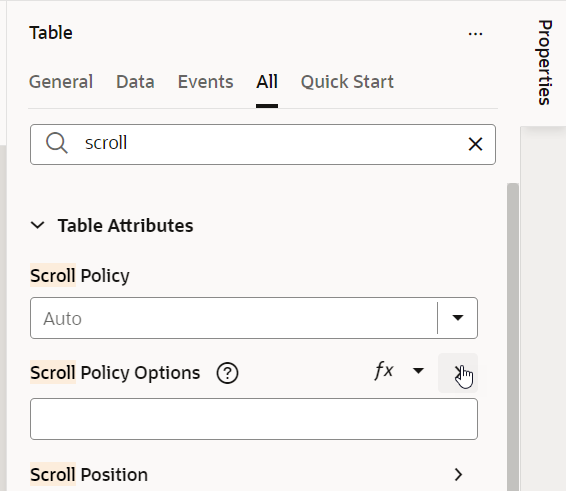
Description of the illustration add-pagination-table-scroll-properties1.bmp
-
Adjust the Scroll Policy Options:
-
For the Fetch Size property, enter the optimal fetch size.
-
For the Max Count property, enter the total number of records displayed in the table.
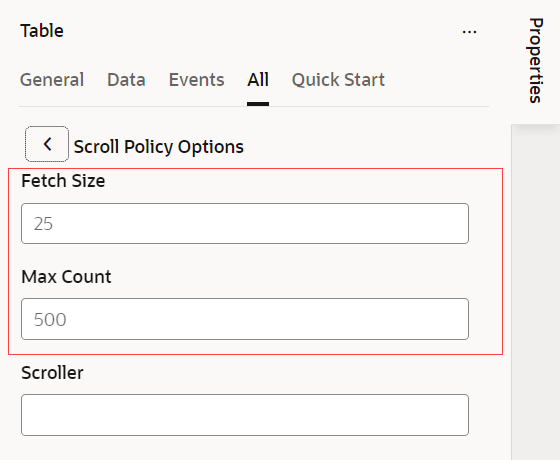
Description of the illustration add-pagination-table-scroll-fetch-size.bmp
-
Note:
To keep the table and data source in sync, it is recommended that you set the #maxSize property for the SDP pagingCriteria to match the scroll-policy-options.max-count table setting.
Load All Records
You can load all of the table data onto the page at one time by setting the scroll policy to Load All.
-
With the table selected on the canvas, click All in the Properties pane and enter
scrollin the search box. -
From the Scroll Policy drop-down menu, select Load All:
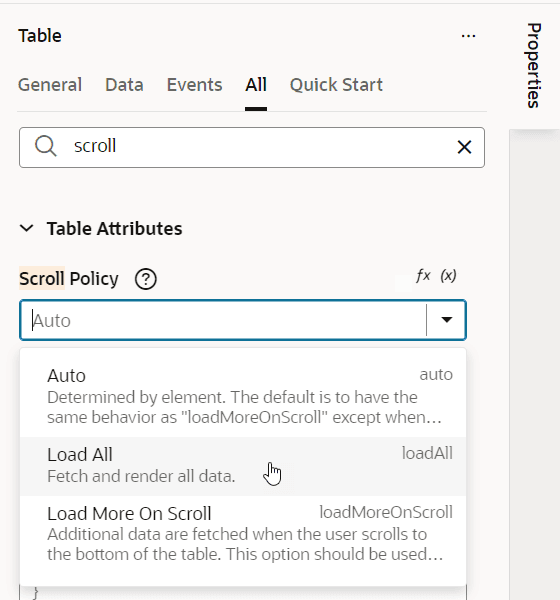
All table data is fetched and rendered when the table is displayed in the application.
For more details about a table’s scroll properties, see Oracle Jet - oj.table Element.