Generate a QR Code for a PWA-Enabled App
Generate a QR code for your PWA-enabled application using Google Chrome’s native capabilities. Users can scan the QR code to quickly open and install the app on a device for testing as well as for production. To generate a QR code for your PWA-enabled app, you share and deploy your app.
Follow these steps to share a PWA-enabled application for others to test your app:
- Open your PWA-enabled application.
- Click Menu in the upper right corner and select Share.
- In the Share Visual Application dialog, select the appropriate option for your data and click Share. For more information, see Share a Visual Application.
- When you’re notified that the application has been shared, click Menu again and select Open Shared Application.
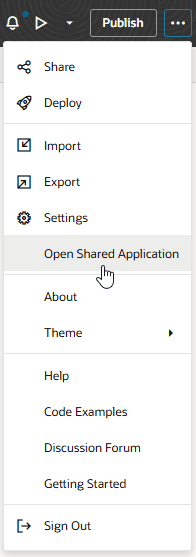
Description of the illustration open-shared-application.png
When the app opens in a new tab, use the options in your browser to install the app:
-
To install the app on a laptop or device, use the Install icon in the address bar:
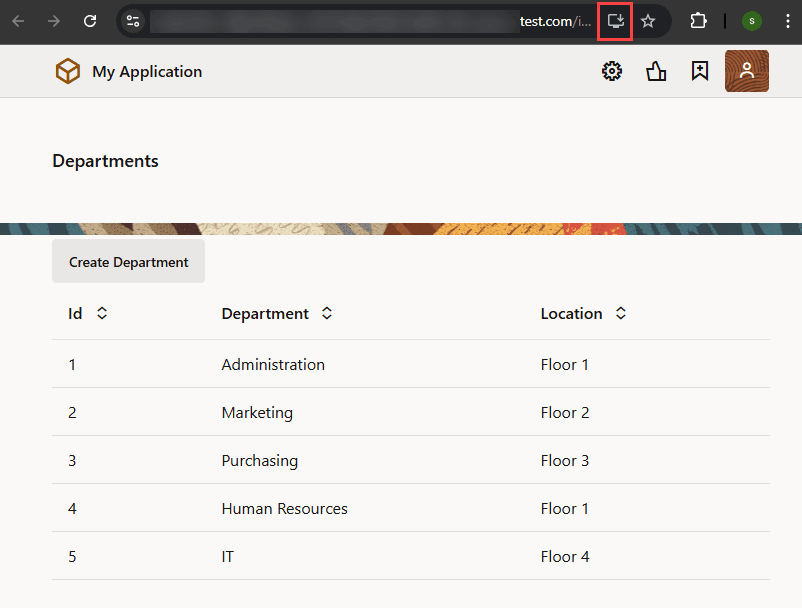
-
To generate a QR code for the app, select Cast, save, and share in your browser’s settings, then Create QR code:
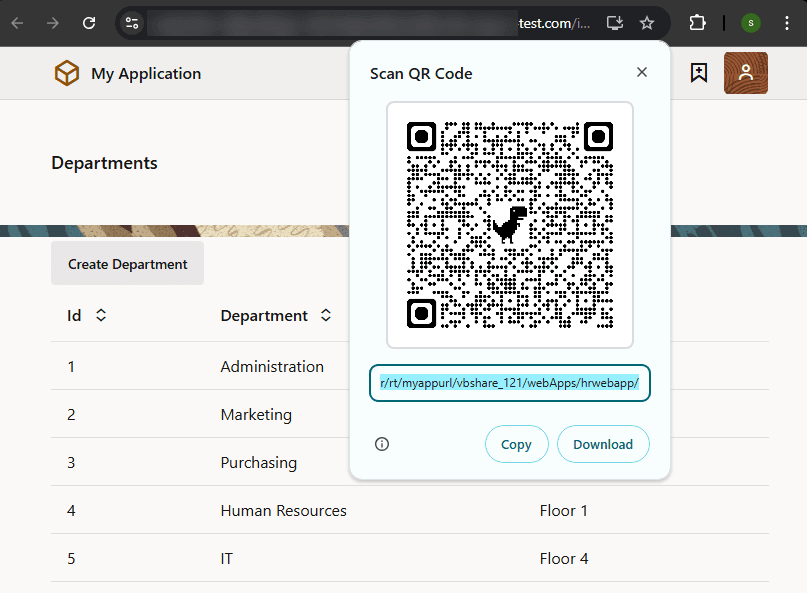
Follow these steps to deploy your PWA-enabled application and make your changes public:
- Open your PWA-enabled application.
-
Click Publish to push your changes to the Git repo and trigger a deployment job.
Deploying a live version of your app requires the Include version in URL field in the deployment job to not be selected. For more information, see Deploy a Live Version of an Application. For information on settings for production deployment build jobs, see Create a Production Deployment Build Job.
Once deployment is complete, see View Deployed Visual Applications, where you can access your deployed app in the Deployments tab of the Environments page. When the deployed app opens in a new browser tab, you can share the application URL with your users, who can now use the URL to install the app or generate a QR code the same way as when the app was shared.