Create Business Objects with the Diagrammer
To create new business objects from a diagram:
-
Right-click in the canvas area outside a diagram and select + Business Object from the menu:
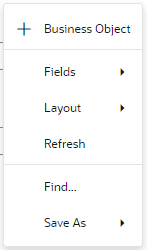
Description of the illustration bo-diagram-new.png
Alternatively, click Menu in the diagram’s Properties pane and select + Business Object.
-
In the New Business Object dialog, enter the business object name in the Name field. The Display Label is filled in automatically based on the Name you enter; change it, if you want. Click Create.
-
To add a field to the new business object, right-click the object and select + Field. Enter the field name in the Label field and select the type, then click Create Field.
To create a field based on a formula, make sure you select + Formula Field, then define your field as described in Add a Formula to a Field.
To delete a field, right-click the field and select Delete.
-
Click a field to open the field’s Properties pane, where you can edit its name, data type, and other properties.