Edit Business Object Fields
You can use the Fields tab of the Business Object editor to modify your business object’s fields. You can do this to add functionality to a field, or even to fix errors relating to invalid property values. Fields that contain errors will be underlined in red on the Fields tab.
To edit the properties of a field:
-
Open your business object’s Fields editor.
-
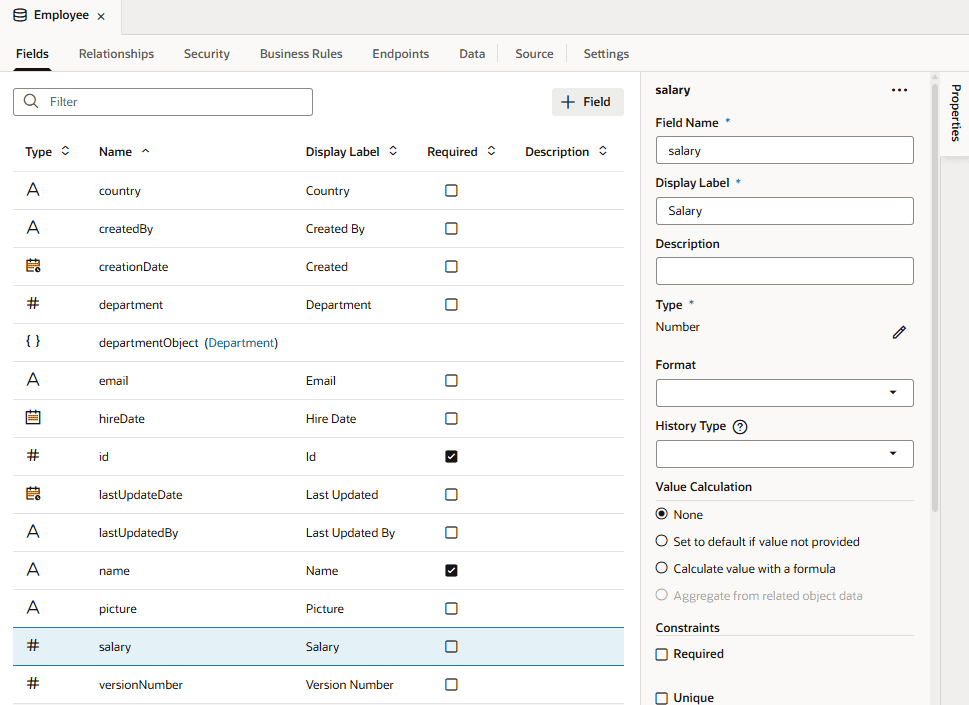
Select the field you want to edit.
-
Edit the field’s properties in the Properties pane.
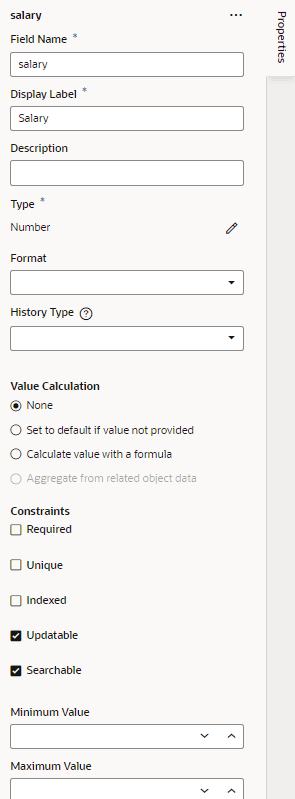
Description of the illustration bo-editfields-properties.png
The properties that are available will depend upon the data type of the field. You might be able to specify a default value for the field using a static value, an expression, or a formula. You can also specify one or more of the following field constraints: Required, Unique, Indexed, Updatable, and Searchable.
Depending on the field’s data type, you can set values for the Minimum Length, Maximum Length, and so on. If invalid values are used, the field’s name will be underlined in red on the Fields tab.
When your business object references other objects, you can view and edit (if necessary) the properties of the accessor that lets you access the related business object. (You can click the link in the accessor field to directly access the related object.)
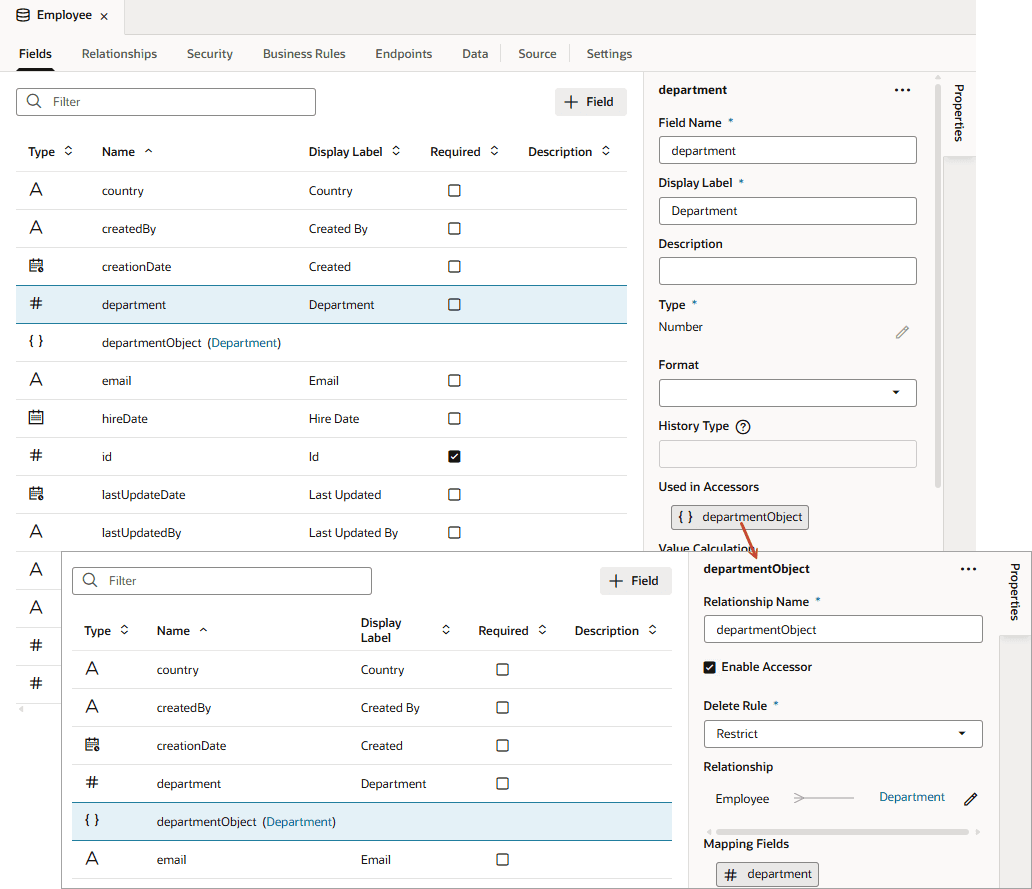
Description of the illustration bo-relships-fields-accessor.png
Note: Depending on the field’s data type, you might also see the History Type property, used to audit a business object’s history. While the option does exist, it isn’t particularly relevant for objects you create because audit fields are automatically added for every business object you create. The property is more useful when you want to set your own audit fields for business objects created from a file or those that use your own database schema.
Change a Field’s Data Type
You can change a field’s data type even after it’s been created. This option is useful when you want to create a business object that uses a non-numeric key.
Caution:
Consider the impact of changing an existing field’s data type, especially that of a key field. When a field’s data type is changed, VB Studio tries to convert the existing data into the new type, for example, converting a string "10.5" to its numeric equivalent 10.5. In the development phase, on a record-by-record basis, if the data cannot be converted to the new type, it will be set to null—other than for a key field. If the key field’s data cannot be converted, the entire record will be deleted. If data in an existing deployment schema cannot be converted, you won’t be able to redeploy your app unless you undo the type change, fix the data in the deployment schema to remove any incompatible data, or redeploy choosing the option to create a new schema.
To change the data type of a field:
-
Open your business object’s Fields editor and select the field whose type you want to change.
-
Under Type in the Properties pane, click
 next to the current data type.
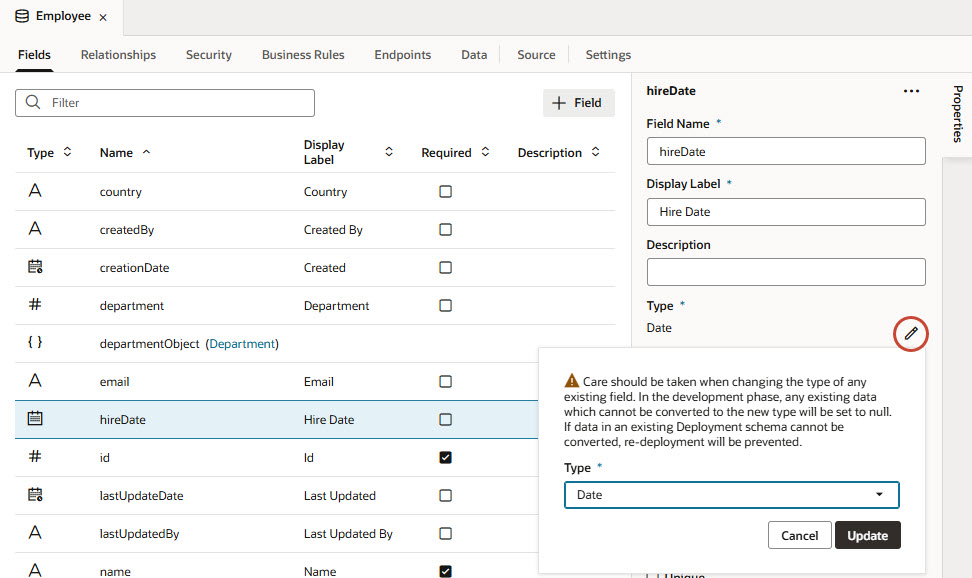
Description of the illustration datatype-picker.jpg
Type changes for a business object’s key field are not allowed if the object has incoming relationships. For example, when a
departmentfield in the Employee business object references the Department object (via itsIdfield), Department is said to have an incoming relationship with Employee. In this case, you won’t be able to change the data type of the Employee object’sdepartmentfield as well as the Department object’sIdfield. -
Select the type you want to change to and click Update.
Set a Default Value for a Field
You can set a default value for a field if the user does not provide a value for it. Based on the field’s data type, you might be able to set a static value or an expression as the default.
To set a default value for a field:
-
Open your business object’s Fields editor and select the field you want to modify.
-
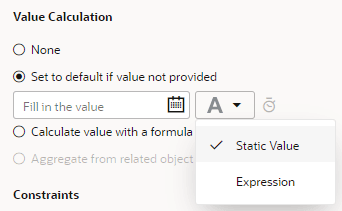
In the field’s Properties pane, select Set to default if value not provided.
-
Choose to define a static value or construct an expression:
-
To set a static value, select Static Value (selected by default) and enter a value:
-
To set an expression, select Expression from the drop-down list, then construct an expression in the Expression Builder.
Specify operands by typing in the text area or click an operator in the toolbar to add it to your expression. You can also select the Insert arrow for a field in the Business Objects tab or for a function in the Functions tab.
For example, to set the current date as the default hire date for an employee, you might enter
now()as the expression for the Hire Date field:
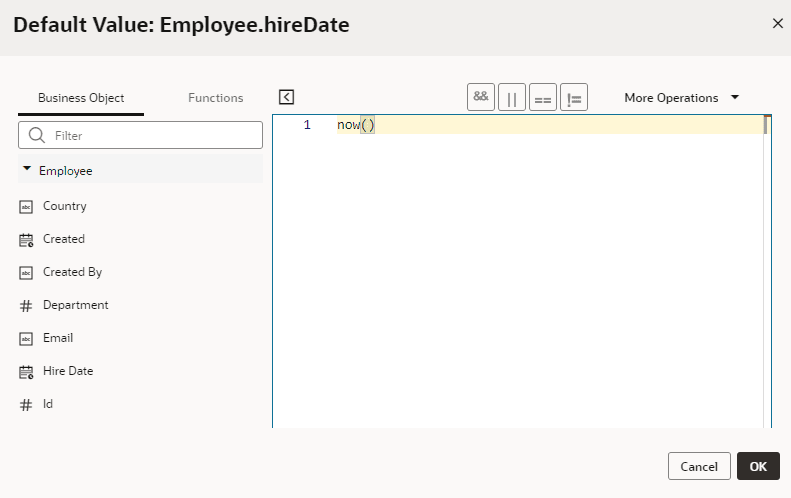
Description of the illustration defaultvalue-expression.png
Click OK.
-
A field’s default value won’t be visible to users when they access the field. That’s because the value is added just before the record is stored in the business object’s database.
If you defined a Groovy expression for a field’s default value, you can optionally override the default Groovy timeout by clicking the  icon in the Properties pane.
Add a Formula to a Field
You can add a formula to calculate the value of a business object’s field. You can create a formula to calculate a numerical value, such as a percentage, or you can create a Groovy expression that uses available fields to generate a value. For example, you can concatenate strings stored in local fields (firstName + ‘ ‘ + lastName) or determine a value based on a comparison or logical expression (qualityLevel != 5).
You calculate a field’s value with a formula in one of two ways: by creating a new formula field or by editing an existing field and adding a formula to calculate its value.
-
To create a new formula field:
-
Open your business object’s Fields editor.
-
Click the + Field button, then select Formula Field.
-
In the Create Formula Field dialog box, enter a label for the formula field you want to create, then select the field’s Type.
(The Field Name is automatically filled in based on the field label.)
-
Enter a valid expression for the formula in the text area.
The formula you enter must be a valid expression. You can specify operands by typing in the text area or by selecting the Insert arrow for a field in the list of Available Fields. You can also click an operator in the toolbar to add it to the formula.
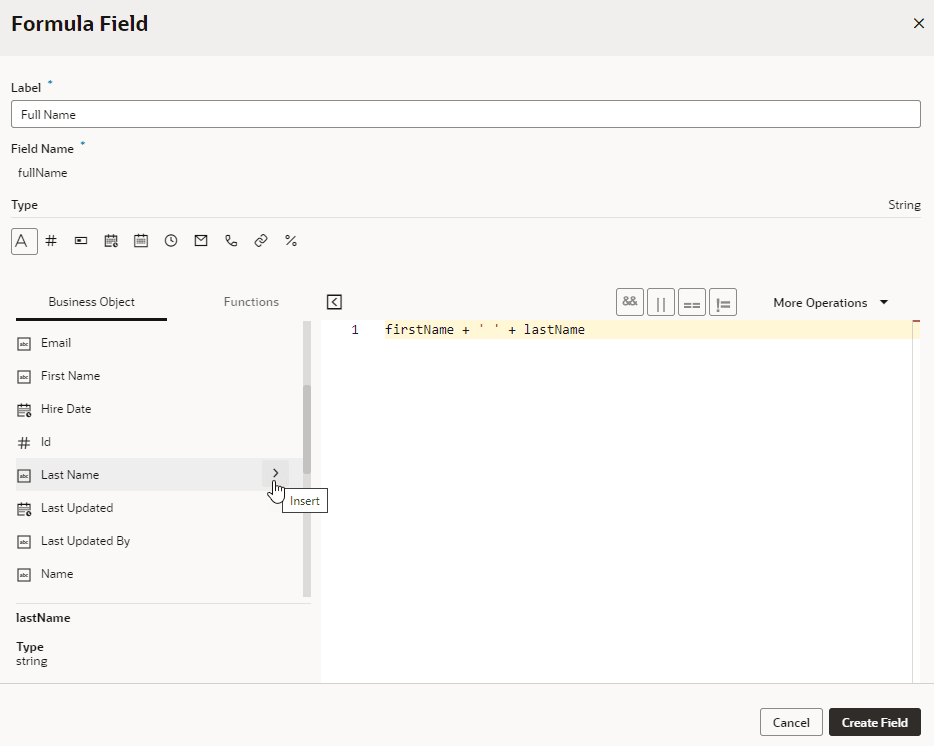
Description of the illustration bo-create-formula-dialog.png
Click Create Field.
The new field is created and its formula displayed in the Properties pane.
-
-
To add a formula to an existing field:
-
Open your business object’s Fields editor and select the field you want to modify.
-
In the field’s Properties pane, select Calculate value with a formula.
-
In the Field Formula expression builder, enter a valid expression for the formula in the text area. You can specify operands by typing in the text area or by selecting the Insert arrow for a field in the list of Available Fields. You can also click an operator in the toolbar to add it to the formula.
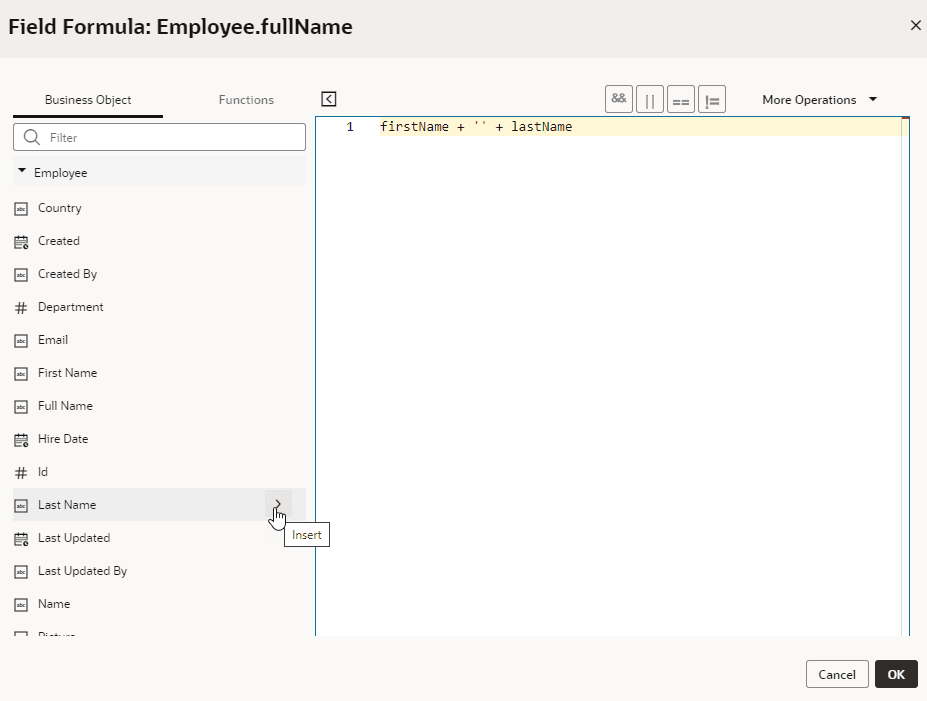
Description of the illustration bo-edit-formula-dialog.png
Click OK.
The formula is saved and displayed in the Properties pane.
-
Once your formula is created, it will be displayed in the Properties pane:
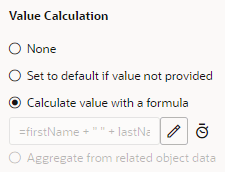
Click  next to the formula to edit it in the Expression Builder. The expression you supply is evaluated at runtime to return the field’s value each time it is accessed. And when the field is populated, you’ll see the value on the Data tab. A field whose value is calculated using a formula is read-only.
When you define a Groovy expression for formula fields, you can optionally override the default Groovy timeout by clicking the icon in the Properties pane.
Add a Field for Aggregating Data
Use aggregation fields in your business objects to aggregate the data of related business objects, for example, to calculate and store the total number of items in an order. You can calculate and store the values of simple operations such as calculating an average or sum, or counting the number of related business objects.
You aggregate a field’s data in one of two ways: by creating a new aggregation field or by editing an existing field and adding an aggregation function. For both options, your business object must have a related object with fields that can be aggregated; in other words, a business object with incoming relationships. Let’s say you create a field in the Employee business object that refers to the Department object; Employee is the source object and Department is the target object. Department, in this case, is said to have an incoming relationship with Employee.
-
To create a new aggregation field:
-
Open your business object’s Fields editor.
-
Click the + Field button, then select Aggregation Field.
-
In the Create Aggregation Field dialog box, enter a label for the aggregation field you want to create.
(The Field Name is automatically filled in based on the field label.)
-
Select the object to aggregate (for example, the Employee business object which uses Department as a target business object), the aggregation function (which can be Average, Count, Maximum, Minimum, or Total), and the field to aggregate (for example, Salary):
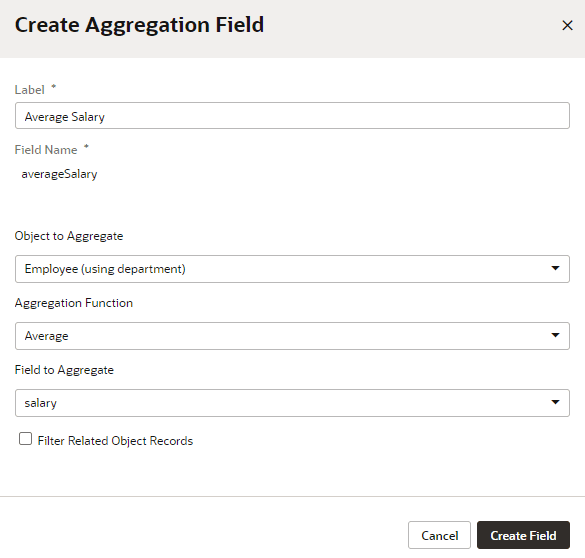
Description of the illustration bo-newagg-create.png
You can also select Filter Related Object Records to create a filter that limits the fields that are aggregated.
Click Create Field.
-
-
To create an aggregation for an existing field:
-
Open your business object’s Fields editor and select a field that can be aggregated.
-
In the field’s Properties pane, select Aggregate from related object data.
-
In the Create Aggregation dialog box, select the object to aggregate (for example, the LineItem business object which is referenced by the customerOrder object), the aggregation function (which can be Average, Count, Maximum, Minimum, or Total), and the field to aggregate (for example, Quantity):
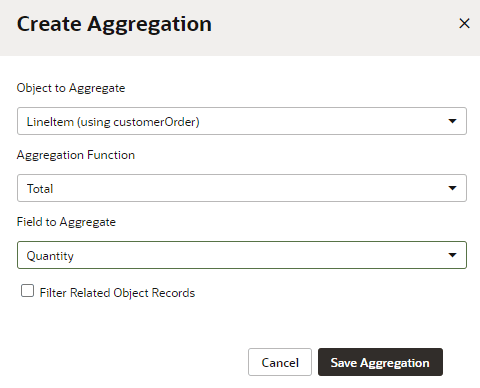
Description of the illustration bo-newagg.png
You can also select Filter Related Object Records to create a filter that limits the fields that are aggregated.
Click Save Aggregation.
-
Once your aggregation formula is created, it will be displayed in the Properties pane:
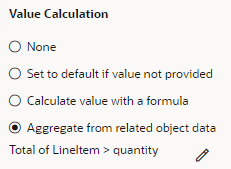
Click next to the aggregation formula if you want to edit it. When the field is populated, you’ll see the aggregated value in the Data tab.
Index a Field
You can index a business object’s fields to speed up searches, especially if the field contains thousands of records that are frequently accessed. Indexing a field adds a non-unique index to the field’s database column and improves performance when you search for the field’s value via REST requests or Groovy code.
To index a business object’s field:
-
Open your business object’s Fields editor and select the field you want to index.
-
Under Constraints in the Properties pane, select Indexed.
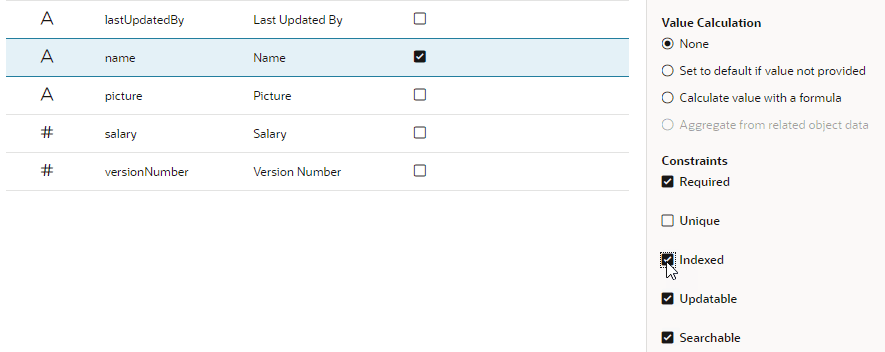
Description of the illustration bo-indexfield.png
This property does not show for the Id field, a Reference type field, or one that’s marked unique because these fields are implicitly indexed.