Add a Switch Action
You add a Switch action when you want to match a value against a set of values, in order to execute appropriate actions for that case.
For API information about this action, see Switch in the Oracle Visual Builder Page Model Reference.
To use a Switch action:
-
Add the action in one of three ways, as explained at the end of Built-In Actions.
-
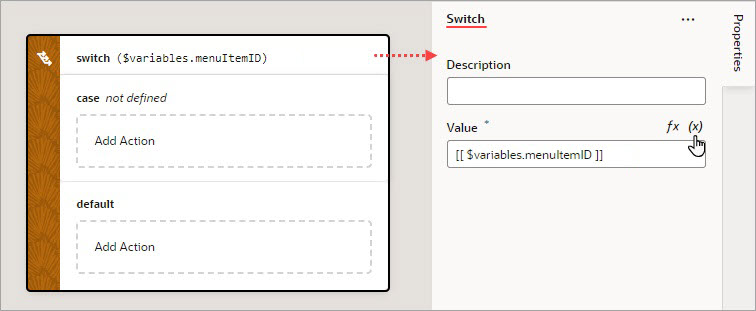
For Value, hover over the far-right side of the property and click
 to select the variable that is to be compared against each case value. If the value doesn’t match any case value, or if it’s null or undefined, the default case is executed.
For example, when a menu defines a set of options, you can use the Switch action to determine which option was selected and to perform actions for that option. In this case, the page variable
menuItemIdholds the selected menu option, and it’s selected using the Switch action’s Value property:
-
To define a case:
-
Set a value for the case by selecting it within the Switch action, then using the Value property to enter its value or to select the variable that holds it. To select a variable, hover over the properties far-right side and click
.
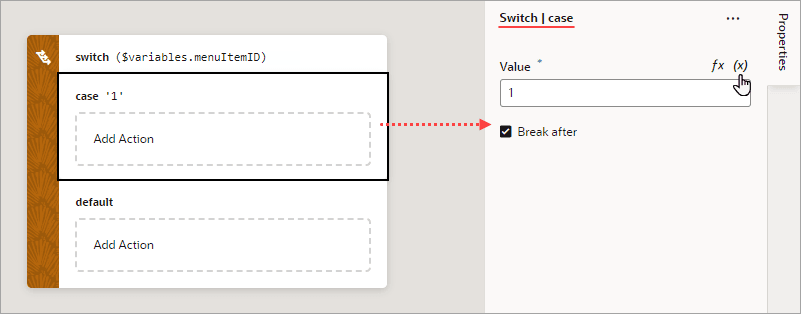
Description of the illustration jsac-switch-action-case1.png
-
Drop the actions to execute for the case in the Add Action area of the case block and configure their properties in the Properties pane:
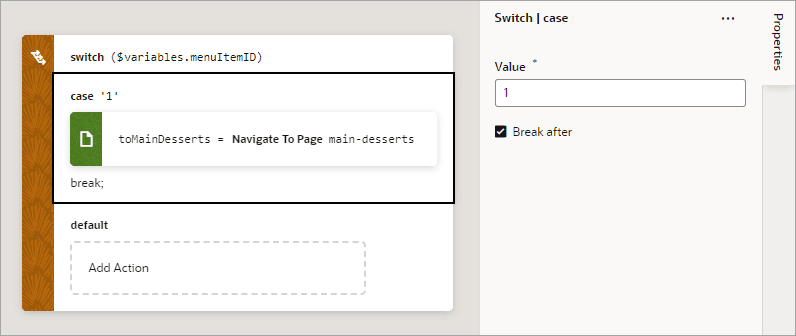
Description of the illustration jsac-switch-action-case-action.png
-
If the rest of the cases are to be ignored, select Break after. If not selected, the rest of the cases get executed, regardless of their values, until running into a break statement (if at all).
-
-
To add more cases to the switch action, you have a few options:
-
To add an empty case at the bottom (just before the default case, if it exists), right-click the Switch node and click Add Case.
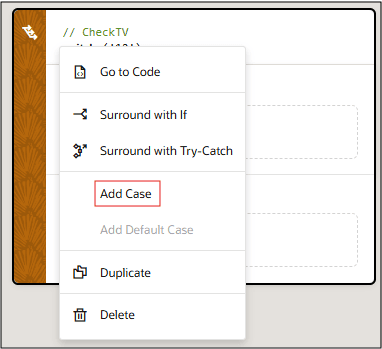
-
To add an empty case at a specific position, right-click an existing case and click Add Case Before or Add Case After.
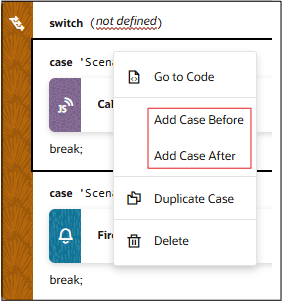
Description of the illustration jsac-switch-case-rightclick.png
-
To add a case with a specific action, from the Action palette, drag an action onto the Create Case drop area (for the last node) or onto the Create Case drop line (if it’s not the last node).
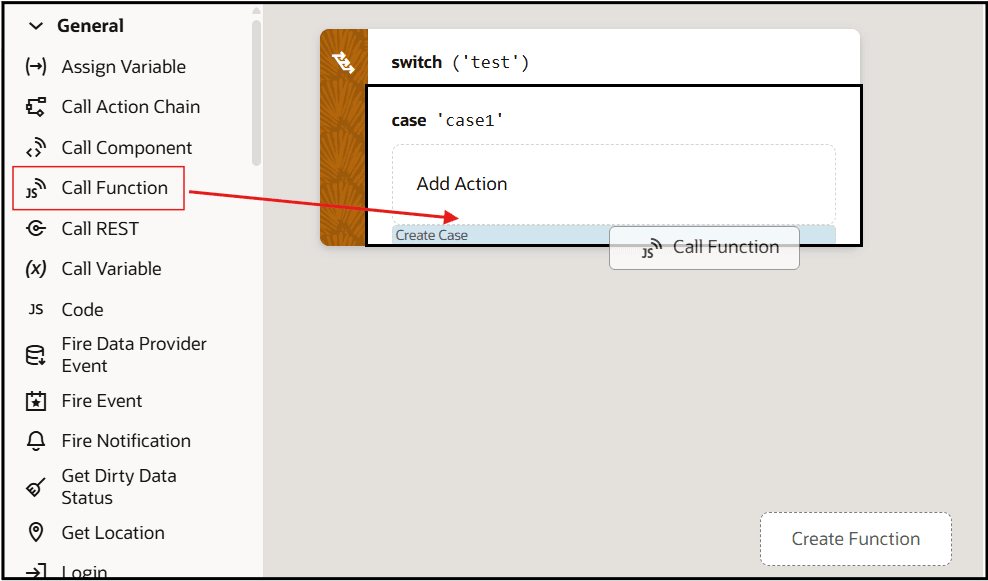
Description of the illustration jsac-switch-add-action-case-lastnode.png
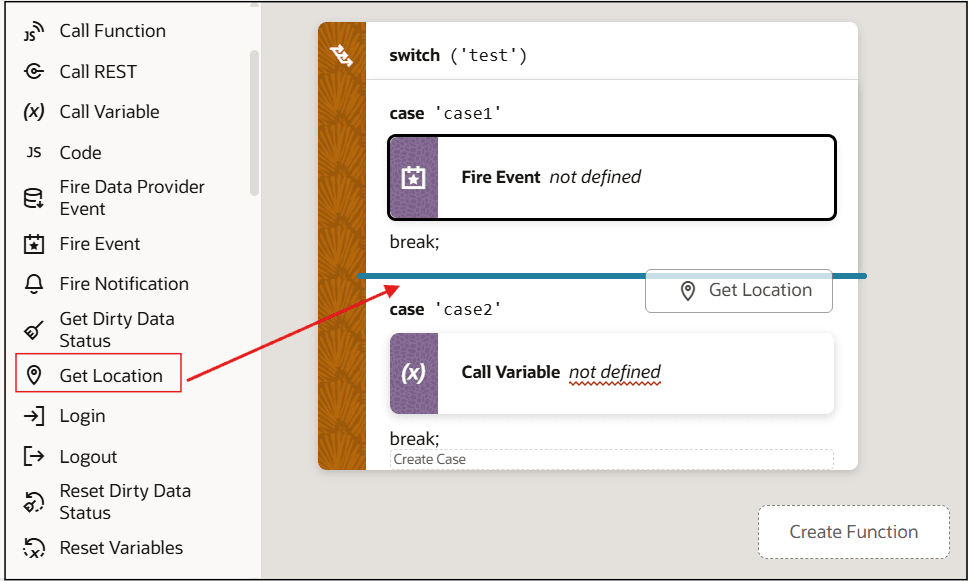
Description of the illustration jsac-switch-add-action-case-notlastnode.png
-
To duplicate a case, right-click a case and click Duplicate. This can be useful if you want to modify an existing case instead of recreating one from scratch.
-