Add a Try-Catch Action
You add a Try-Catch action to gracefully handle errors and avoid program crashes.
To use a Try-Catch action:
-
Add the action in one of three ways, as explained at the end of Built-In Actions.
-
To change the alias for the error object, which has the
nameandmessageproperties, select the Catch block on the canvas and change the alias in the Properties pane:
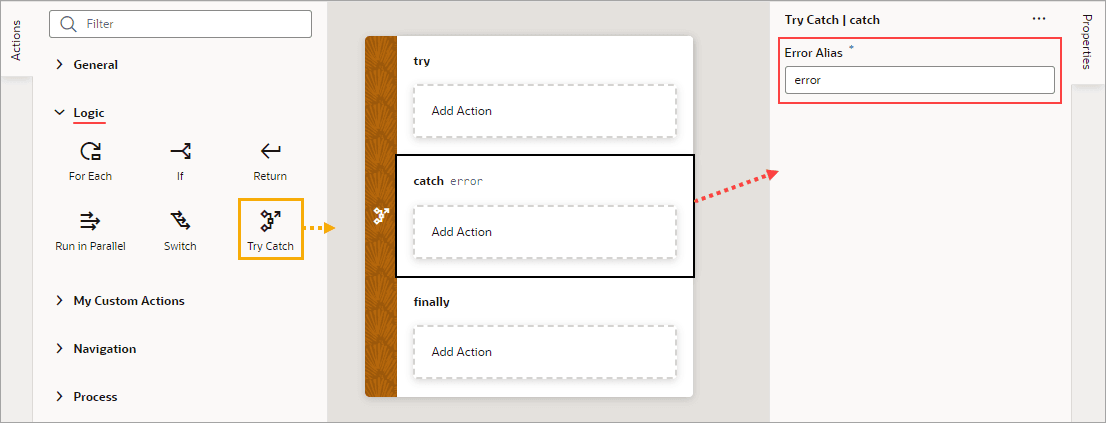
Description of the illustration jsac-try-catch-error-alias.png
-
To add an action to a Try-Catch block, select the block and double-click the action in the Actions palette, or drag an action from the Action’s palette onto the desired block:
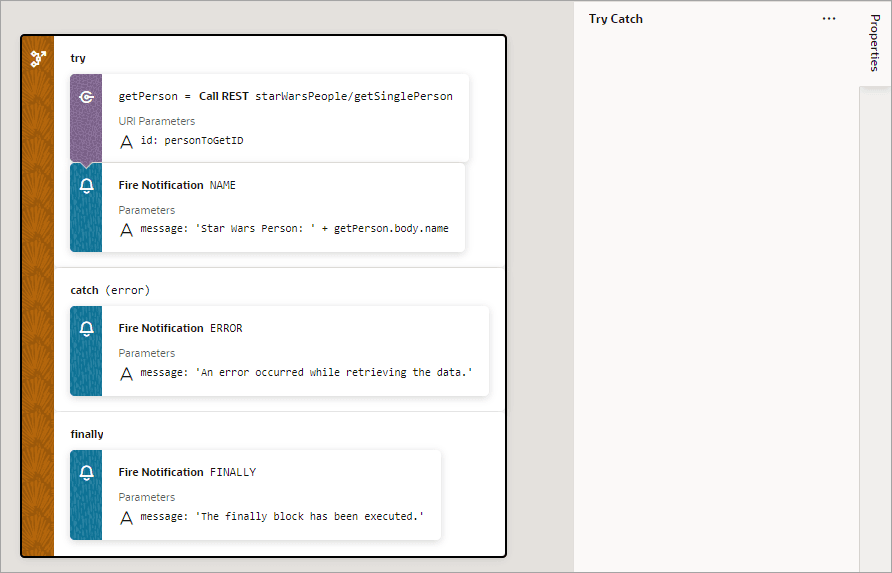
When you add a Try-Catch action to an action chain, you can’t delete the Catch or Finally block in Designview. However, you can delete these blocks in Codeview (by deleting the code that forms these nodes). If you’ve deleted the Catch or Finally blocks and want to add them back, here’s what you can do:
-
To add a Catch node, in Design view, right-click the try or finally block and click Add Catch.
-
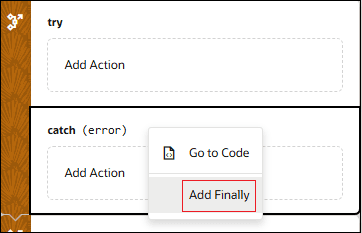
To add a Finally node, in Design view, right-click the catch block and click Add Finally.
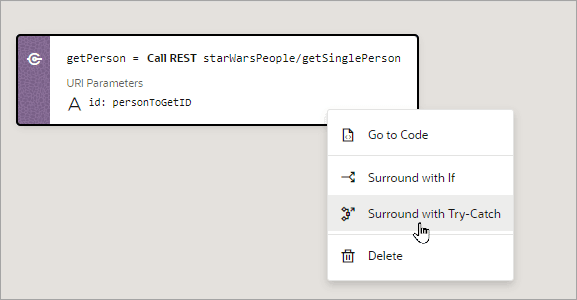
You can also surround an action with a Try-Catch action by right-clicking it and selecting Surround with Try-Catch:
If you need a Finally block, you have a few option:
-
To add a Finally block with a specific action, drag the action that you want to the Try-Catch action and drop it into the Create Finally area that appears:
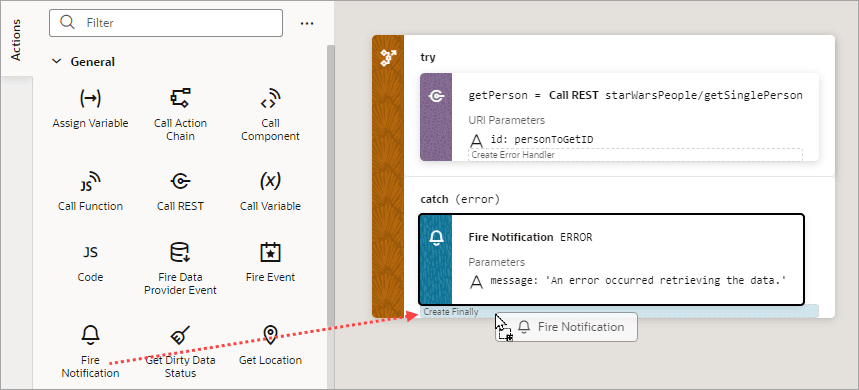
Description of the illustration jsac-create-finally-block1.png
-
To add an empty Finally block, right-click the try or catch block and click Add Finally.