Start an Action Chain
You set up an action chain to be triggered when an event occurs in an artifact. The type of event available depends on the artifact. For example, you can trigger an action chain to start when a lifecycle event such as vbEnter is fired to load a page. Or, use the onValueChanged variable event when a variable’s value changes. You can also use custom events to start an action chain from another action chain.
Start an Action Chain From a Component
When you add a component to a page, layout, or fragment, you’ll need to create a component event, with a component event listener, if you want it to trigger some behavior (for example, to open a URL).
You can apply several predefined events to a component, but the available events are usually determined by the component. For example, the ojAction event is triggered when a button is clicked, so you would typically apply it to a button component (you couldn’t apply it to a text field component). Each button will have a unique event and an event listener listening for the button’s ojAction event, and the listener would start an action chain (or multiple action chains) when the event occurs. Each component event will usually have a corresponding component event listener.
Note: You can add an event to a component only from the component’s Properties pane. You can’t create one in the Events tab of pages.
To start an action with a component:
- Select the component in a page, layout, or fragment. Typically, you assign events to elements such as buttons, menus, and fields in form components.
-
In the component’s Events tab in the Properties pane, click + Event Listener. You can choose the suggested event as a quick start or you can create a custom event to use a different event.
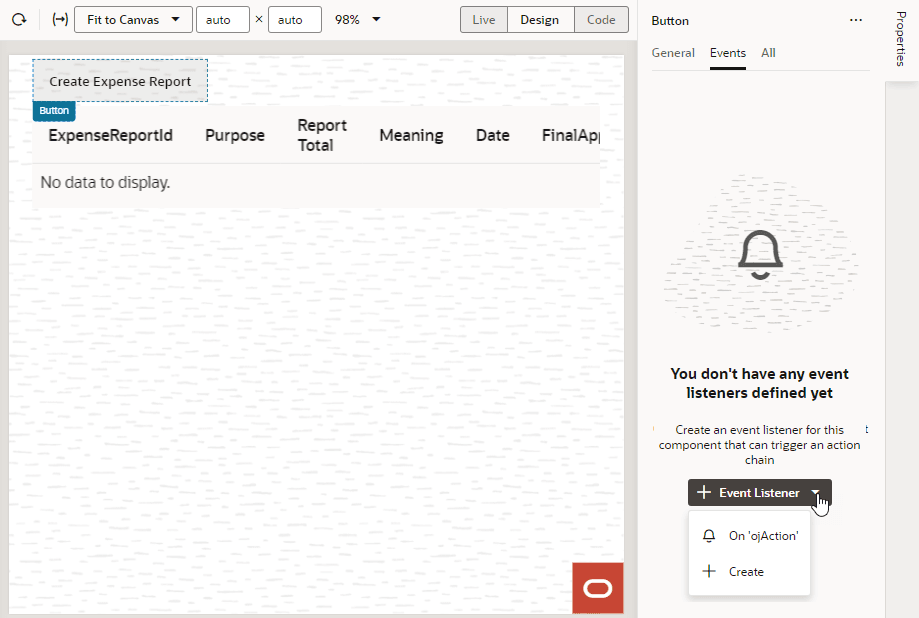
Description of the illustration event-listener-component-appui.png
When you add the new event using the quick start option, an action chain is created for you and the Action Chain editor opens automatically. When you add the new event using the custom option, you’ll need to select an event.
-
For a custom event, select the event you want to use to trigger an action chain. Click Select.
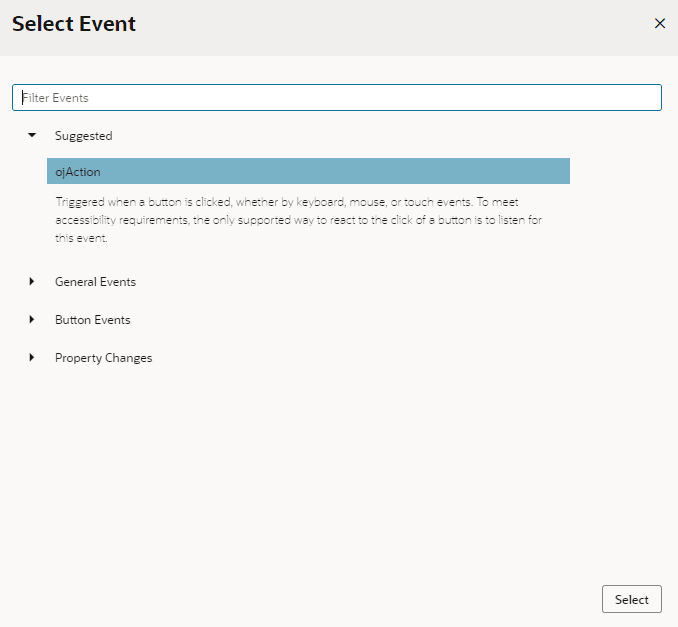
Description of the illustration page-designer-inspector-selectevent.png
-
Select the action chain you want the event to trigger and click Select Action Chain. Alternatively, click New Action Chain to create a new action chain.
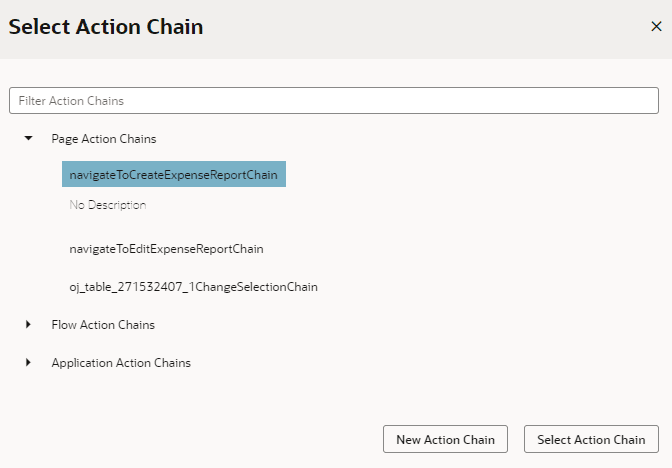
Description of the illustration page-designer-inspector-selectchain.png
The Events tab in the Properties pane shows events on the component that VB Studio responds to by triggering action chains. You can edit the properties, for example, to add input parameters that you want to use in the action chain. Input parameters can provide values from the component and its page to the action chain, which the action chain can then use to determine its behavior. For example, a table selection event could supply details of which row was selected to its action chain.
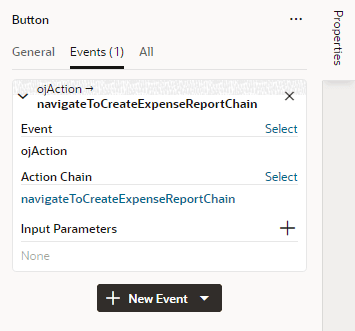
Description of the illustration event-listener-component-edit.png
If you used the quick start option to add an event, a component event listener is created for the new event, and the listener is mapped to the action chain it created for you. If you open the Event Listeners tab, you’ll see it listed under Component Event Listeners, along with the action chain that it will trigger.
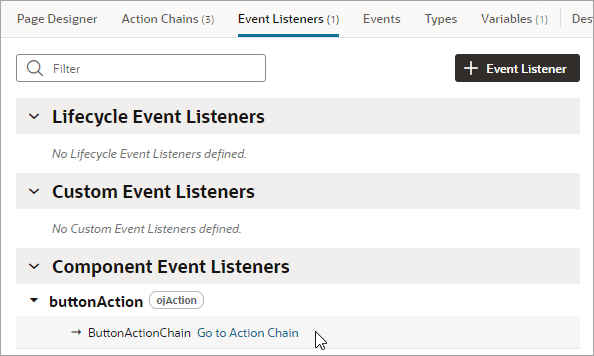
Description of the illustration event-listener-component-qs.png
Start an Action Chain When a Variable Changes
You can start an action chain when the value stored in a variable changes by adding an onValueChanged event to the variable.
When you use an onValueChanged event to trigger an action chain, the trigger has the payload of the variable’s old and new values. For example, let’s say you changed an employee’s Name property and reset the Employee; the framework sends an event that the Employee has changed, and as part of the payload, indicates that the name has changed.
To start an action chain when the value of a variable changes:
- Open an artifact’s Variables editor.
- Select the variable in the list, then click Events in the Properties pane.
- Click + Event Listener.
-
Select an action chain from the list and click Select.
When you add the event to the variable, a listener that listens for the
onValueChangedevent on the variable is automatically created. The variable’s Events tab in the Properties pane displays the action chain the event listener starts; you can change or remove the action chain, assign input parameters, and add more action chains.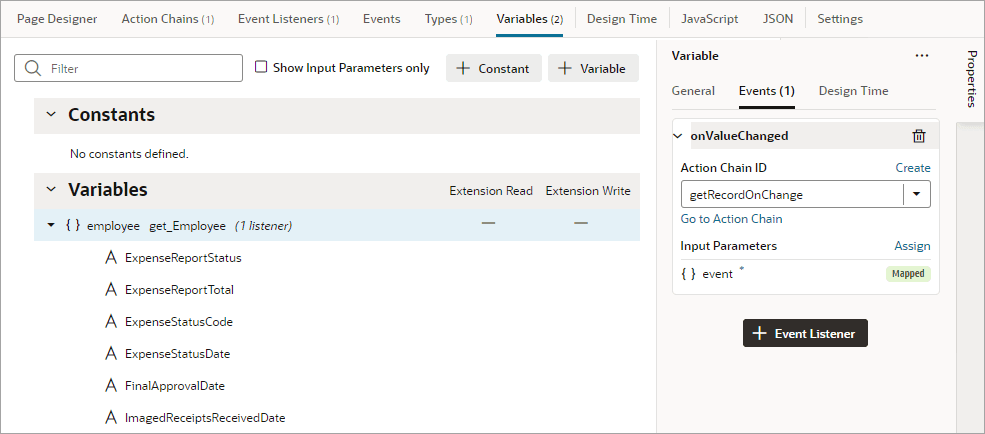
Description of the illustration event-listener-variable-appui.png
Note: Variable events and event listeners are not listed in an artifact’s Events or Event Listeners tabs.
Start an Action Chain From a Lifecycle Event
Lifecycle events are predefined occurrences that take place during a page’s lifecycle. You can start action chains when these events occur by creating event listeners for them. For example, if you want to initialize some component variables when the page opens, you can create an event listener in your artifact that listens for the vbEnter event. You could then set the event listener to trigger an action chain that assigns values to the component’s variables.
Before you create an event listener to trigger an action chain, it’s important to understand a page’s lifecycle, so you know where to plug in custom code to augment the page’s lifecycle. Each page in your App UI has a defined lifecycle, which is simply a series of processing steps. These might involve initializing the page, initializing variables and types, rendering components, and so on.
Each stage of the lifecycle has events associated with it. You can “listen” for these events and start action chains whenever they occur to perform something based on your requirements. For example, to load data before a page loads, you can use the vbEnter event and start an action chain that calls a GET REST endpoint.
Keep in mind that one or more pages make a flow and each flow has its own lifecycle.
This table describes the lifecycle events you can use to start action chains in a page:
| Lifecycle Event | Description |
|---|---|
vbBeforeEnter |
Triggered before navigating to a page. Commonly used when a user does not have permission to access a page and to redirect the user to another page (for example, a login screen). Because this event is dispatched to a page before navigating to it, you can cancel navigation by returning an object with the property cancelled set to true ({ cancelled: true }). For this event, you can use these variable scopes to get data:
|
vbEnter |
Triggered after container-scoped variables have been added and initialized with their default values, values from URL parameters, or persisted values, and is dispatched to all flows and pages in the current container hierarchy and the App UI. Commonly used to fetch data. For this event, you can use these variable scopes to get data:
|
vbBeforeExit |
Triggered on all pages in the hierarchy before navigating away from a page. Commonly used to warn if a page has to be saved before the user leaves it, or to cancel navigation to a page (say, because a user doesn’t have permissions to view that page) by returning an object with the property { cancelled: true }. |
vbExit |
Triggered when navigating away from the page and is dispatched to all flows and pages in the current container hierarchy being exited from. Commonly used to perform cleanup before leaving a page, for example, to delete details of a user’s session after logout. |
vbAfterNavigate |
Triggered after navigation to the page is complete and is dispatched to all pages and flows in the hierarchy and the App UI. The event's payload ( $event) is an object with the following properties:
|
vbNotification |
Triggered when a Fire Notification action is fired by the application. |
vbResourceChanged |
Triggered when an application has been updated. Commonly used to notify the user that they need to refresh to view the updated application. |
vbDataProviderNotification |
Triggered when a Data Provider’s implicit fetch fails with an error. |
Note: Lifecycle events are also supported in fragments and work similar to those used by a page; however, not all events are available when you’re working with a fragment. See Define Actions and Events in Fragments for the lifecycle events supported within a fragment.
To start an action from a lifecycle event:
- Open the Event Listeners tab for the page (or fragment) containing the event you want to trigger an action chain for.
- Click + Event Listener.
-
In the Create Event Listener wizard, under Lifecycle Events, select the event you want to trigger an action chain for. Click Next.
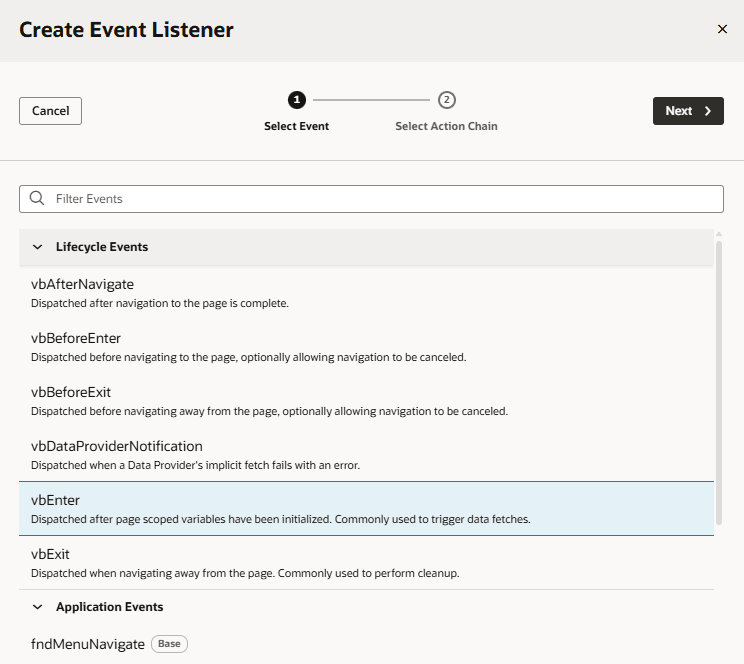
Description of the illustration page-designer-events-select-appui.png
-
Select the action chain you want to start. You can select any action chain that is scoped for the artifact. For example, if you are creating an event for a flow artifact, you can only call action chains defined in the flow or in the App UI.
If you want to create a new action chain, select the create action chain option at the appropriate level (page, flow, or App UI), then click Finish. Keep in mind that in a fragment, you create action chains only within the scope of the fragment.
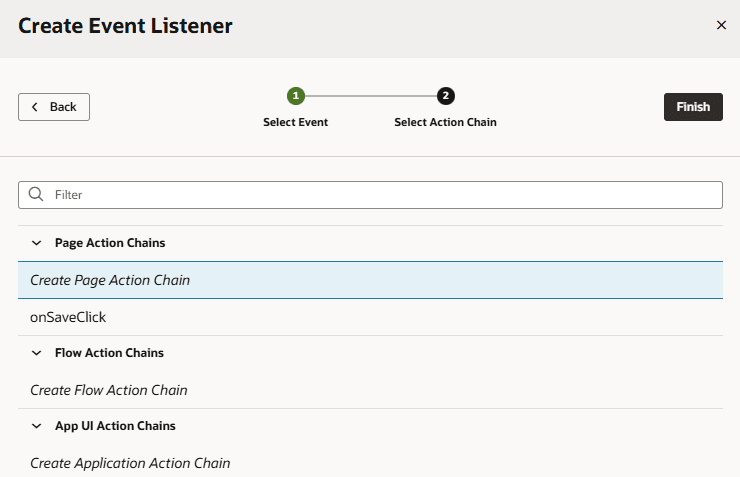
Description of the illustration page-designer-settings-selectaction-appui.png
After you create an event listener, you can click Add Action Chain for the lifecycle event if you want it to start additional action chains.
Start an Action Chain By Firing a Custom Event
You can use the Fire Event action in an action chain to trigger a custom event, which in turn starts another action chain to display a notification, transform data, and so on. You can also trigger a custom event by using an event helper’s fireCustomEvent() method in a JavaScript module function.
See Add a Fire Event Action to learn how you can use the Fire Event action to trigger a custom event.
In this example, we’ll use a module function to subscribe to a table’s ojRowAction event to trigger a custom event that starts an action chain. The action chain then saves the selected row’s data to a page variable.
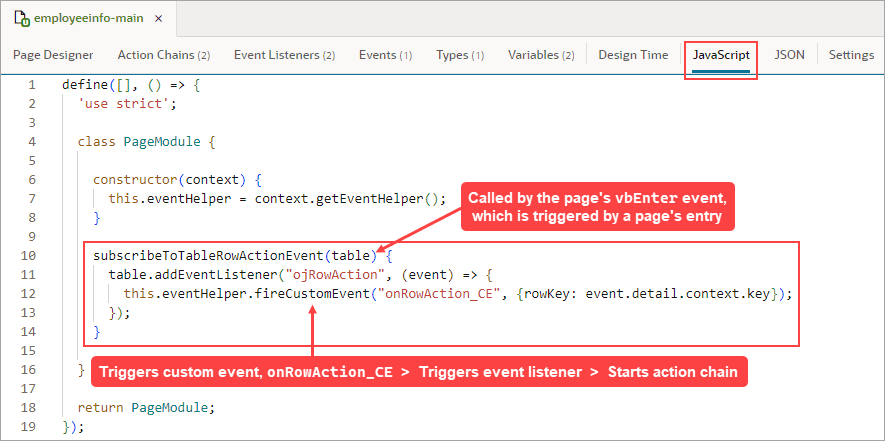
Description of the illustration jsac-add-listener-component-appui.png
(For more information about the module function event helper, see Module Function Event Helper.)
-
Create a page variable of type Object to hold the selected row’s data:
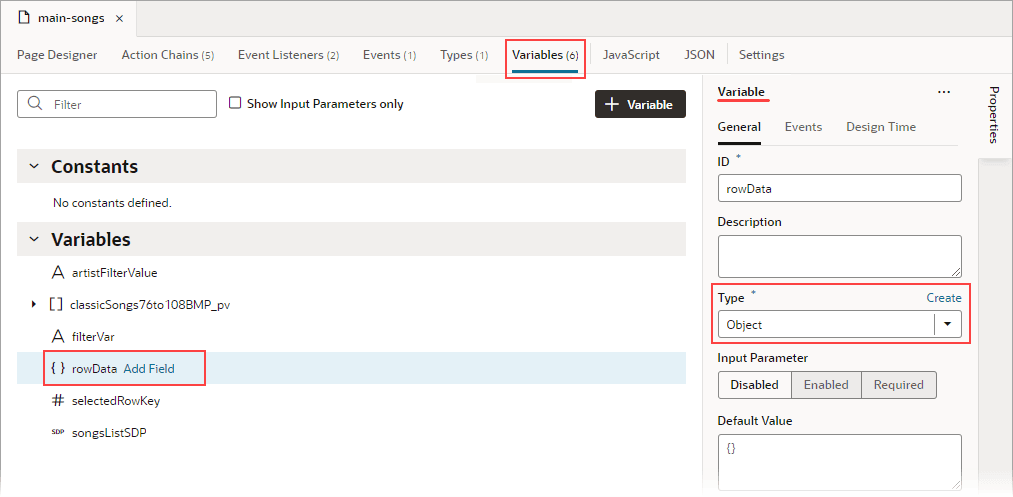
Description of the illustration jsac-create-rowdata-variable1.png
-
Create a JavaScript function (module function) to subscribe to the table’s
ojRowActionevent, which is triggered when a user clicks a table’s row. You’ll use thisojRowActionevent to trigger your custom event, which will start the action chain that saves the row’s data to therowDatapage variable.To create the function, select the JavaScript tab. Use the context’s
eventHelperobject’sfireCustomEvent()method to trigger your custom event and to pass the required payload. Theeventparameter contains the row’s data (event.detail.context.data).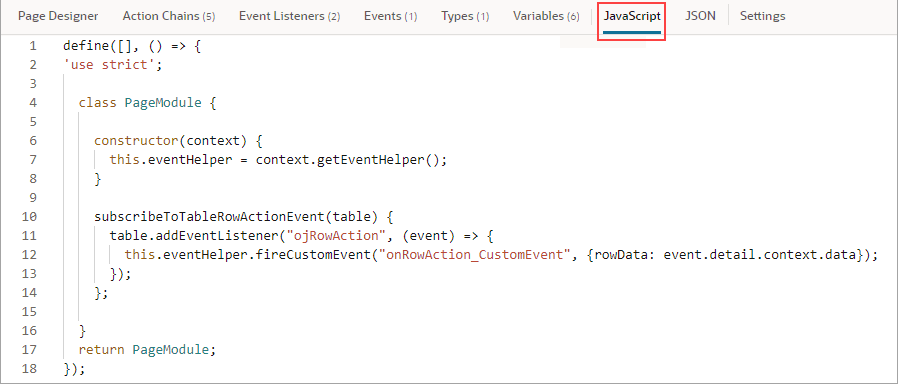
Description of the illustration jsac-js-function-subscribe-table-event.png
Here’s the example code:
constructor(context) { this.eventHelper = context.getEventHelper(); } subscribeToTableRowActionEvent(table) { table.addEventListener("ojRowAction", (event) => { this.eventHelper.fireCustomEvent("onRowAction_CustomEvent", {rowData: event.detail.context.data}); }); }; - Create the event listener for the page’s
vbEnterevent, which is triggered when the page starts. You’ll use this event listener to start an action chain that calls the function to subscribe to the table’sojRowActionevent.- Select the page’s Event Listeners tab, then click + Event Listener.
-
In the Select Event step, select
vbEnterunder Lifecycle Events and click Next.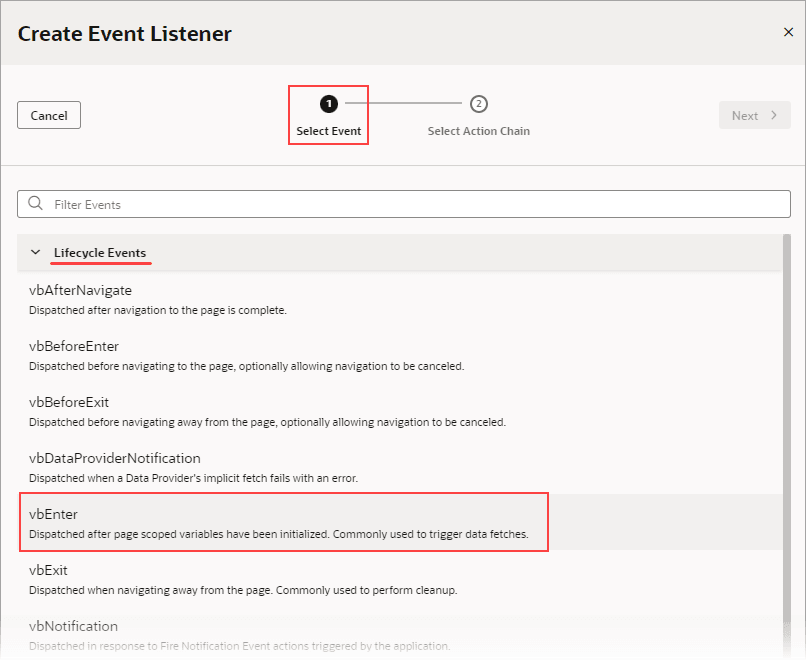
Description of the illustration jsac-create-event-listener-vbenter.png
-
In the Select Action Chain step, click the Add icon next to Page Action Chains.
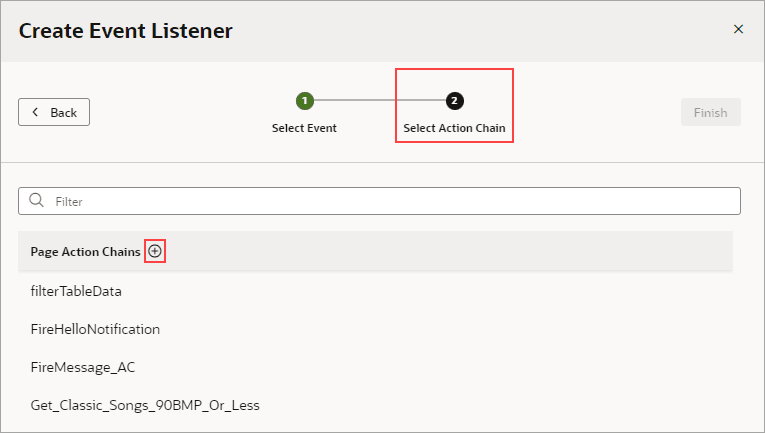
Description of the illustration jsac-create-event-listener-create-action-chain1.png
If the custom event for this listener has input parameters (which this one doesn’t), the action chain would be created with an
eventinput parameter that contains the custom event’s input parameters.
-
Create the action chain to call the function that subscribes to the table’s
ojRowActionevent. Add the Call Function action to the canvas. Set itsFunction Nameproperty to the JavaScript function, and pass the table to the function using thetableparameter: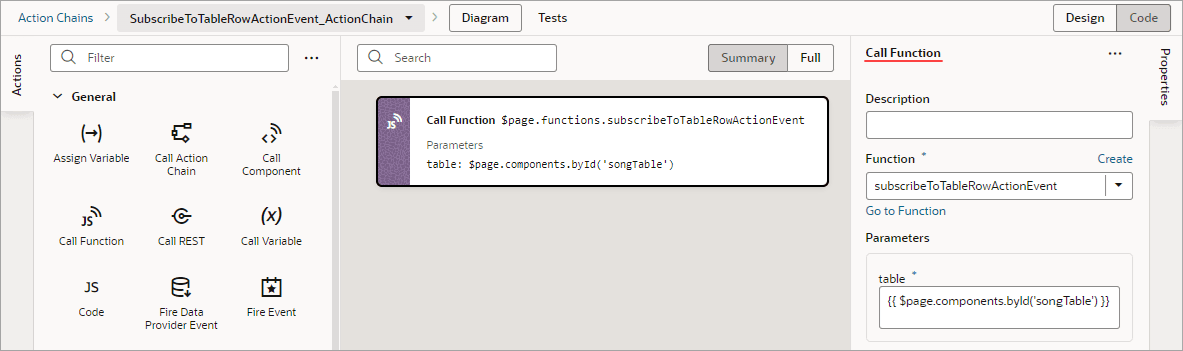
Description of the illustration jsac-call-subscribe-function-action-chain.png
- Now create the custom event that will be triggered by the table’s
ojRowActionevent. You’ll also create the action chain that assigns the row’s data to therowDatapage variable.-
On the page’s Events tab, click + Custom Event to create a custom event. In the Properties pane, click the Payload property’s Add Parameter link and define an input parameter of type Object. This input parameter will be used to pass the row’s data to the action chain that assigns the data to the
rowDatapage variable.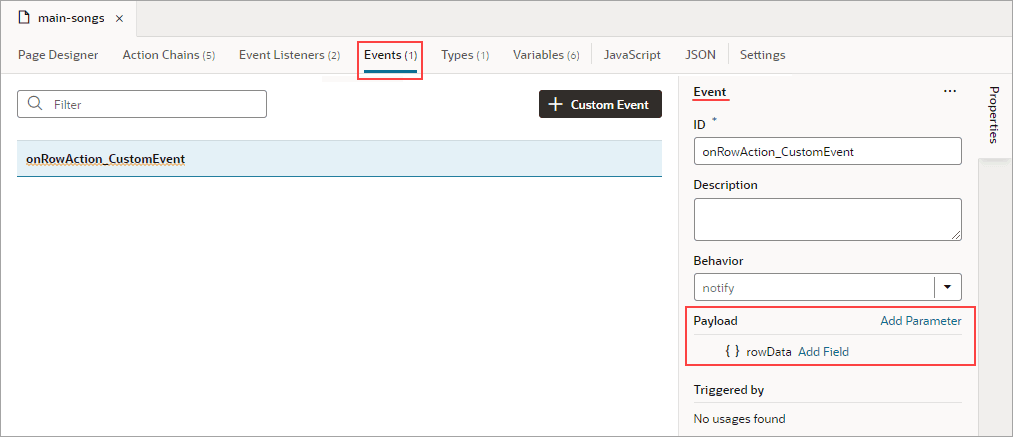
Description of the illustration jsac-create-custom-event1.png
-
For the custom event’s Behavior property, set whether the action chain runs serially or in parallel. The default,
notify, is in parallel. For details about each option, see Choose How Custom Events Call Event Listeners.
-
- Create an event listener for the event to specify which action chains to start when the event occurs (more than one action chain can be started by an event listener).
- On the page’s Event Listeners tab, click + Event Listener.
-
In the Select Event step, scroll down to Page Events and select the custom event that you created. Click Next.
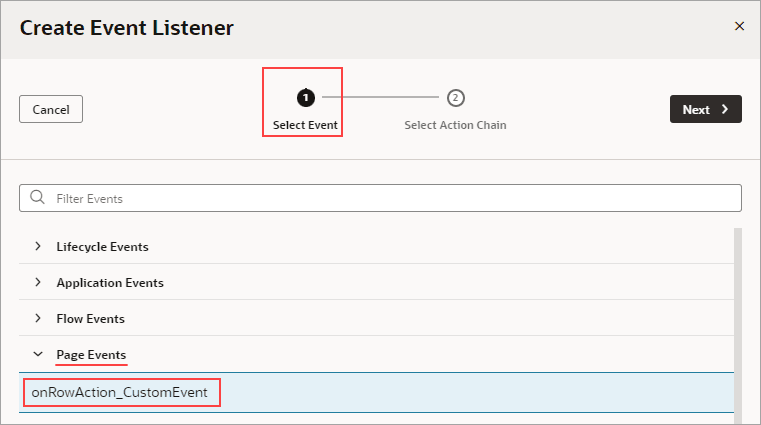
Description of the illustration jsac-create-event-listener-select-event1.png
-
In the Select Action Chain step, click the Add icon next to Page Action Chains.
Description of the illustration jsac-create-event-listener-create-action-chain1.png
When a listener’s action chain is created here, if the listener’s custom event has input parameters, the action chain is created with an
eventinput parameter. Thiseventobject contains the custom event’s input parameters (example:event.param1,event.param2...), and theeventobject is automatically passed to the new action chain. -
In the Action Chain editor, note that the action chain has the
eventinput parameter, which contains the custom event’s input parameter. Add the Assign Variable action, set itsVariableproperty to the page variable that will contain the row’s data, then set itsValueto the relevant value in theeventobject that was passed to the action chain: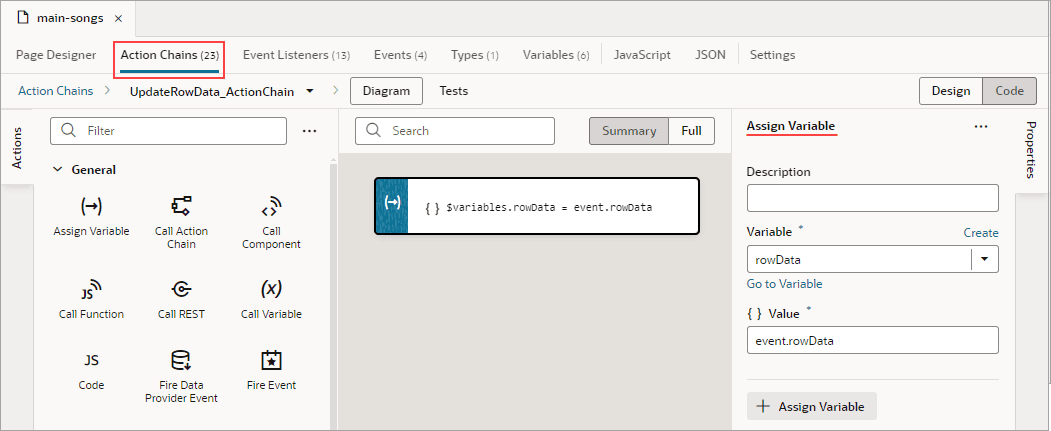
Description of the illustration jsac-create-action-chain-event-listener1.png