Manage Workspaces
Some workspace management tasks can be done by an individual, while others must be performed by the project owners.
The Project Home page displays your personal workspaces associated with the selected project:
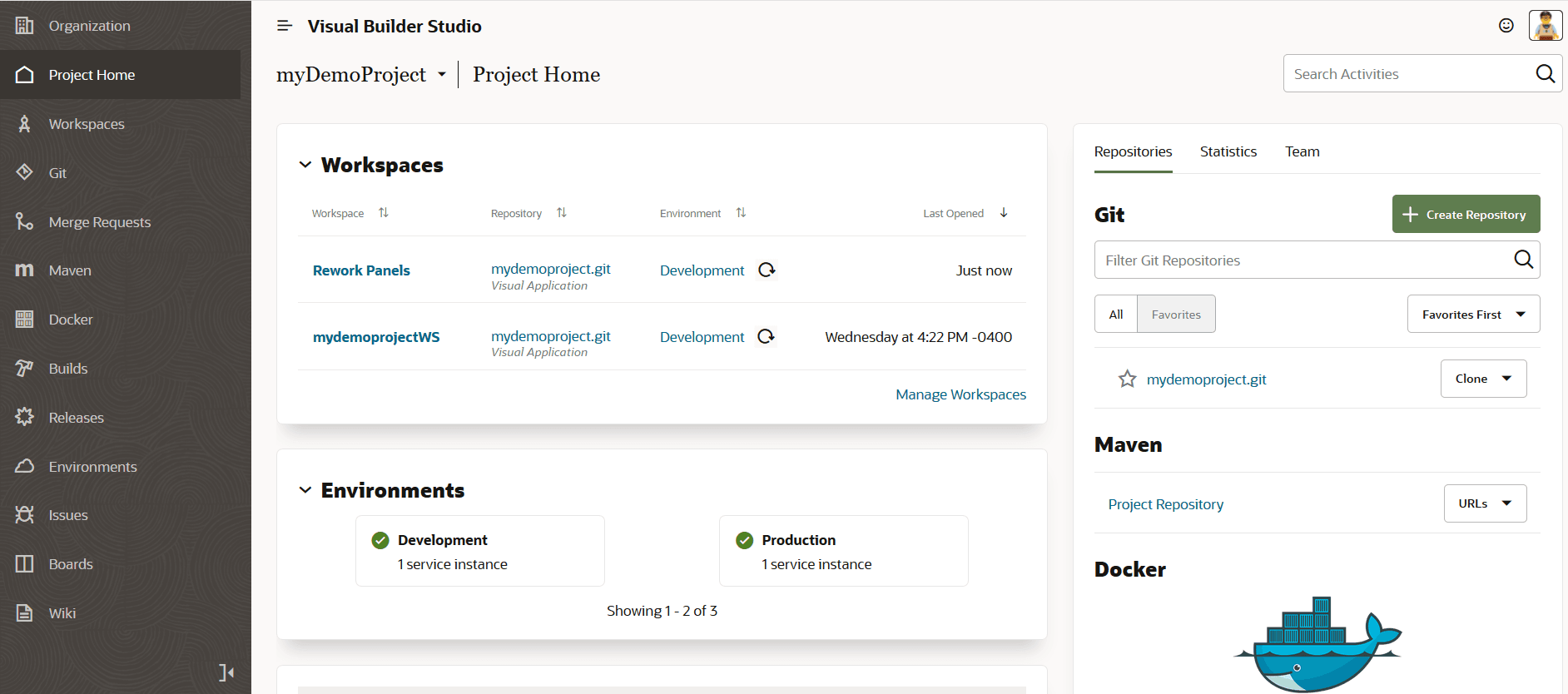
Description of the illustration workspaces-list-project-home.png
The Workspaces tile on that page has Refresh  buttons for its environments, so you can reload them independently from each other. Click a workspace name in the tile to open the Designer in the context of that workspace (that is, with the correct Git branch and sandbox, if used).
If you access workspaces via the Workspaces option in the left navigator, you can use the Actions menu for a workspace to perform various workspace management tasks, depending on your permissions:
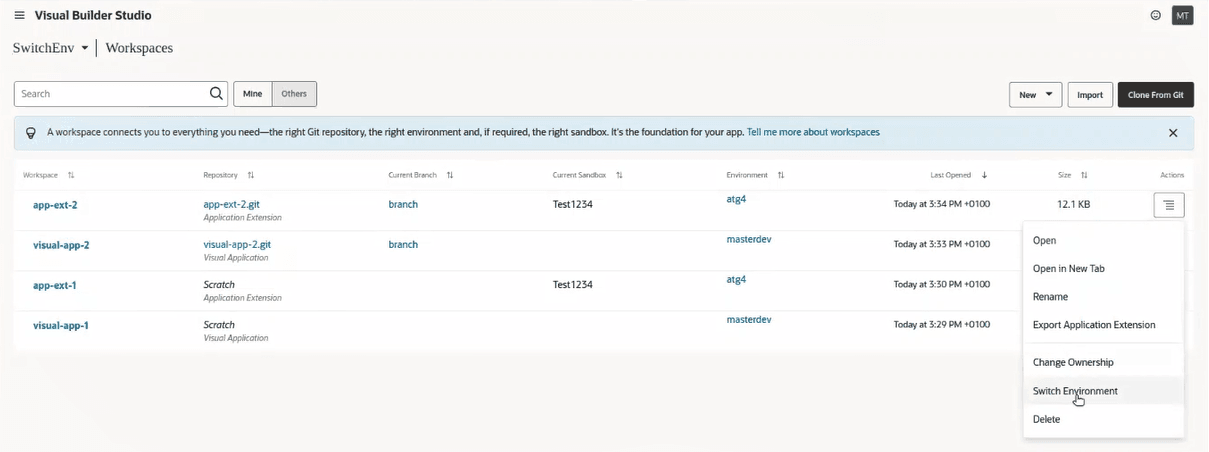
Description of the illustration workspaces-list-workspaces-page-action-menu-alm.png
Tip: The Workspaces page shows details about your workspaces, including the current Git branch (and optionally, sandbox). From here, you can click a workspace’s current branch name to go to the Git page if the current branch exists in the remote repository. The branch won’t be clickable if it only exists in the local repository.
Here’s what you can do from the Workspaces page:
-
Use Mine to view your personal workspaces only, or use Others to view all the workspaces associated with this project. If the list is long, you can use the search field to find specific user or workspace names.
-
Open the workspace in a new tab. This is convenient when you want to work in another project area, such as Issues, without closing and leaving the page where you opened the workspace. Both pages can be open simultaneously.
-
Delete a workspace.
As an individual working on extensions or visual applications, it’s a good idea to delete a workspace once you’ve finished with it (that is, once you’ve used the Publish action to push your changes into the main Git branch).
Note: If there are uncommitted changes to the workspace being deleted, the Confirm Delete dialog will indicate this. The dialog will also indicate if the workspace contains changes that were committed but not pushed.
If you’re a project owner, you can delete workspaces that are or were associated with projects that you own, even workspaces that you don’t own or didn’t create. Try not to let inactive workspaces accrue in your project, as they still count against your total resource allocation and thus have a (hidden) cost.
-
Both the project owner and the workspace owner can rename a workspace, or export it to an archive that can later be imported to another project. See Export a Visual Application for more information.
-
Both the project owner and the workspace owner can assign a new owner for a workspace by selecting Change Ownership in the Actions menu. The Developer and Developer Limited roles can reassign ownership of their own workspace only, but the project owner can reassign ownership of any workspace. This may be necessary for making changes, like resolving conflicts or pushing changes. A project owner may also need to assign a new workspace owner if the previous owner left the company or organization, leaving the workspace with no owner.
Note: If you’re transferring a workspace’s ownership to a user in different identity stripe, you’ll see the “Switch environment required” warning message. Click the message to display the Switch Environment dialog. The dialog indicates the current environment you’re using. Use the selector to choose an environment that’s in the same identity stripe as the new user. The environment currently associated with the workspace won’t be listed.
Once a workspace has a new owner, it behaves as if the new owner created the workspace. Only the new owner (and the project owner) can work on that workspace going forward. The original owner could still see the workspace by setting Others, if he or she is a project owner, but would lose all access to the workspace.
-
You may find it necessary to switch the environment that your workspace is using to another environment because the old one may be down, decommissioned, or has been repurposed or replaced. By switching environments, you can resume development work using the same workspace, without having to first push any changes back to the remote repository and then create a new workspace that uses the new environment.
You can change your workspace’s environment by selecting Switch Environment in the Actions menu. This dialog notifies you which environment you are using and presents a list of environments that contain an Oracle Cloud Application instance or a Visual Builder instance, omitting the one currently associated with the workspace. You’re prompted to choose another environment. After an environment has been selected from the list, its health is checked.
Note: The list shows all environments that contain an Oracle Cloud Application instance or a Visual Builder instance, not just those that are compatible with the current workspace’s contents. The Switch Environment dialog relies on you to know what type of workspace (visual app or app extension) it is. If the workspace type is a visual application, for example, and you try to select an environment that contains an Oracle Cloud Application instance, you’ll see a warning. When you see this kind of message, you shouldn’t make the switch. (You’ll be able to select Switch, after choosing an incompatible environment, but a backend check prevents the switch and notifies you by displaying an error message.)
If you select an environment that contains an Oracle Cloud Application instance, you’ll see the sandbox menu so you can select a sandbox (optional).
If the workspace includes Business Object data, you’ll see a message warning that switching environments may cause the loss of data. To avoid losing any data, you need to export the business objects (see Export the Data to a File from the Data Manager) before switching environments and then importing them (see Import Data from a File Using the Data Manager) after you make the switch.
The activities stream on the Project Home page will display notifications about most, but not all, of these tasks. Notifications for opening workspaces, opening a workspace in new tab, and exporting workspaces won’t be shown, but notifications for creating, deleting, importing, changing ownership, and renaming workspaces will be displayed.