Set Up and Populate Your settings.xml File
The Maven page provides you with the settings you need to put in your settings.xml file for basic or token-based authentication, used for establishing a connection with your VB Studio Maven repository, as well as profile-specific settings with repository details that the Maven build process uses during dependency resolution. You can easily copy that information to the clipboard and paste it into your file. The only thing you need to modify is the password or encrypted password.
Authentication is configured in Maven using <server> elements in the settings.xml file. Each <repository> element specified in the settings.xml file must have a corresponding <server> element with a matching <id> that specifies the username and password.
VB Studio generates a snippet with these elements for you to copy and paste into your local settings.xml file.
Perform the Authentication-Specific Configuration:
You can authenticate your Maven client to Visual Builder Studio using either basic or a token-based authentication. If you decide to use basic authentication, you can use a plain text password, but this approach is never recommended. Passwords really need to be stored in an encrypted format, at a minimum. A much better alternative would be to use token-based authentication instead of basic authentication.
Copy and Use the Basic Authentication Snippet
To configure basic authentication, copy the snippet and paste it into your local settings.xml file then modify the password:
- In the Browse view, in the Repository Configuration section, select the Maven Settings tab.
- Click
 to expand the Authentication-specific Configuration section, if it’s collapsed.
 -
Click the Basic tab, if it isn’t already selected.
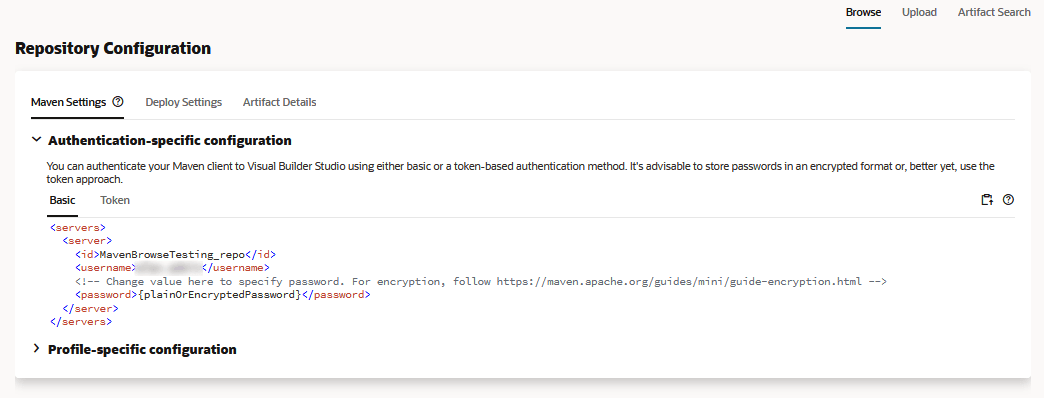
- Click the
 Copy icon to copy the settings.
 - Open your Maven
settings.xmlfile in a text editor. - Paste the settings you copied directly into the file, in the
<settings>element. - Modify the password element.
This is a multi-step process that’s described in the page linked to from the snippet: Maven - Password Encryption. The summarized steps follow.
-
Create a master password that’s used to encrypt all the other Maven passwords.
Open a terminal window and type:
$ mvn --encrypt-master-passwordWhen you’re prompted for a master password, enter it and Maven will spit out a long string, something like this:
{w5+NYEttGTAHV3FanFoel4N5uUmbcvtzRoWZHI5N97jtssbo0O/93W/XLlm0caeM}Keep your terminal window open while you do the next step.
-
Store the master password.
Create a file called
settings-security.xmlin the~/.m2directory and copy/paste the following block into it:<settingsSecurity> <master></master> </settingsSecurity>Copy/paste the long encrypted string that Maven spit out in the previous steps in between the
<master>tags and save the file. -
Encrypt your password.
Open another terminal window and type:
$ mvn --encrypt-passwordEnter the password you want to encrypt and Maven will return an encrypted string that looks similar to the one it returned for the master password. Copy it and open your
settings.xmlfile. Replace the placeholder password between the<password>tags with the new encrypted version. -
Save the file.
-
Encrypted passwords are certainly safer to use than unencrypted ones, but they can still be decrypted by someone that has the master password and settings security file, so you need to keep it secure or store it separately if you expect that there’s any chance that the settings.xml file may be retrieved. Given the limitations and inherent risks of using basic authentication, you may be better off using token-based authentication instead.
Copy and Use the Token-Based Authentication Snippet
To use token-based authentication, copy the snippet provided and paste it into your local settings.xml file. The new settings.xml entries contain the generated token. Make sure you copy the contents before dismissing the window, since you won’t be able to see the same token later.
To configure token-based authentication, copy the snippet containing the generated token and the required authentication entries from VB Studio and paste it into your local settings.xml file:
-
In the Browse view, in the Repository Configuration section, select the Maven Settings tab.
-
Click
to expand the Authentication-specific Configuration section, if it’s collapsed. -
Click the Token tab, if it isn’t already selected.
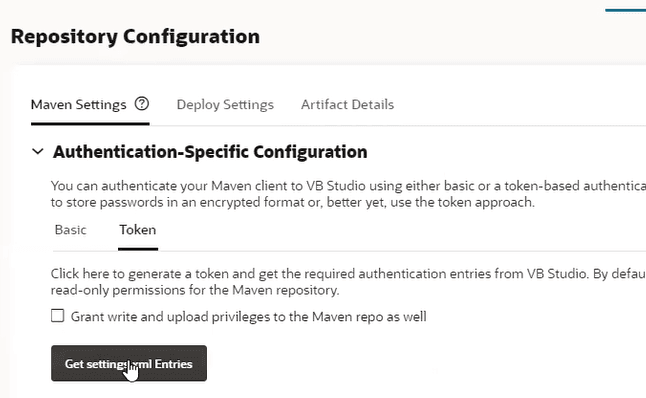
Description of the illustration maven-settings-auth-token-tab.png
-
By default, the token that is generated grants you read-only privileges. If you want write/upload privileges as well, click **Grant write and upload privileges to the Maven repo as well. **
-
Click the Get settings.xml Entries button.
The Get Maven settings.xml Entries window displays.
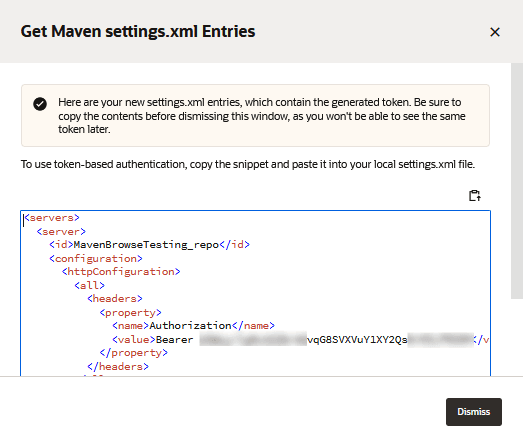
Note: If you are an org administrator and, after clicking Get settings.xml Entries, see a warning message that you reached the maximum number of tokens allowed per user, to create another token to use with Maven, you can either click Dismiss and then delete the existing tokens by going to the Personal Access Tokens tab on your Preferences page and using the
 Delete icon to delete some of your existing tokens or you can click Open Access Token Settings to go to the Organization page’s Properties tab and change the maximum value for the entire organization.
If you are not an org administrator and, after clicking Get settings.xml Entries, see the message about having too many tokens, to create another token to use with Maven, you can either click Dismiss and then delete the existing tokens by going to the Personal Access Tokens tab on your Preferences page and using the
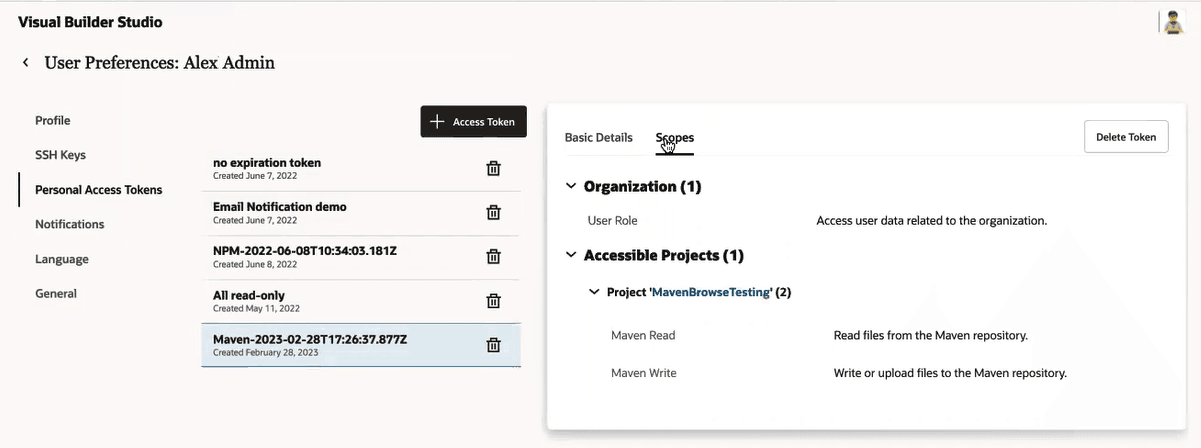
Delete icon to delete some of your existing tokens or you can ask one of the org administrators shown in the dialog to change the maximum number of tokens allowed per user.See Set Up Token-Based Authentication for more information about creating personal access tokens.
The token was retrieved from a previously-defined personal access token for the project. The token has sufficient permissions to perform Maven read and write access.
- Click the Copy icon to copy the settings.
- Click the Dismiss button to close the window.
- Open your Maven
settings.xmlfile in a text editor. - Paste the settings you copied directly into the file, in
<settings>element. - Save the file.
Perform the Profile-Specific Configuration:
The profile-specific settings contain repository details that the Maven build process uses during dependency resolution. When you install an artifact using mvn install, Maven automatically tries to install any dependencies required by the artifact. Your VB Studio Maven repository will be checked first and, if the dependency isn’t found there, the dependency will be resolved from the official Maven Central Repository.
The <profile> element in the settings.xml file is essentially a truncated version of the pom.xml file’s profile element, primarily consisting of the <repositories> and <pluginRepositories> elements. The settings.xml file includes these elements because they’re concerned with the build system as a whole, not about individual project object model settings.
Note: If a profile is active from settings, its values override any equivalently identified profiles in the POM file.
You can copy the provided settings to the clipboard and paste them directly into your Maven settings.xml file, so you don’t have to enter them manually:
- In the Browse view, in the Repository Configuration section, select the Maven Settings tab.
-
Click
to expand the Profile-specific Configuration section, if it’s collapsed.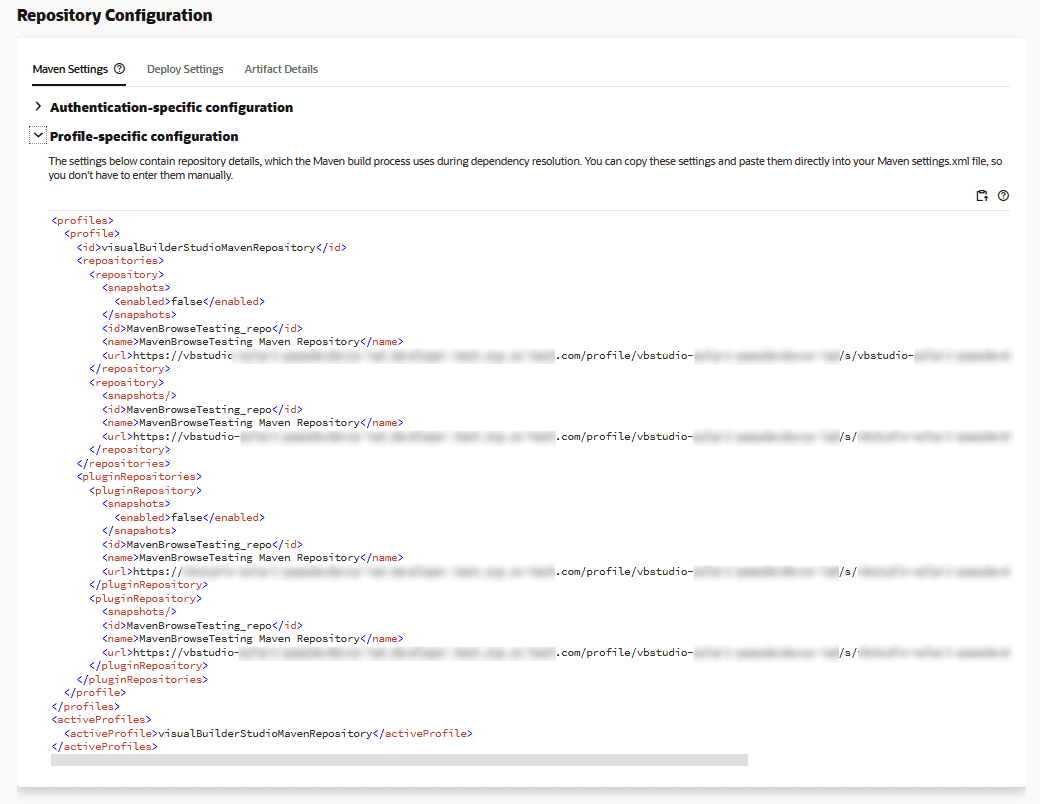
- Click the Copy icon to copy the settings with the repository details the Maven build process uses to resolve dependencies.
- Open your Maven
settings.xmlfile in a text editor. - Paste the settings you copied directly into the file.
- Save the file.