Creating Supported Transactions
Supported transactions have a legitimate reason for having no match, so you must add an explanation to justify them as correct and valid.
For Number attributes, the values displayed are based on the precision set when defining the attribute. The precision used for the balancing attribute is based on whether the use of multiple currencies is enabled. If multiple currencies are configured in the match type, the precision used is that of the currency associated with the transaction. If no currencies are configured in the match type's data sources, the precision used is the default currency of the lowest currency bucket that is enabled for the profile.
To handle supported transactions:
- On the Unmatched Transactions dialog, select the
transactions that must be supported and click Support.
You can support unmatched transactions from both sides. A single support ID is
created for the selected transactions.
For a match process containing a single source, do one of the following:
- Select one or more transactions from debits side or credits side
- Select one or more transactions from debits side and credits side
For a match process containing two data sources, do one of the following:
- Select one or more transactions from the source system or subsystem
- Select one or more transactions from the source system and one or more transactions from the subsystem
If currency is configured for data sources in the match type, all selected transactions must be of the same currency.
Use Select All to choose all transactions. When transactions from only one side are selected, the maximum number of transactions that can be supported together within a support group is 5000. When transactions from both sides are selected, the number of transactions that can be supported within a support group is 10000.
If a support attribute is a group attribute, its member attributes are displayed under a separate node in the Support section.
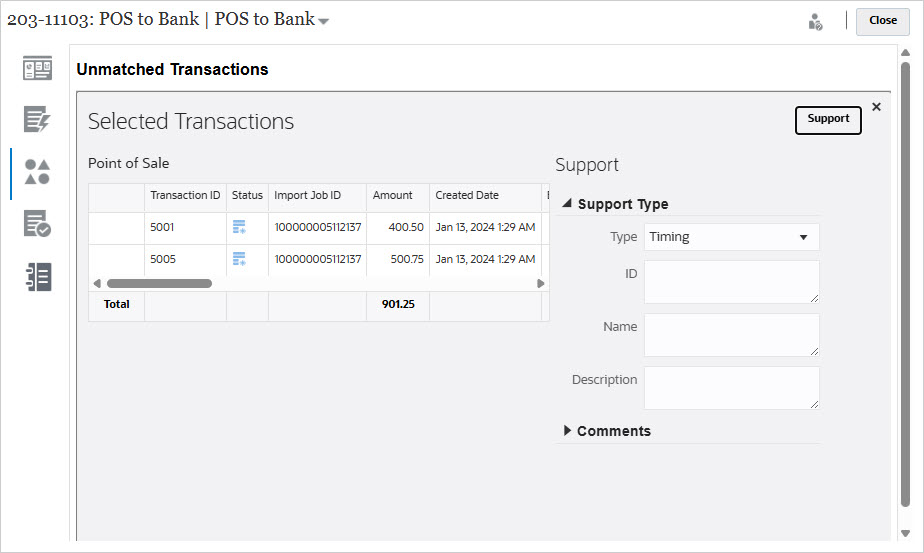
- Select a Support Type, then enter an ID, Name and optionally, a Description.
- You can also enter a comment to explain why this transaction has no match.
- Optionally, you can add a file attachment by browsing to the file and click Open and then Support.
Before support details can be saved, a set of validations is performed. Messages are displayed when the following conditions exist:
- A required attribute does not have a value.
- The value entered for a text attribute exceeds the maximum allowed length.
- The value entered for a list attribute is not included in the attribute's defined list of valid values.
These validations help ensure that support details are accurate and increase the likelihood of successful posting to downstream systems.