Example: Predicting Matches for Unmatched Transactions with Transaction Matching Assistance
This example uses Transaction Matching Assistance to predict potential matches for the GL POS Bank match type.
Prerequisites
- You must be a Service Administrator to train a prediction model.
- Ensure that the Enable Predictive AI configuration setting is selected. See Configuring Artificial Intelligence Settings.
Step 1: Training Match Predictions for the GL POS Bank Match Type
- From the Home page, select Application, and then Jobs.
- Select the Transaction Matching tab.
- From Actions, select Train Match Prediction.
- In Match Type, select GL POS Bank.
- Click Submit.
A Train Match Prediction job is submitted and included in the list of jobs. The Result shows as Running when the training is in progress. After the job completes, the Result shows as Complete.
- Click Complete to view the log file.
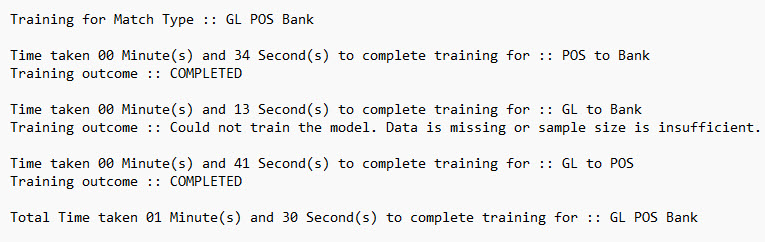
From the log file shown below, notice that training could not be completed for the GL to Bank data source.
Step 2: Import Transactions for the Match Type
To import transactions for the GL POS Bank match type:
- From the Home page, select Application, and then Jobs.
- Select the Transaction Matching tab.
- From Actions, select Import Transactions.
- In Match Type, select GL POS Bank.
- In Date Format, select the format used for dates.
- In Choose Files(s), select the files that contain transactions to be imported for each data source within the match type.
- Click Submit.
The Import Transactions job is submitted and you can track the progress in the Jobs page. Click Complete to view the log file and verify that the import completed successfully.
Step 3: Run Auto Match for the Match Type
To run Auto Match for the GL POS Bank match type:
- From the Home page, select Application, and then Jobs.
- Select the Transaction Matching tab.
- Click Actions and select Run Auto Match.
- In Match Type, select GL POS Bank and click Submit.
The status of the Auto Match job is displayed. After the job completes, click Complete to view the log. At this point, majority of the unmatched transactions have already been matched based on the defined match rules.
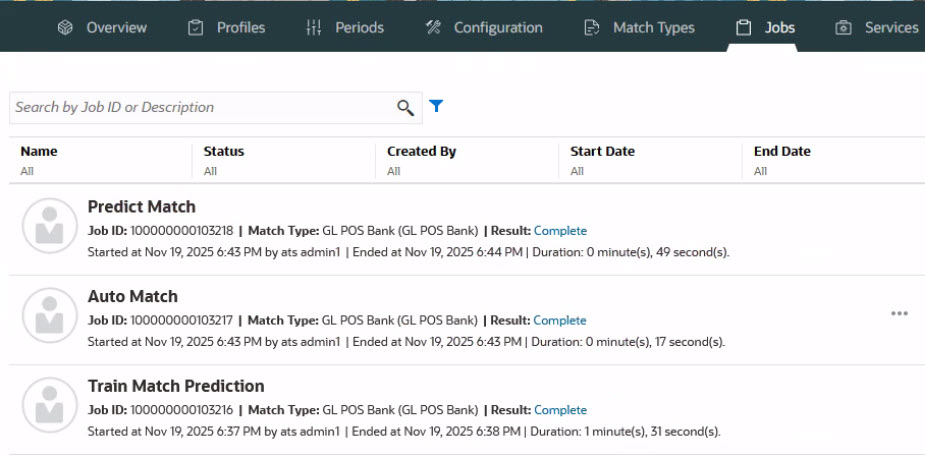
After the Auto Match completes successfully, a Predict Match job is run automatically. This job predicts potential matches for unmatched transactions in the GL POS Bank match type. The following is an image of the Transaction Matching tab that shows the Auto Match and Predict Match jobs.
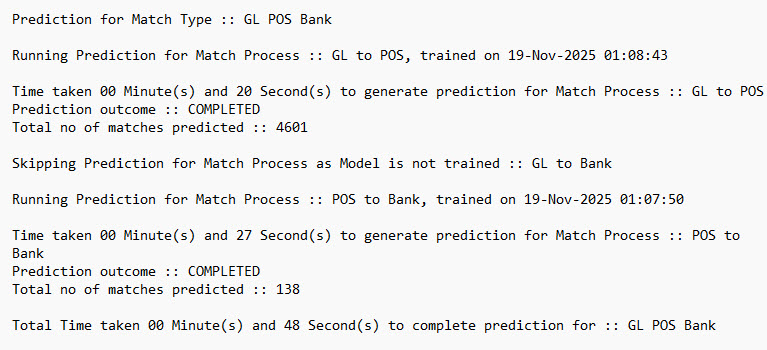
Click Complete for the Predict Match job to view the log file, as shown below. The details include total number of predictions made for each data source in the match type.
Step 4: Predict, Review, and Take Relevant Actions
To predict matches, review the predictions, and then take appropriate actions:
- From the Home page, select Matching.
- Click GL POS Bank.
- In the Matching dialog, click the Unmatched Transactions tab.
- Select the transaction or transactions for which matches must be predicted.
In this example, Transaction ID 7431 is selected in the source system.
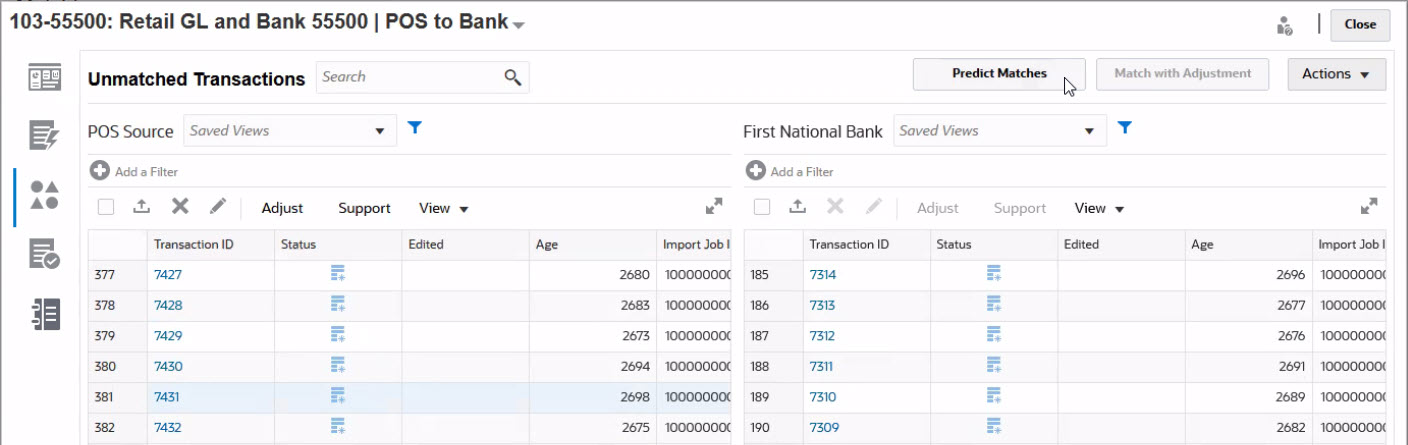
- Click Predict Matches to predict potential matches for the selected
unmatched transaction.
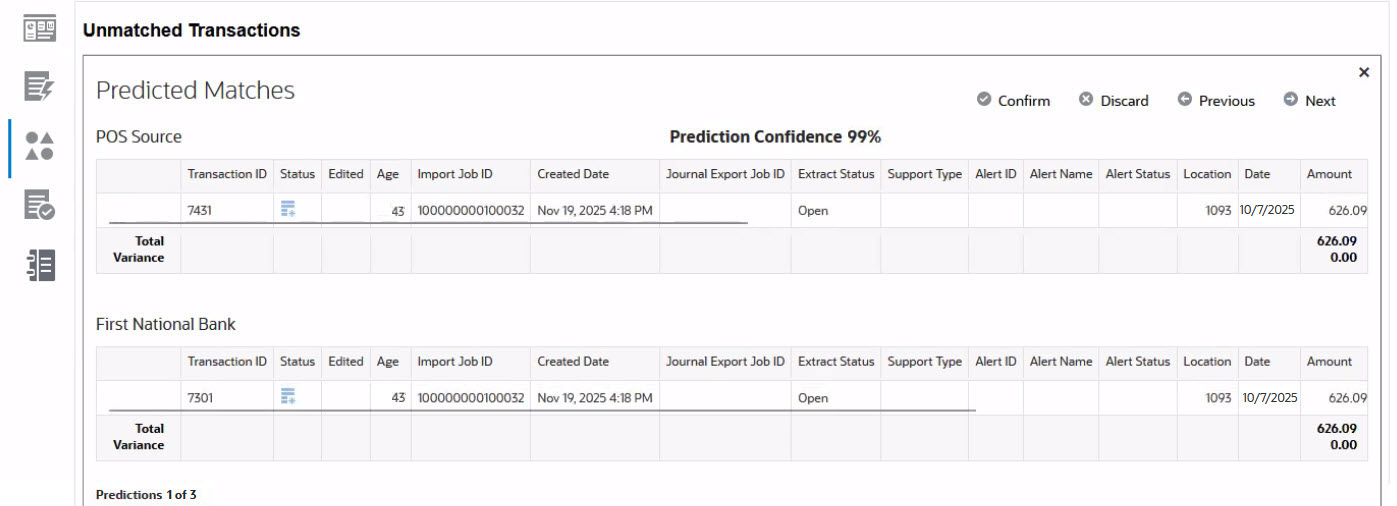
The Predicted Matches pop-up displays and it shows all the predicted matches for Transaction ID 7431. Use Previous and Next to scroll through and review all the predicted matches.
The following image shows the first predicted match, transaction ID 7301. Notice that the prediction confidence for this predicted match is 99%.
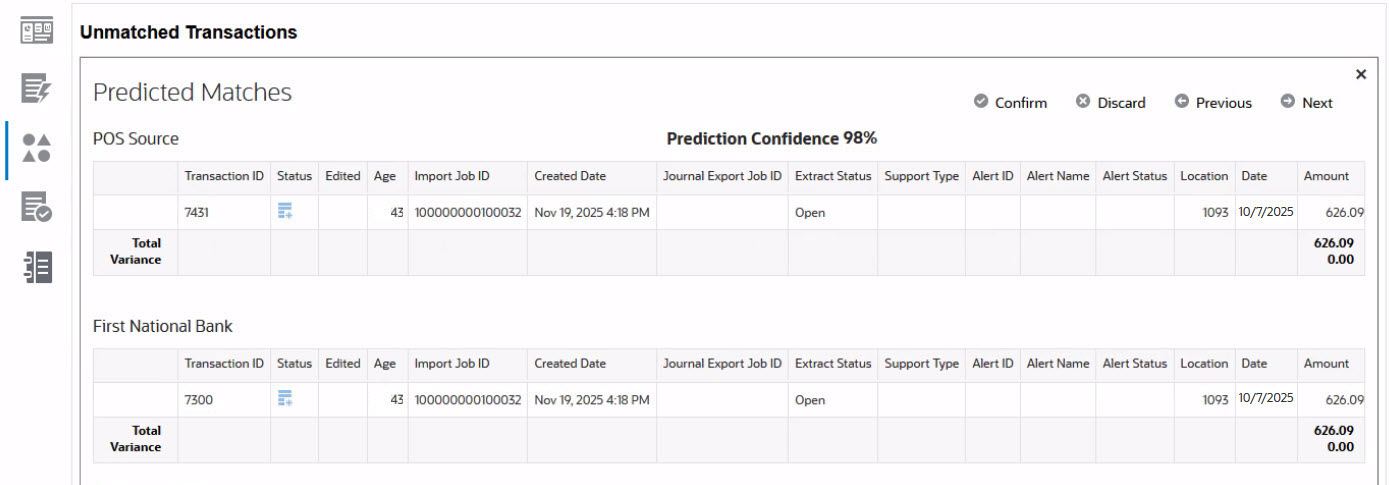
The following image shows the second predicted match, transaction ID 7300, with a Confidence Percentage of 98%.
- After reviewing all the predicted matches, select the most appropriate match. In
this example, it is transaction ID 7301. Click Confirm to create the
manual match and move these transactions to the Matches
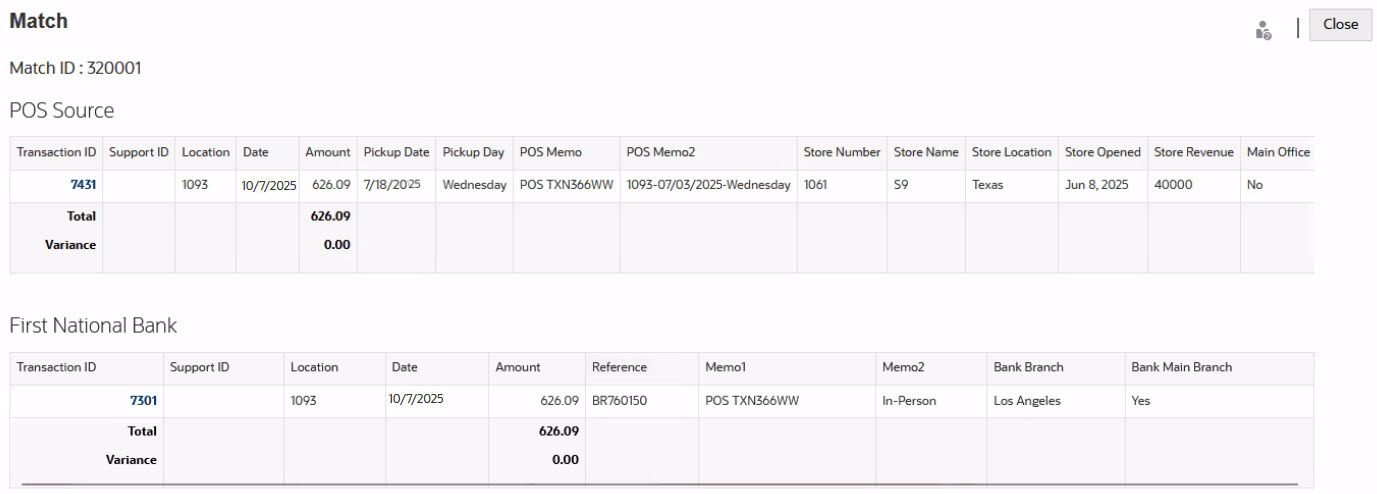
tab, as shown below.
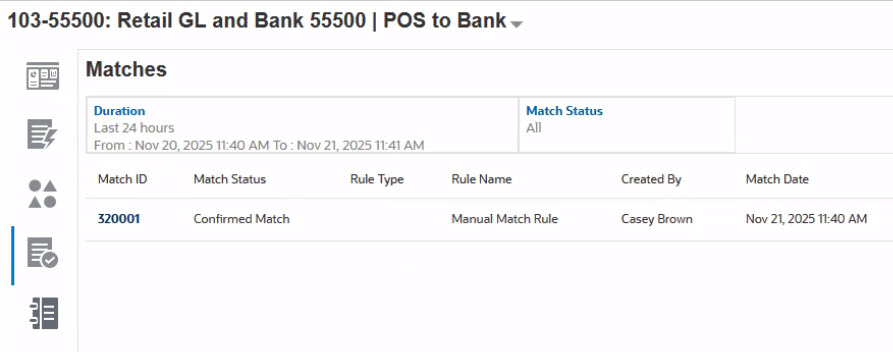
Click the Match ID 320001 to display the details of the match, as shown below.