Creating a New Adjustment Transaction Type
- From Application, select Match Types, then select the match type you want to edit and under Actions, select Edit.
- Select the Transaction Types tab and then select
Adjust.
Note:
The match type has to be in Pending status.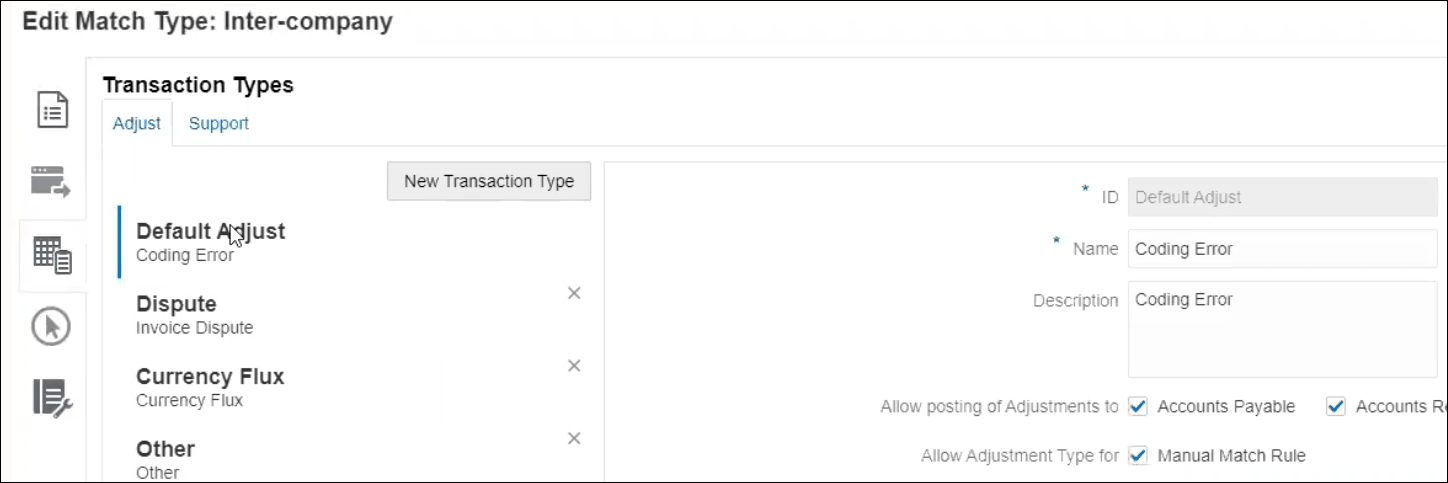
You can see a list of transaction types on the left.
- (Optional) You can change the name and description associated with Default Adjust ID.
- To create a new adjustment type, click New Transaction Type.
- Enter an ID (up to 25 characters identifying this transaction type), a name (up to 50 characters), and optionally, a description (up to 250 characters).
- Click Save to save the details of the adjustment type.
- Create the required adjustment attributes in the adjustment type.
- Add an existing global adjustment attribute,
including custom attributes, by clicking Add and
then selecting Existing. In the Attribute
Details dialog, select the Attribute and click
Save.
Attributes are global attributes so they are available for use by other users in a drop down list. See Creating Global Adjustment and Support Attributes.
- Define a new attribute by clicking Add and then
selecting New.
Enter a Name and select the Type.
The following data types can be selected for each attribute:
-
Text - Used for large comments, descriptions, etc and can be up to 255 characters long
Note:
To import string values containing a comma (,) the string value must be enclosed in double quotes. When the string is enclosed in double quotes, you must enclose all other double quotes in the string in a second set of double quotes. Examples are shown in this table.String Value Import Status "GM LLC - GMNA, formerly ""NAO"" ADMIN STAFF"Successful (entire string value in double quotes and second set of quotes around NAO) "GM LLC - GMNA, formerly "NAO" ADMIN STAFF"Import Error (no second set of double quotes for NAO) "GM LLC - GMNA, formerly NAO ADMIN STAFF"Successful (double quotes around string value) GM LLC - GMNA, formerly NAO ADMIN STAFFError (no double quotes around string value) -
Date - Used for date values
The format when loading transactions should be DD-MMM-YYYY or DD-MMM-YY.
-
Number - Used for amount fields up to 18 digits (12 digits plus up to 6 decimal places)
It can be positive or negative value. A negative number can be indicated during import by using the minus sign, for example, -1,000.00 while importing but will show on the user interface as (1000.00).
In Decimal Places, enter a precision between 0 and 12 for the attribute.
-
Integer - Used for non-decimal values up to 18 digits
The value can be positive or negative.
-
List - Used to configure a List of Values and upper and lowercase do not matter when importing
-
Yes/No - Used for a Boolean field
The value can be left Blank, Yes (
1,Yes,YES,Y,y,T,t,True,TRUE,True) or No (0,No,NO,N,n,F,f,False,FALSE,False).
- Add an existing global adjustment attribute,
including custom attributes, by clicking Add and
then selecting Existing. In the Attribute
Details dialog, select the Attribute and click
Save.
- To hide an adjustment type from being used by users during manual matching, deselect the Allow Adjustment Type for Manual Match Rule check box. By default, the check box is selected. Note that the adjustment type cannot be hidden if the adjustment type is used in one or more suggested match rules.
You will see transaction types when you work on:
- Editing match rules
- Working with Suggested Matches
- Auto match with adjustments