Setting Up Default Adjustment Values
During matching, users need to add adjustments to explain differences.
When the Service Administrator defines the matching process through creation of rules, and a rule allows for tolerances, the Administrator can set up default adjustment attribute values so that users do not have to manually enter those values repetitively. This helps speed user entries during matching.
Default adjustment values can be:
- Explicit - set a specific value that must be used as the default
- Mapped - assign a data source attribute to the selected adjustment transaction type as the default
Where are the Default Adjustment Values Used?
The default adjustment values that you set up are used when creating adjustments during manual matching.
Here's an example of the Adjustment Type values that have to be entered during
manual matching from the Unmatched Transactions tab of the
Matching dialog. You can see that there are entry fields under Adjustment Type.

Here's how it looks to a user during manual matching if the Administrator
populates the default adjustment values in advance: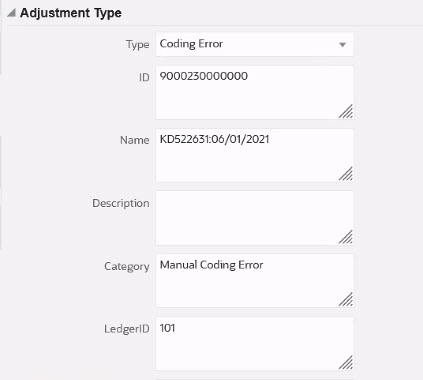
Setting Up Default Adjustment Attribute Values in Auto Match
To set up default adjustment attribute values:
- From Home, select Application, and then Match Types.
- On the Match Types tab, select the Match Type you are working with. The Edit Match Type tab displays.
- Click the Match Processes tab and then the match process you want to work with.
- Click the Match Rules tab.
- Select the Auto Match rule that you want to enter default values for and, on Actions, select Edit to edit the rule.
- In the Edit Rule dialog, click the Adjustment Details tab. This tab is available when tolerance rules are set for the rule.
- Select the Transaction Type and then enter the default values for
attributes for that Transaction Type.

For an Adjustment attribute of type Number, the value displayed is based on the precision set when defining the attribute. Once the default values are set up, the user will see the default values when performing matching with adjustment on the Unmatched Transactions dialog.
Setting Up Default Adjustment Attribute Values in a Manual Match Rule
To set up default adjustment attribute values in a Manual Match rule:
- From Home, select Application, and then Match Types.
- On the Match Types tab, select the Match Type you are working with. The Edit Match Type tab displays.
- Click the Match Processes tab and then the match process you want to work with.
- Click the Match Rules tab.
- Click Configure under Manual Match Rule.
You can see the Adjustment Details tab since the rule has tolerance limits set.
- Select the Transaction Type and then enter the default values for
attributes for that Transaction Type.
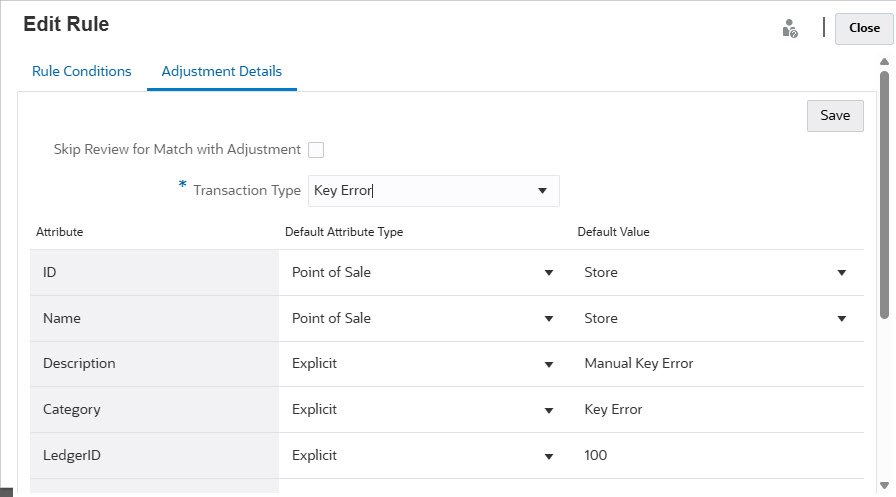
For an Adjustment attributes of type Number, the value displayed is based on the precision set when defining the attribute. Once the default values are set up, the user will see the default values when performing matching with adjustment on the Unmatched Transactions dialog.
Optional Configuration: Setting Up Adjustment Details for Manual Match Without Review
If you have high volume of manual adjustments that usually use only one adjustment type, an Administrator can speed up the adjustment process by using the optional Skip Review for Match With Adjustments check box on the Edit Rule dialog so that the manual match will then use the default Adjustment Type. This eliminates the need to prompt for review or for users to enter or adjust any data in the attributes of the adjustment since the adjustment is created immediately using the information in the default Adjustment Type.
To use this optional configuration:
- From Edit Match Type, select a match process and then select the Match Rules tab.
- Under Manual Match Rule , click Configure
- On Edit Rule, select the Adjustment Details tab, and then select Adjustment.
- Select the Skip Review for Match with Adjustment check
box. Two additional fields, Source To Adjust, and
Default Transaction Type display.
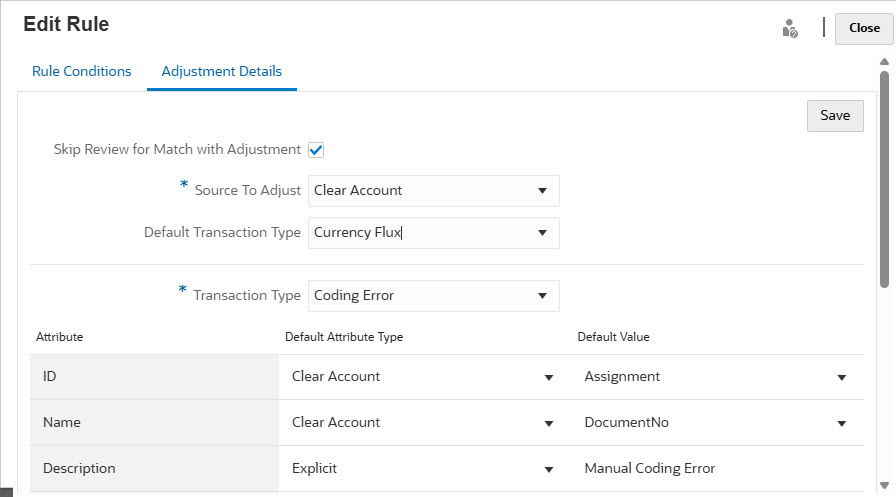
- From the Source To Adjust drop down, select the data source from the list of available data sources for the match process.
- From the Default Transaction Type drop down, select from the list of available Transaction Types for the data source selected as Source To Adjust. Note that only the Transaction Types which are selected for "Allow Adjustment Type for Manual Match Rule" section will be listed in the drop down.
- Click Save.
- Once these steps have been followed in the Edit Rule
dialog, users will see two buttons on Unmatched
Transactions tab of the Matching
dialog:
- Review - (optional) allows the user to review the match details before proceeding with Match with Adjustment
- Match with Adjustment - allows the user to create
a match without any further review
The match is validated according to the manual match rule condition. During adjustment posting, it uses the Source To Adjust selection and Default Transaction Type selection for adjustment details.
Note:
The Review and Match With Adjustment buttons do not appear on Unmatched Transactions if this optional configuration has not been set up.
Note:
For both Auto Match rules and manual match rules, member attributes of type User are not displayed in the list of attributes in the Adjustment Details tab.How Transaction Matching Evaluates Adjustment Details
For Adjustment attributes mapped from Data Source attributes:
- Manual Match: the values for the Adjustment are copied over from the first transaction selected
- Auto Match: the values for the Adjustment are copied over from the transaction with the lowest Transaction ID