Prepare Local Subject Area Data

Indexing provides searchable references within your local subject area, enabling the Oracle Analytics AI Assistant to efficiently locate the relevant measures and dimensional attributes needed to answer consumer users' natural language questions.

Because new local subject areas are not indexed by default, you must manually select and index the columns that the Oracle Analytics AI Assistant should use. This ensures the Oracle Analytics AI Assistant delivers focused, context-aware, and accurate responses aligned with the workbook's business purpose.

If you have imported one of the sample workbooks provided by Oracle, indexes and synonyms are already defined. If you want to extend these or create your own, do the following.

  1. On the Oracle Analytics Cloud home page associated with your Oracle Fusion Data Intelligence instance, click the Navigation menu and select Data.
  2. Find the recently created or imported local subject area in the Datasets tab. Click the Actions menu (Ellipsis), then click Inspect.
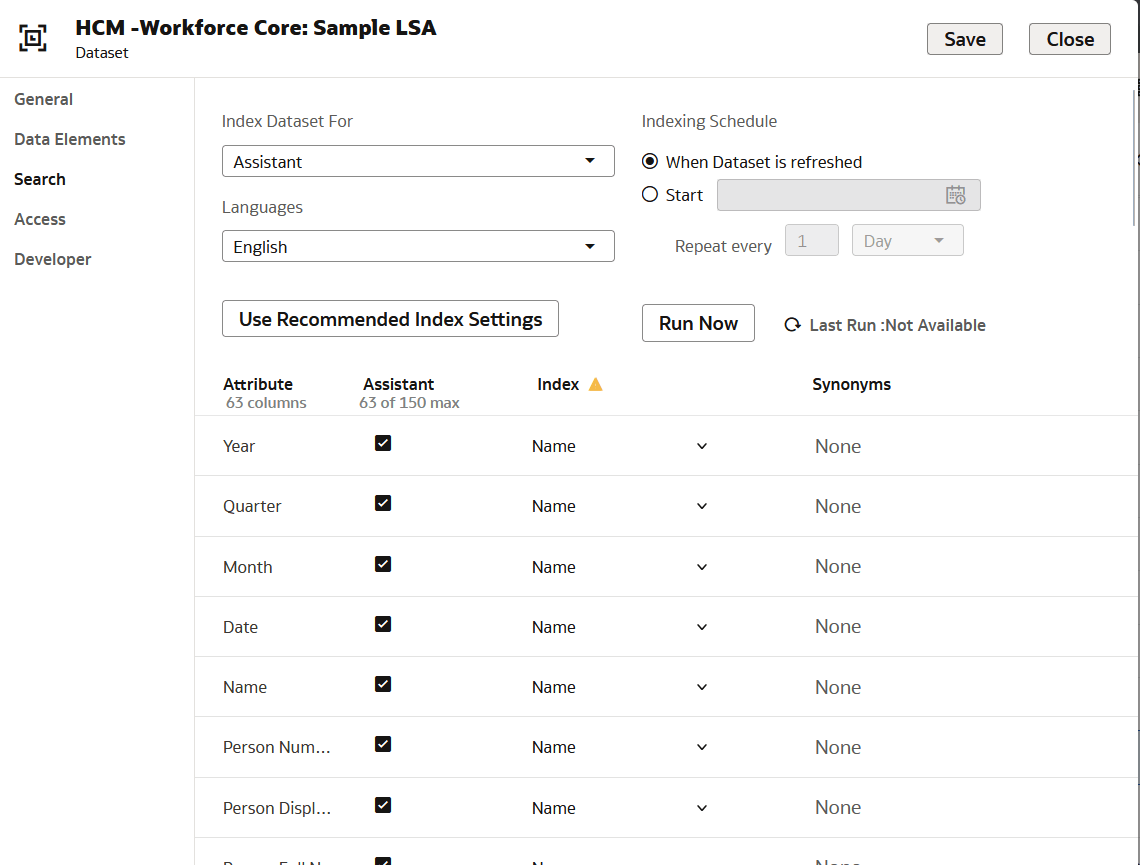
  3. Click Search.

  4. Under Index Dataset For select Assistant.
  5. Optional – Click Use Recommended Index Settings.
  6. Define a time for when the index runs or click Run Now.
  7. To include it in the index, inspect the list of Attributes and click the Index checkbox in each row.
  8. Define the Index Type. Set measures to Name and attributes to Name & Values.
  9. Add synonyms. Click the Synonyms field next to specific attributes and type the values. For example, users might refer to a column for Headcount as Employee Count, Employee Number, Employees, Workforce Size, Person Count, etc. Adding synonyms improves results.
    Add other synonyms as needed. Some rows say Suggestions Available. Explore the suggestions and use them if they apply to your needs. Add the suggested synonyms or manually type up to 20 synonyms per attribute.
  10. Click Save.