Configure and Publish Peer Benchmarks
To configure Peer Benchmark, you need to create a segment, create a benchmark, and publish the custom configuration..
Ensure you Enable Peer Benchmark before configuring. See Enable Peer Benchmark.
- Click Create and then select Benchmark. .
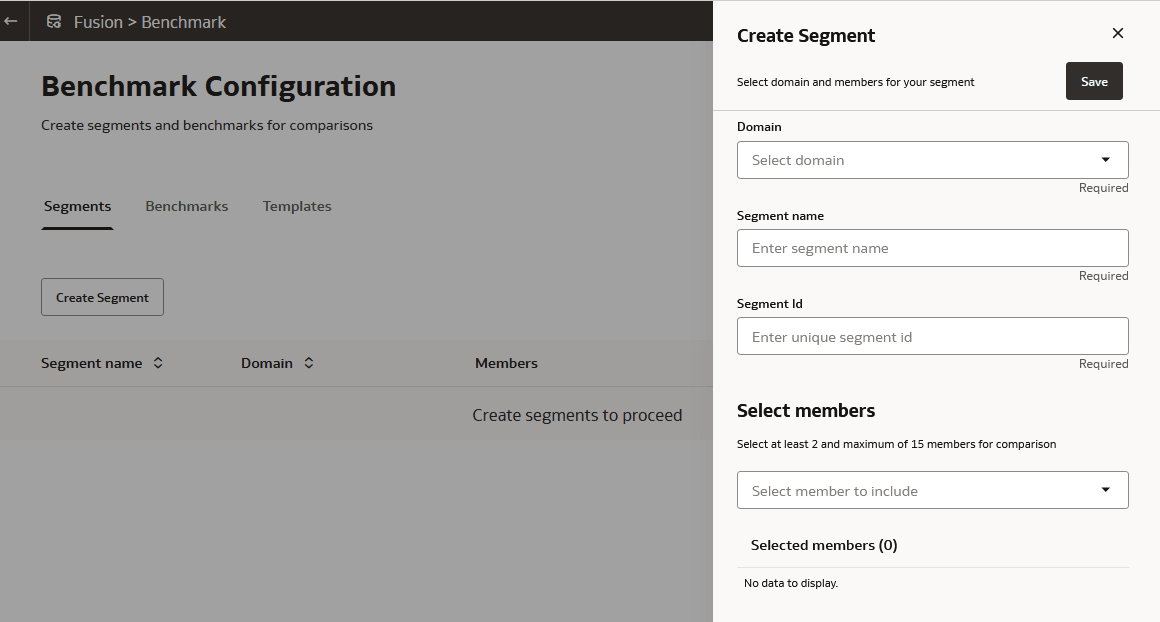
- From the Benchmark Configuration screen, click Create Segment and populate the fields.
- Domain: Select People Leader. People leaders are line managers.
- Segment Name: Enter a name using a series of letters.
- Segment Id: Enter a segment ID using the alphanumeric format ABCD_XX.
- Select members: Select people leaders (line managers for example) who need to access this segment
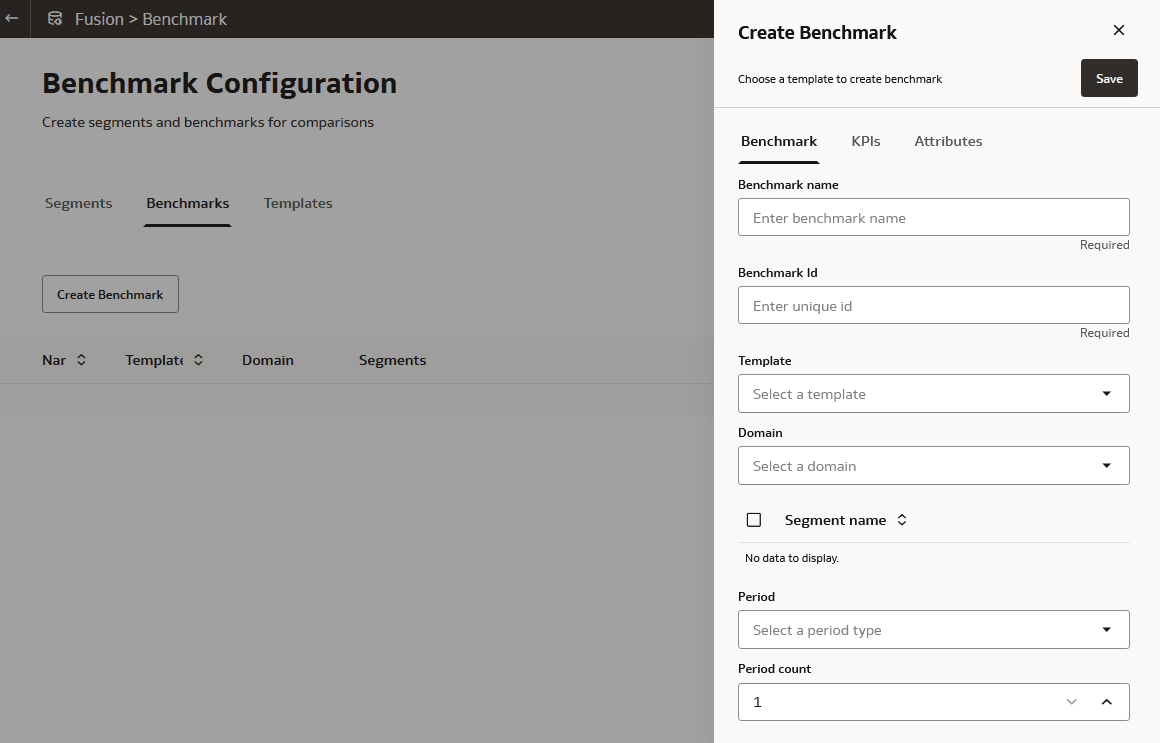
- In the Benchmarks tab, click Create Benchmark and populate the fields.
- Benchmark Name: Enter a name using a series of letters.
.
Note:
Note: Don’t use the word Benchmark by itself - Benchmark ID: Enter a name using a series of letters. (should be alphanumeric)
- Template: Select one of the defined templates from the list.
- Domain: Select the appropriate domain, such as People Leader.
- Segment Name: Segments created in the previous steps will be listed. Select the segments to which the benchmark will apply to.
- Period: The completed period for which the benchmark will be applied (Year/Quarter/Month). The current period isn’t considered because it’s ongoing.
- Period Count: The number of periods on which the benchmark apply (for example 1 year/ 6 Quarters/ 3 Months).
- Benchmark Name: Enter a name using a series of letters.