Configure the Connection to Oracle Cloud Infrastructure Object Storage (Preview)
After performing the prerequisite steps in the Oracle Cloud Infrastructure Console, you can set up a connection to the data bucket in Oracle Fusion Data Intelligence.
- In Oracle Fusion Data Intelligence Console, enable the Oracle Object Storage Service Targets preview feature. See Make Preview Features Available.
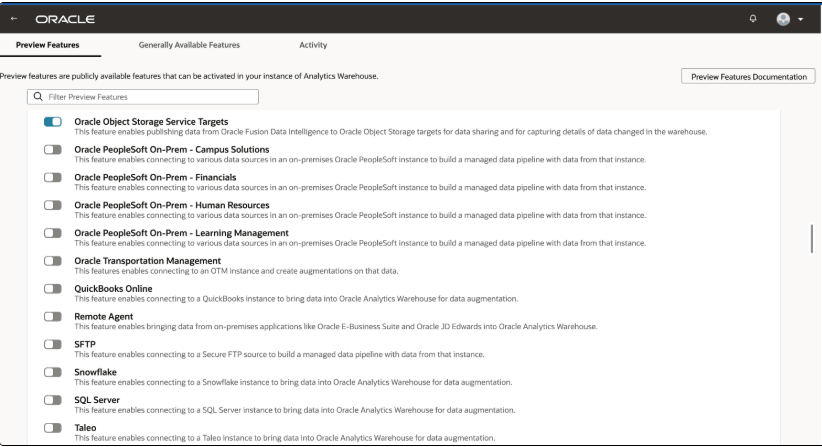
- Create an Oracle Object Storage Service Targets connection using these instructions:
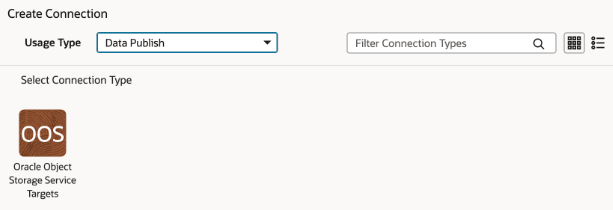
- In the Create Connection dialog, select Data Publish in Usage Type and then select Oracle Object Storage Service Targets .
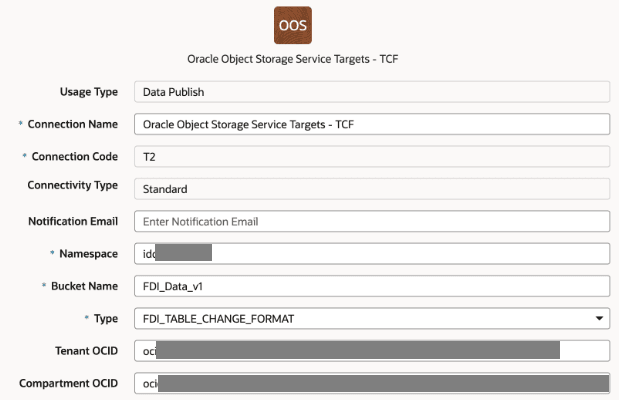
- In the connection details for Oracle Object Storage Service Targets (OOS), provide the following information:
- Connection Name: A name meaningful to your environment
- Connection Code: A unique 3 digit code identifying the connection, such as EXN.
- Namespace: Oracle Cloud Infrastructure namespace of your target bucket
- Bucket Name: Name of your Oracle Cloud Infrastructure bucket for data
- Type: Select the applicable format.
Note:
You can select Delta, Iceberg, or FDI_TABLE_CHANGE_FORMAT while creating connections for those formats. - Compartment OCID: OCID of the compartment containing your bucket
- Notification Email: Email to receive alerts (optional)
- In the Create Connection dialog, select Data Publish in Usage Type and then select Oracle Object Storage Service Targets .