Specify the Tables to Share with an External Data Store (Preview)
Once you've performed the prerequisite steps, configured the connection, and ensured that the Test Connection is successful in Oracle Fusion Data Intelligence, you can share warehouse tables with your external data store.
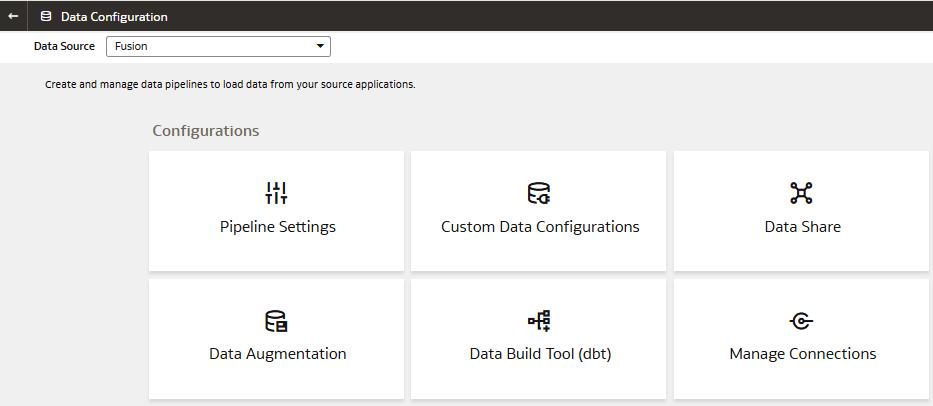
- On the Data Configuration page, click the Data Share tile.
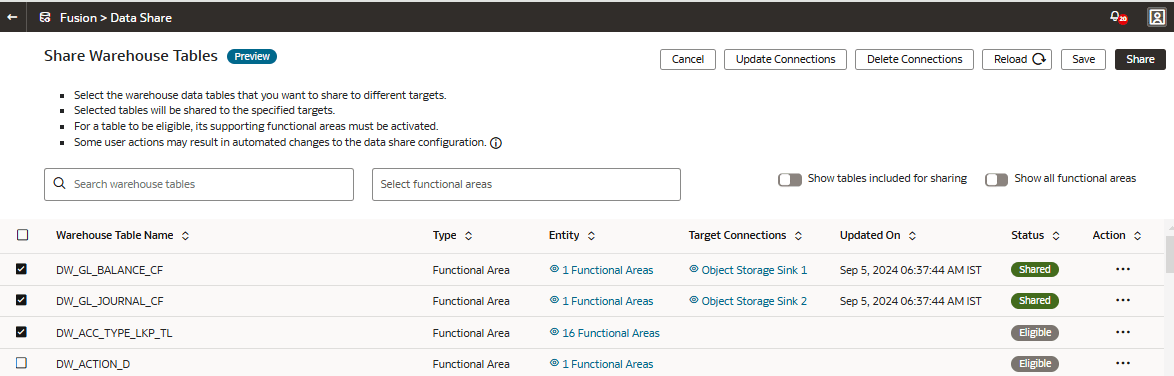
- Select the warehouse data tables that you want to share with different target data stores and click Edit under Target Connections in the Action menu.The tables available for sharing are indicated as “Eligible”. It's recommended that you select up to a maximum of 100 tables. If you need to share more than 100 tables, contact Oracle Customer Support.
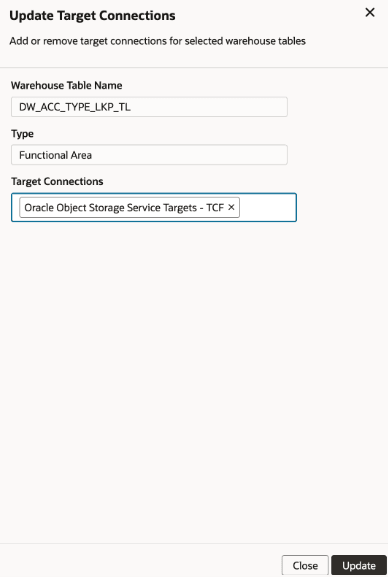
- In the Update Target Connections dialog:
- Verify that the Warehouse Table Name is automatically populated.
- Verify that the connection type in Type displays either Functional Area or another category depending on the table.
- Select the Oracle Object Storage Service Targets connection that you created in Target Connections.
- Click Update.