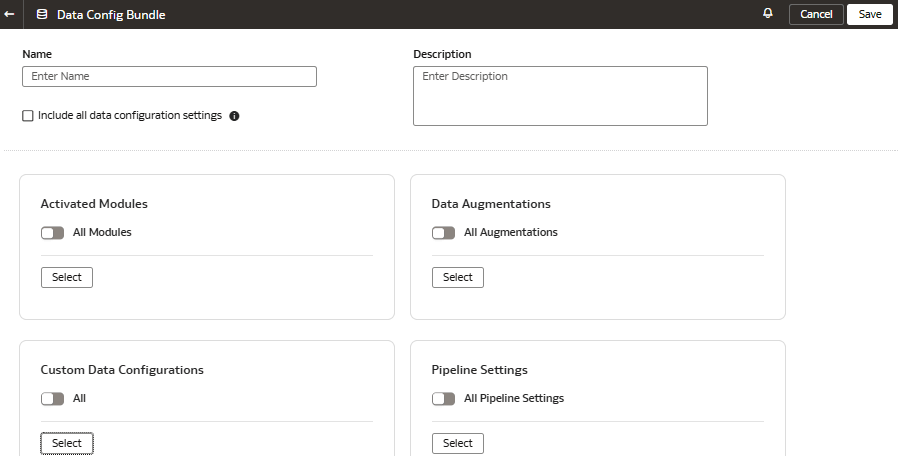
Create a Data Config Bundle
Create a snapshot of your application artifacts to save their current state. You can view the bundles that you created on the Bundles page.
- For a data configuration bundle, select the Include all data configuration settings check box, or select the applicable modules, augmentations, custom data configurations, and pipeline settings using the corresponding toggles and Select buttons.
Note:
The Include all data configuration settings selects only the deployed custom data configurations, the activated data augmentations, and the activated functional areas. After activating the data augmentation and functional area (Activation Completed status), you may experience a slight delay in viewing the data augmentations and functional areas with Activation Completed status on the data configuration bundle page.If you've enabled the Data Share capability, you can select the Data Share configuration in the Data Config bundle under Pipeline Settings. If you've created and deployed Data Augmentation Scripts custom data configuration, you can select the Exclude LoCode Configuration check box to not include this configuration in the Data Config bundle.
If you've enabled the Bulk Data Augmentation capability, created a connection to the supported data sources, and created a bulk data augmentation dataset, then you can include it in the Data Config bundle under Data Augmentations. See Configure Bulk Data Augmentation.