Set Up the Global Report Parameters

Specify the report parameters that you want to use across your Oracle Fusion Data Intelligence offerings.
  1. Sign in to your service.
  2. In Oracle Fusion Data Intelligence Console, click Reporting Configuration under Application Administration.
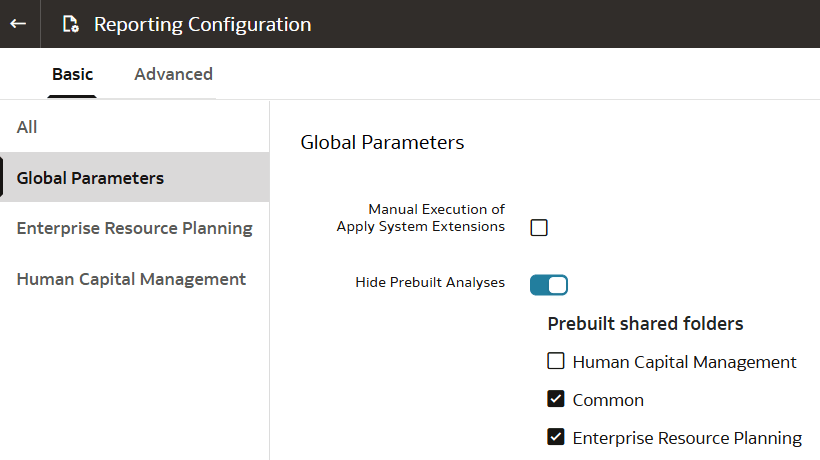
  3. On the Reporting Configuration page, click Global Parameters.
  4. In the Global Parameters region, specify these:
    1. Optional: Select Manual Execution of Apply System Extensions if you want to run the system steps manually instead of running automatically based on the configurations such as data augmentations and data applications (for example, Descriptive Flex Fields, Configurable Account Analysis, Fusion Accounting Hub, and Supply Chain Planning Application).

      If you select Manual Execution of Apply System Extensions, then you must manually apply system extensions for the Sandbox and reapply system extensions for the External Application if applicable.

      When you import your Semantic Model with extended pre-built dimensions and select Expose custom columns in out of the box subject areas, you must Reapply System Extensions.

      See Apply System Extensions and the description of the Reapply System Extensions option in Import Semantic Model.

    2. Enable Hide Prebuilt Analyses and select the prebuilt analyses folder to hide.
      While the update is in progress, an UPGRADING status will be displayed. Once completed, the selected folders will no longer be visible in the Oracle Analytics Cloud catalog.
  5. Click Save to apply the changes.