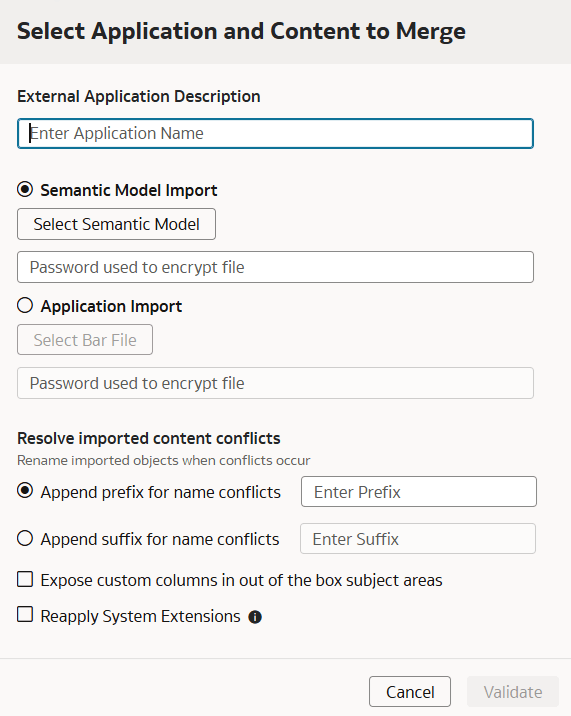
Import Semantic Model
Use the Semantic Model Import option to merge your semantic model.
Semantic Model Import option is available during initial import when Upload Multiple External Applications is disabled, and it’s always available when Upload Multiple External Applications is enabled. When Upload Multiple External Applications is disabled, use Replace Application to replace the existing application. See Replace Application.
When merging External Applications, the Upload Multiple External Applications setting determines whether the system replaces an existing application or creates an additional one.
- If Upload Multiple External Applications is disabled (Single External Application - recommended), the External Application name has no effect, and the existing application is always replaced.
- If Upload Multiple External Applications is enabled (Multiple External Applications - recommended only for important business case requirement), using the same name replaces the existing application, while using a different name creates an additional External Application and merges changes from both the current and new semantic models, combining existing customizations with newly introduced customizations.
Use environment-agnostic names for the external application semantic models. Don't use environment-specific suffixes (such as Test, Dev, and Prod) in the semantic model name because this might cause the target instance to merge the semantic model instead of replacing the semantic model.
Note:
Import a newer version of the Semantic Model for merging only if some changes are missing in your current version. Importing multiple versions can cause delays due to increased validation and merging requirements. If your updated Semantic Model already includes all the previous changes, it is recommended you replace the model rather than create additional versions. You can replace the model by disabling Upload Multiple External Applications, reusing the existing application name, or directly replacing the existing application. If multiple versions of the application were unintentionally imported, delete the older duplicate versions and disable Upload Multiple External Applications to prevent future accidental duplication. Retain only the latest version, provided it encompasses all the changes from the previous imports.- In Select Application and Content to Merge, if Upload Multiple External Applications is disabled (recommended), you can provide any application name. If Upload Multiple External Applications is enabled for a business case requirement, use the name of the existing external application to replace the application when the semantic model already includes all previous customizations and changes, or use a different name to merge changes from both current and new semantic models.