Create a Subject Area
Follow these steps to create a subject area.
- Sign into Oracle Fusion Data Intelligence.
- Navigate to Semantic Model Extensions and click User Extensions.
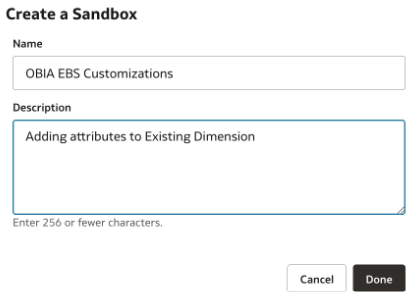
- Click Create Sandbox, enter the sandbox details, and click Done.
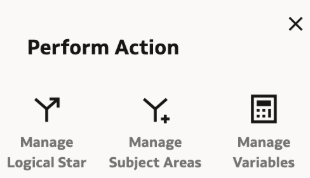
- Select Manage Subject Areas in the Perform Action dialog.
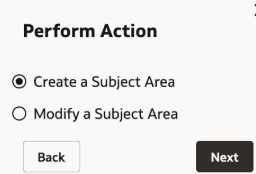
- Select the Create a Subject Area option.
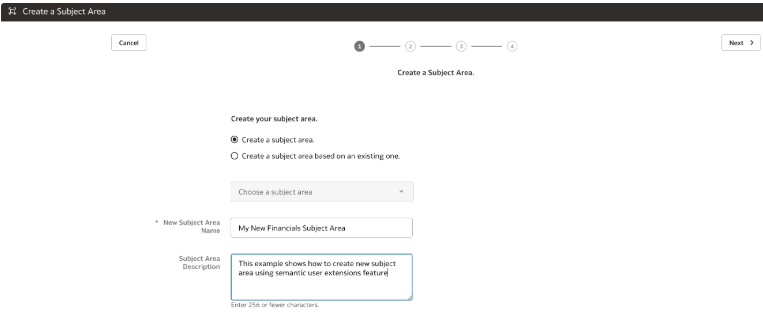
- In step 1 of the wizard, provide the name and description of the subject area you want to create.
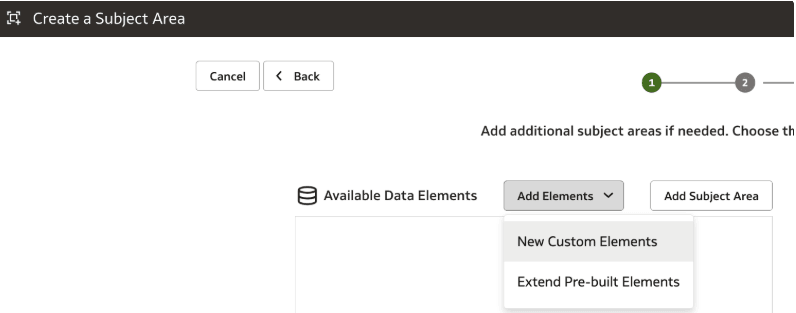
- In step 1 of the wizard, click Add Elements and then click New Custom Elements.
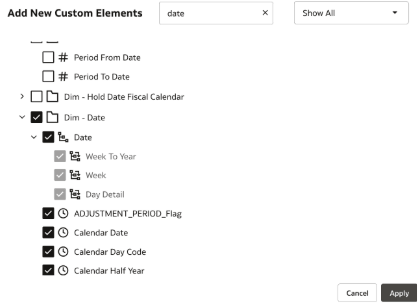
- In the subsequent page, include the dimensions and facts you want to add. Use search button to perform search if needed. Click Apply and then click Next.
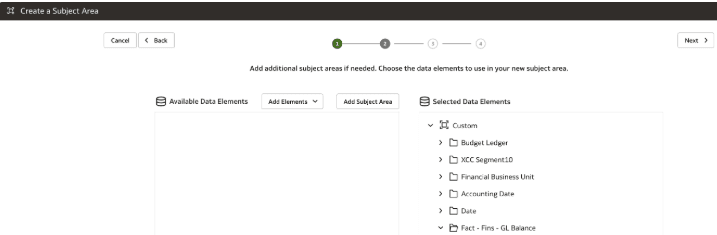
- In the next page, reorganize the folders and rename them if needed. The following example shows some of the changes done on this screen.
Note:
Make sure that you are aware of underlying star model and the dimensions and facts you want to add as part of subject area have valid joins existing between them.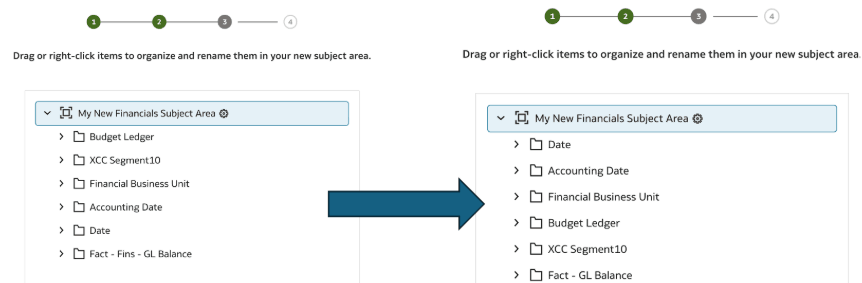
- Click Next to move to the next page; review the information and click Finish.
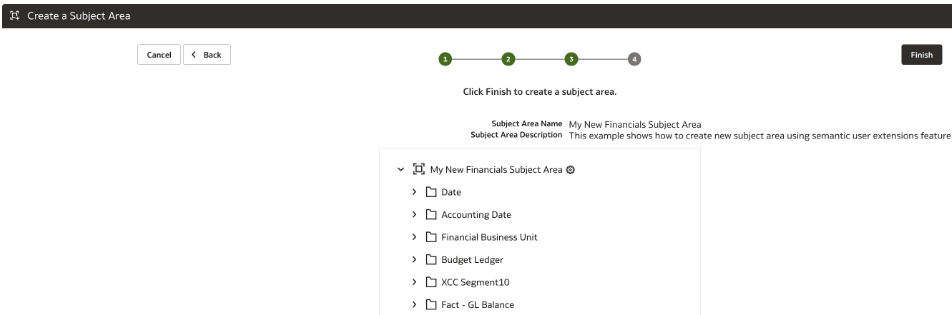
- For the sandbox, click on the 3 dots displayed against it and click Apply Changes. Validate and publish the model so that sandbox changes are published.
- Navigate to Oracle Analytics Cloud to start using the newly added subject area and create visualizations. You see that the newly created subject area shows up.
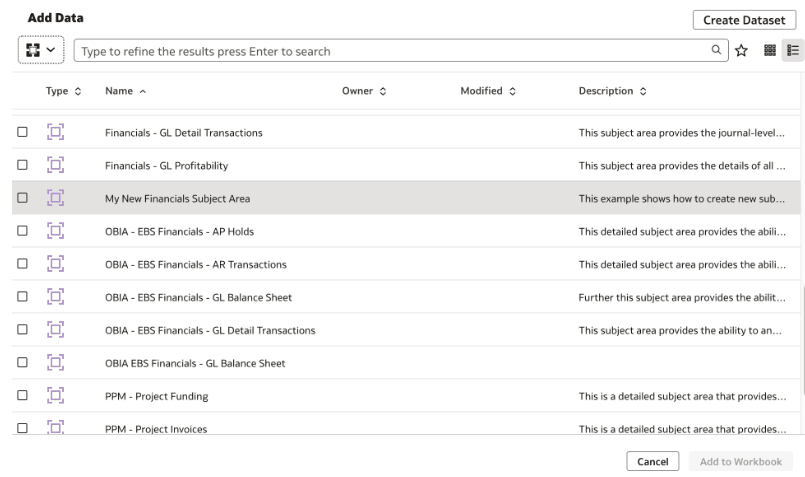
- Create visualization by adding the attributes.
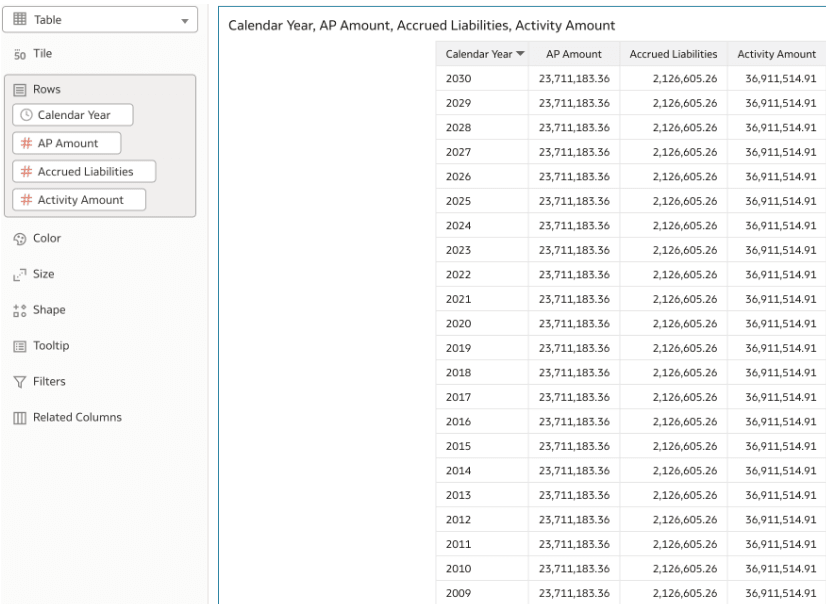
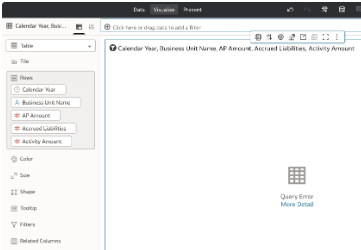
- Add Business Unit Name from the Financials Business Unit folder. This errors out since there is no connectivity between the dimension and fact table, so make sure while creating the subject areas you know which are the right dimensions and facts to be added.