2. Setup the Demonstration Environment
2.1 Access the Environment
2.1.1 Environment URLs and Access Points
After your Oracle Fusion environment is provisioned, you will receive a base environment URL similar to:
(https://xyz123-demo1.fa.ocs.oraclecloud.com/
Common Entry Points
| Module | Entry Point | Example URL |
|---|---|---|
| ERP / SCM | fscmUI | (https://xyz123-demo1.fa.ocs.oraclecloud.com/fscmUI/faces/FuseWelcome) |
| HCM | hcmUI | (https://xyz123-demo1.fa.ocs.oraclecloud.com/hcmUI/faces/FuseWelcome) |
| CX | crmUI | (https://xyz123-demo1.fa.ocs.oraclecloud.com/crmUI/faces/FuseWelcome) |
2.1.2 How to Configure the URLs
The URLs provided must be updated to match your provisioned environment. Each URL contains an instance-specific value that represents the environment name.
- Identify your provisioned environment name.
Example:
xyz123-demo1 - Replace the sample environment name in the URL with your actual environment value.
- Use the correct entry point based on the application area you want to access.
Example
If your provisioned environment is:
xyz123-demo1
Then the ERP/SCM URL would be:
(https://xyz123-demo1.fa.ocs.oraclecloud.com/fscmUI/faces/FuseWelcome)
And the HCM URL would be:
(https://xyz123-demo1.fa.ocs.oraclecloud.com/hcmUI/faces/FuseWelcome)
2.1.3 Visual Builder (VB) Applications
In addition to standard Fusion Application URLs, the environment includes several Visual Builder (VB) applications that support specific demonstration scenarios.
These applications may be accessed directly or launched through other applications such as Digital Customer Service (DCS). Guidance on when and how to use these VB applications is available in the related Demo Guide and Pre-Demo setup instructions.
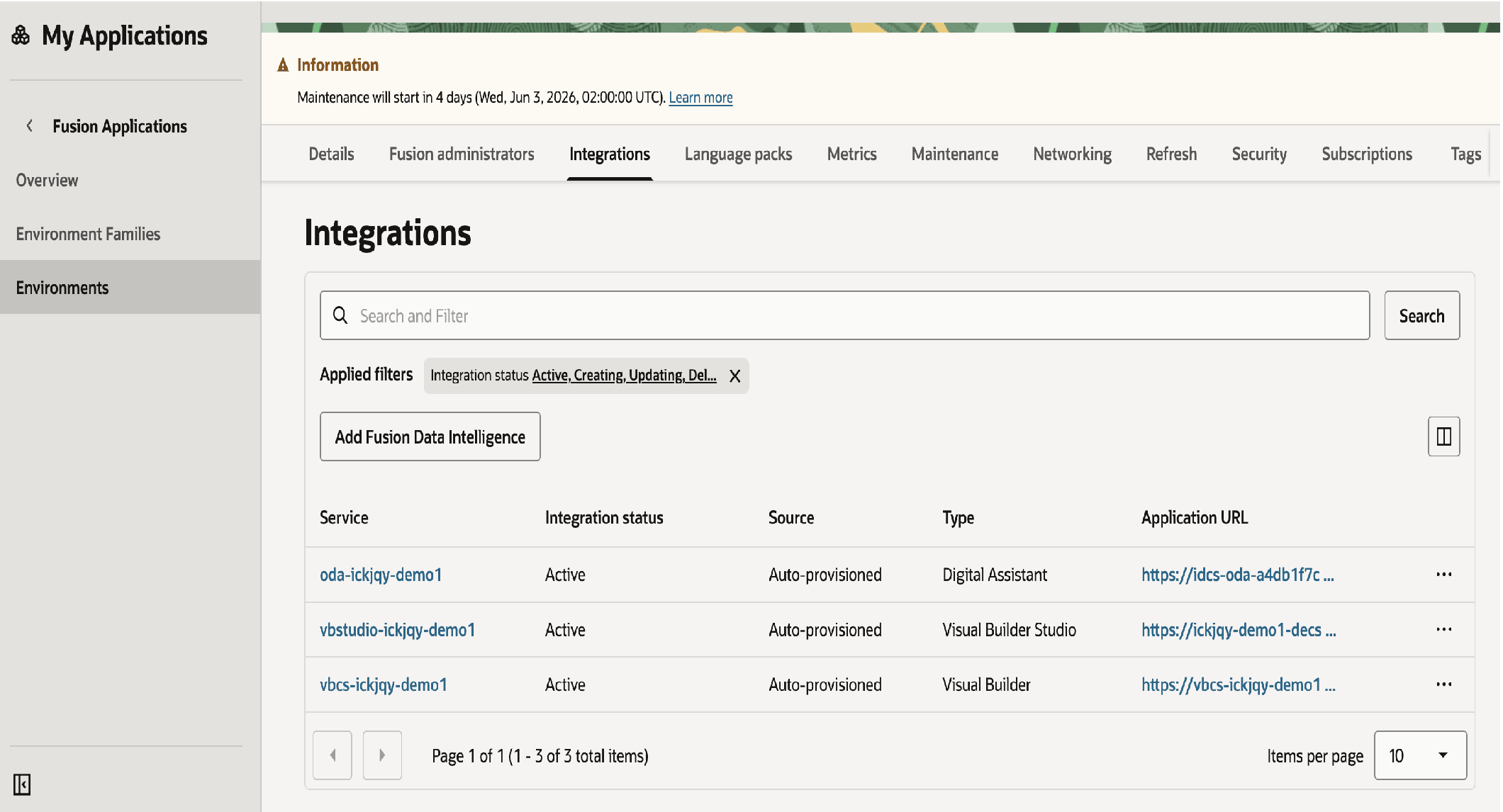
Here are the steps to the VB endpoint URL
- Click the navigation menu in the top-left corner.
- Go to My Applications.
- Select Fusion Applications.
- In the left-side panel, open Environments.
- Click on your environment name.
- Open the Integrations tab.
- Find the application with the type Visual Builder.
- Copy the application URL. Example: (https://vbcs-xyz-demo321-vb-axp2x5neabtk.builder.us-phoenix-1.ocp.oraclecloud.com/ic/builder)
- Open the copied application URL in your browser.
2.2 Validate Access
Verify that all environment URLs are accessible before sharing them with users.
Steps
- Confirm that each application URL is accessible
- Verify that the login page loads successfully
- Ensure navigation reaches the expected landing page or login screen
- Validate that required VB applications are reachable where applicable
Expected outcome
Environment URLs are accessible and ready for persona validation and user onboarding.
Post-Setup Validation
After completing setup, IT administrators should validate that the environment is fully ready for demonstration use. This validation ensures that the environment is fully functional and ready for users to execute demonstration scenarios without disruptions.
What needs to be done
- Validate persona login
Log in using each required persona to confirm credentials are working - Verify access to modules and data
Ensure users can access required application areas (e.g., HCM, ERP, CX, SCM) and relevant sample data - Test key demonstration flows
Execute representative demonstration scenarios to confirm core functionality is working as expected
Expected outcome
The environment is accessible, functional, and ready for users to execute demonstration scenarios without issues.
2.3 Configure Personas
The environment includes predefined personas aligned with business roles. Each persona is used to execute specific demonstration scenarios.
IT administrators must configure access and manage credentials for these personas.
Key Considerations
-
Identify personas based on the planned demonstration scenarios or Oracle Modern Best Practice (OMBP) flows that users intend to execute. Refer to the Predefined Persona list.
-
Review the associated demo guides and predefined persona list to determine which personas are required for each scenario.
-
Only configure passwords for personas needed for the selected demonstration flows. It is not necessary to configure all available personas.
2.4 Manage Credentials
-
Password setup
Passwords are not preconfigured. Only the FA administrator receives the initial credentials after provisioning (typically via email).The FA administrator uses these credentials to log in and set or reset passwords for the required user personas using the Security Console.
Passwords can be managed as follows:
- Click on
 icon on the top left corner of your screen.
 - Navigate to Tools Security Console.
- Go to the Users tab and search for the user.
- Select Reset Password.
You can reset the password using one of the following methods.
Option 1: Manually Change the Password (Recommended)
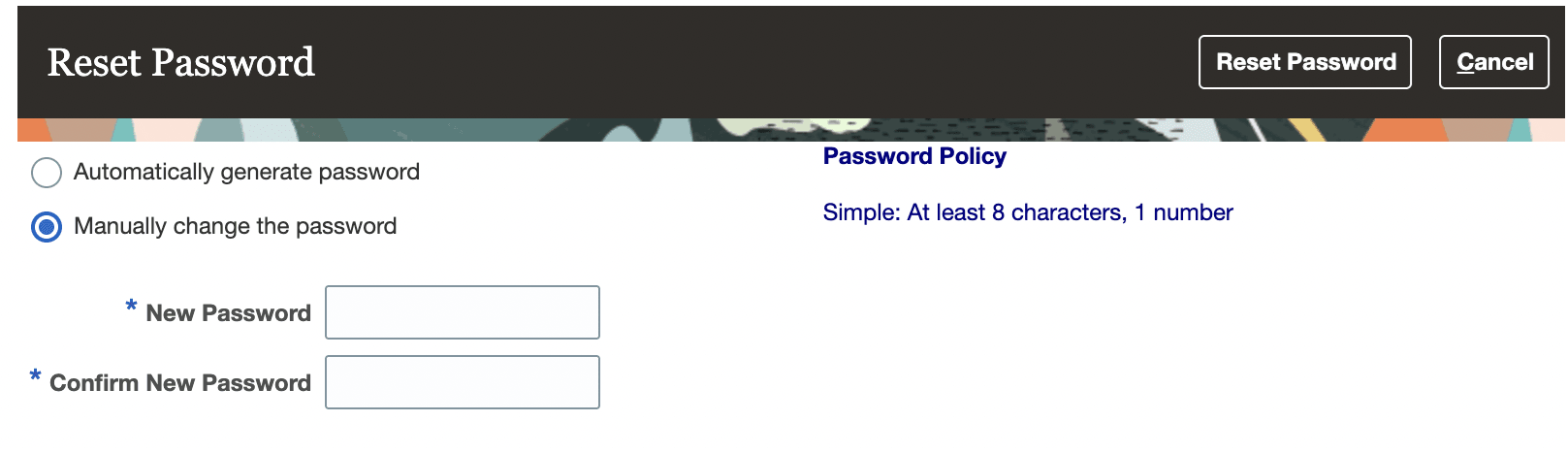
- Select Manually Change the Password.
- Ensure that the password contains:
- At least 8 characters
- At least 1 number
-
Click Save to apply the changes. Check your email for the password reset or activation link. (The new password must comply with the password policy assigned to the user).
Option 2: Automatically Generate Password
Prerequisite: Before resetting the password, ensure that the user’s Email field is populated. The password reset email is sent to the email address associated with the user account.
-
Verify that the Email field contains a valid email address.
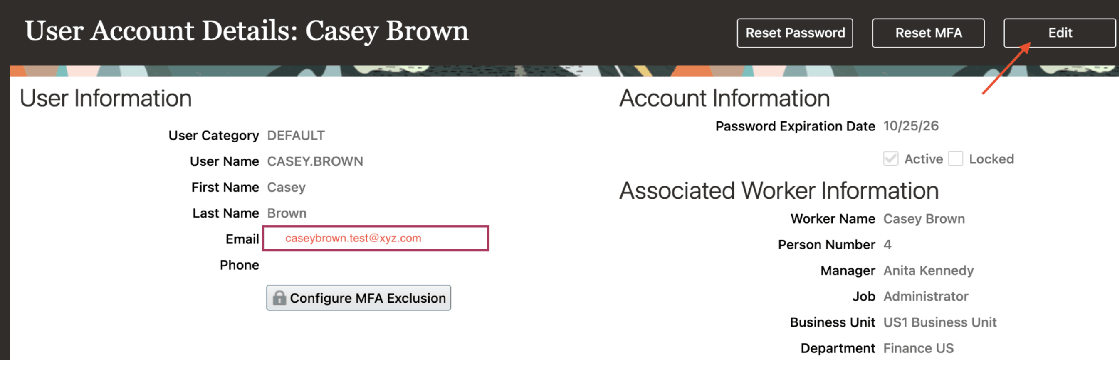
- If the Email field is blank or needs to be updated:
- Click Edit.
- Enter or update the user’s email address.
- Click Save and Close to save the changes.
- Click Reset Password.
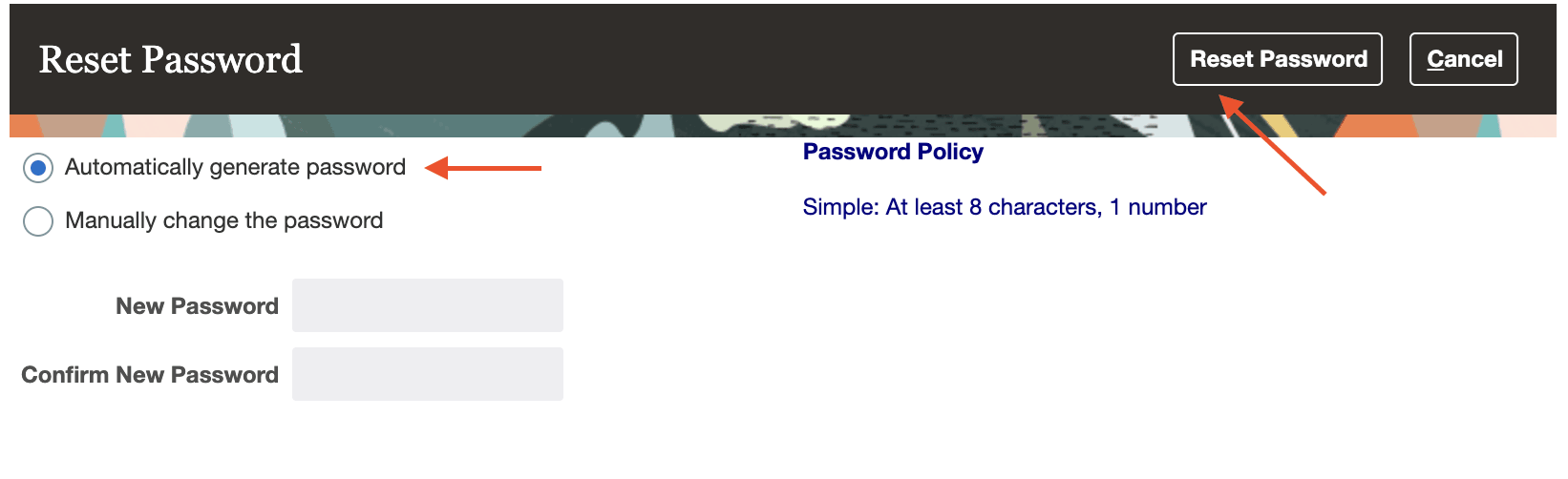
- Select Automatically Generate Password.
- Click on Reset Password button.
- An email containing a password reset link is sent to the user’s registered email address.
- Click the password reset link.
- On the Reset Password page:
- Enter the new password.
- Re-enter the password in the Confirm Password field.
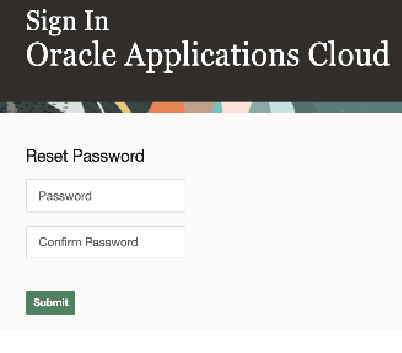
- Click Submit to complete the password reset.
-
- Click on
For detailed steps, refer to Oracle documentation:
-
Secure credential sharing
Since personas are shared accounts, credentials should be distributed using secure methods (e.g., password vaults or approved tools). Avoid sharing via unsecured channels. - Multi-Factor Authentication (MFA)
- MFA is not enabled by default and may only be used if required for a specific environment or use case.
- The process for managing or disabling MFA via IDCS is currently being confirmed.
- If enabled, consider the impact on usability for shared demonstration personas.
- Concurrent access
- Multiple users can log in using the same persona.
- Users may occasionally see session warnings — this is expected and does not impact functionality.
Recommended Setup Steps
- Identify required personas based on demonstration scenarios.
- Determine whether the demonstration scenario requires employee personas or external/contact-based users (for example, Partner Portal or Customer Support portal scenarios).
- Set passwords for each required persona using the identity management system (e.g., FA Security Console or IDCS, as applicable).
- Define a secure approach for sharing credentials.
- Distribute persona details (username and password) to users.
- Validate login for each persona before the demonstration.
Important Note
Access to IDCS is not required for initial login to the demonstration applications. User and role management (create, update, delete users; roles; user categories) must be done in the FA Security Console. IDCS /IAM access is required only for authentication configurations, such as SSO setup, IdP/SP configuration, and sign-on policies and rules, for more information refer this.
Password Reset and Environment Refresh
After each quarterly environment refresh or reprovisioning, previously configured persona passwords may no longer work.
IT administrators must reset and redistribute passwords before users can log back in and continue executing demonstration scenarios.
Ongoing validation
This validation should be repeated after each environment refresh or reprovisioning to ensure continued readiness.
Configuration and Integration Tracking
IT administrators should document any configurations, custom setups, or integrations implemented in the environment.
This ensures that they can be reapplied after quarterly reprovisioning, as the environment is reset and does not retain changes.