Configuring an ERP Connection
Define Oracle® ERP Cloud source connections to connect to ERP data sources.
ERP source connections can be used to register and manage connection the following data sources:
- ERP
-
ERP (Receivables Transactions)
-
ERP (Trial Balance Average)
-
ERP (Custom)
-
ERP (Payables Transactions)
-
ERP (Trial Balance)
-
Project Management
-
Budgetary Control commitments, obligations, expenditures, and write-back data sources. Budget Review data sources
To create an ERP Connection:
-
From the Data Integration home page, and then from the Actions menu, then from the Setup actions drop-down, select Applications.
-
On the Applications page, from the Actions menu, click Configure Connections.
-
On the Connections page, click
 , and then click Oracle Cloud ERP.
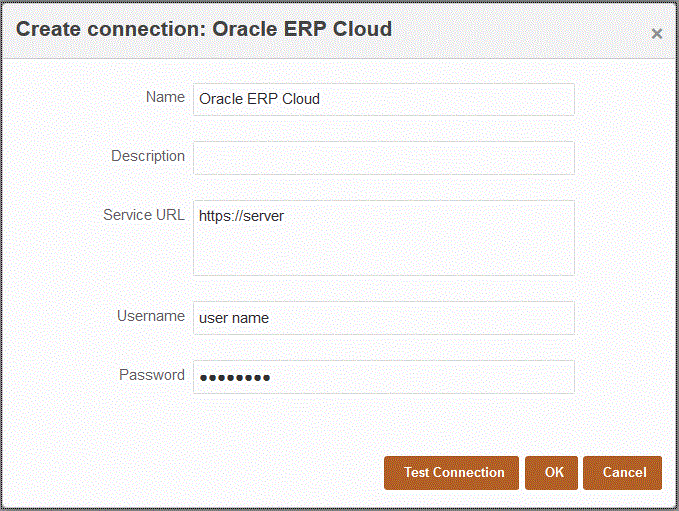
-
In Name, enter the source system name.
-
In Description, enter a description of the source system.
-
In Service URL, enter the server information for the web services.
Note:
When configuring connections for Oracle Fusion Cloud EPM and ERP, the URLs specified for connections must use the secure HTTP protocol, for example, "https://server".
-
In Username, enter the ERP user name.
Enter the name of the ERP user who launches the process requests to send information between Oracle Fusion Cloud Enterprise Performance Management and the ERP . This user must have an assigned Oracle General Ledger job role such as "Financial Analyst," "General Accountant," or "General Accounting Manager."
-
In Password, enter the ERP password.
You must update this password anytime you change your ERP password.
-
Click Test Connection.
When the connection has been tested correctly, the information message "Connection to [source system name] successful" is displayed.
-
Click OK.