Creating a Connection to Oracle Analytics Cloud
To create a Connection to Oracle Analytics Cloud (OAC):
-
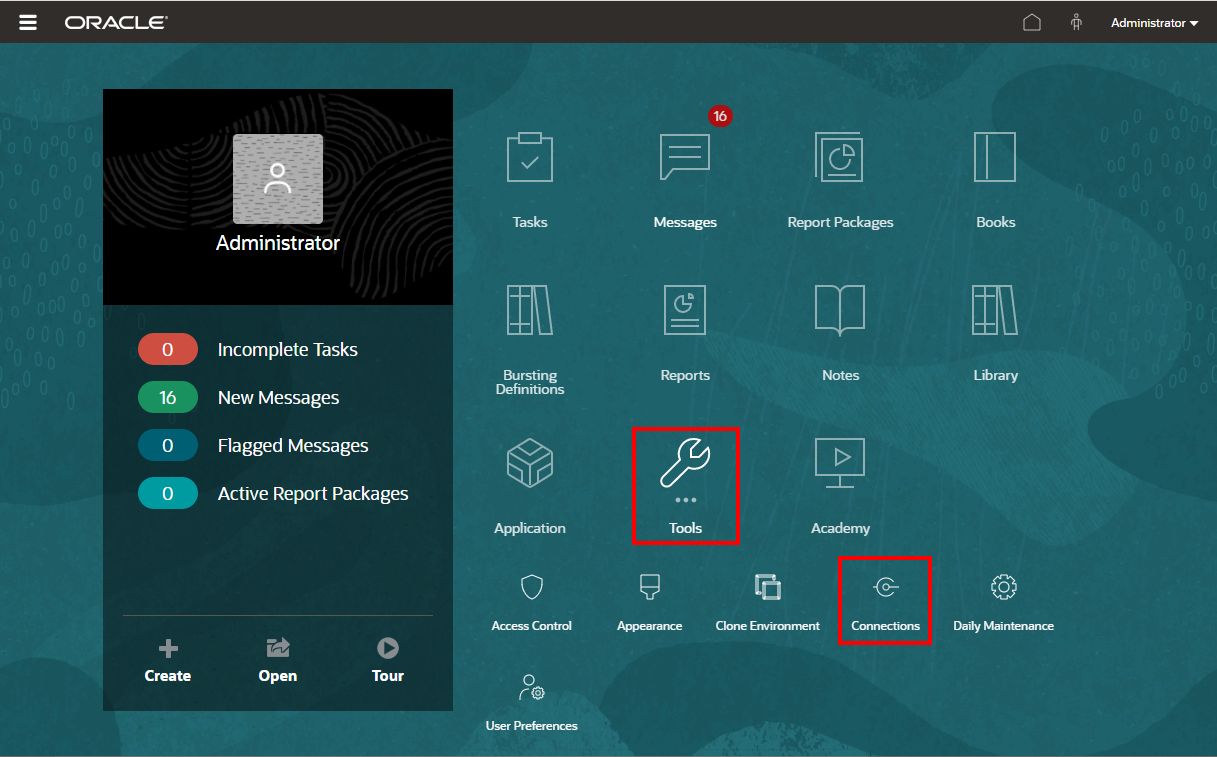
On the Narrative Reporting Home page, under the Tools icon, you can select Connections.
Note:
-
Only the Service Administrator role can create and maintain Connections.
-
Both the Narrative Reporting and Connections Administrator ID need to be native users and not Single Sign-On (SSO). For more information, see Managing User Credentials for SSO-Enabled Cloud EPM and Oracle Enterprise Data Management Cloud Environments in Getting Started Guide for Administrators .
-
-
In the Manage Connections, click
 to add new connections.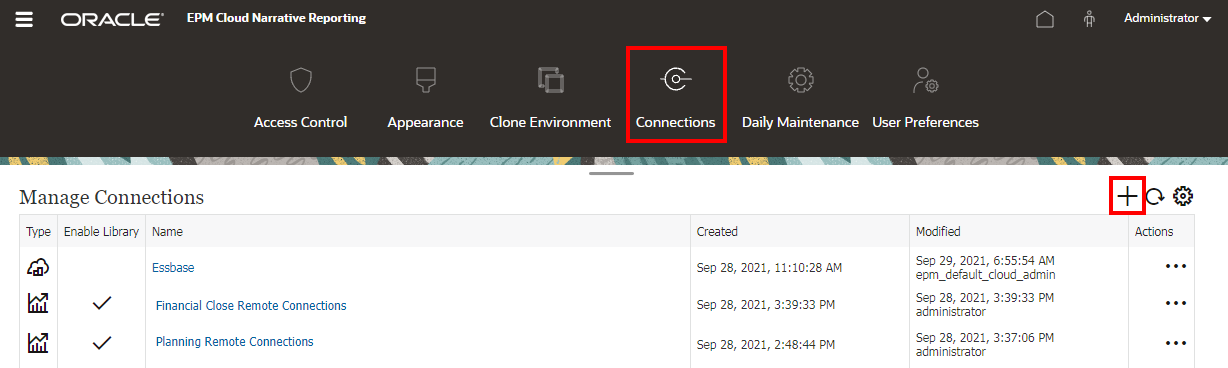
-
In Name, enter a descriptive identifier for the connection, such as a combination of the data source and server.
- In Type, select Oracle Analytics Cloud.
- Enter values for the following fields:
- Server Name – Enter the server name of the OAC server.
- IDCS Token Endpoint URL – Enter the server URL for the Oracle Identity Cloud Service (IDCS).
- Client ID - Enter the Client ID for the IDCS instance. The Client ID is a unique identifier assigned to a client application during its registration with Oracle Identity Cloud Service (IDCS). It is used to identify the application when making authentication requests.
- Client Secret - Enter the Client Secret for the IDCS instance. The Client Secret is a confidential string associated with the client application, serving as a password. It is used in conjunction with the Client ID to authenticate the application when requesting access tokens.
- Scope – Enter the Scope for the OAC instance. The Scope defines the specific permissions or access levels that the client application is requesting. Scopes limit access for the OAuth token and do not grant any additional permissions beyond those the user already possesses.
- JWT Signing Key – Enter the JWT Signing Key. The JWT Signing Key is a private key used to sign JSON Web Tokens (JWTs) to ensure their integrity and authenticity. In the context of OAC, this key is part of a public-private key pair used for secure communication and authentication.
- Certificate Alias – Enter the Certificate Alias. The Certificate Alias is a label assigned to a certificate when it is uploaded to IDCS. This alias is used to reference the certificate within the system.
- Click Test Connection.
- Click OK to add the Connection.
The connection will appear in the list under the Manage Connections.
- Under Manage Connections, select the Connection.
- Select Edit from the Actions menu.
Note:
When you edit a connection, you can change any or all of the connection information.