Inserting an Analytics Image
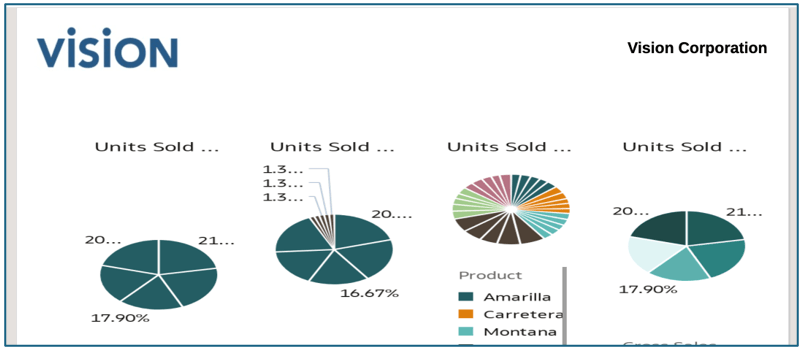
An Analytics Image is an Oracle Analytics Cloud (OAC) dashboard that is inserted into a report as a static refreshable image. When a report is previewed, the OAC dashboard image is retrieved from the OAC server.
Note:
Filters and other OAC dashboard interactions, such as hover and drill, are not available with an Analytics Image.To insert an Analytics Image into a report:
- Perform one of the following steps:
- From the toolbar, click
 and select Analytics Image.
- From a blank report page, click
 .
.
- From the report header, footer, or body, right-click and select Add Report Content, and then select Analytics Image.
- From the toolbar, click
- Click
 or Setup Analytics Image.
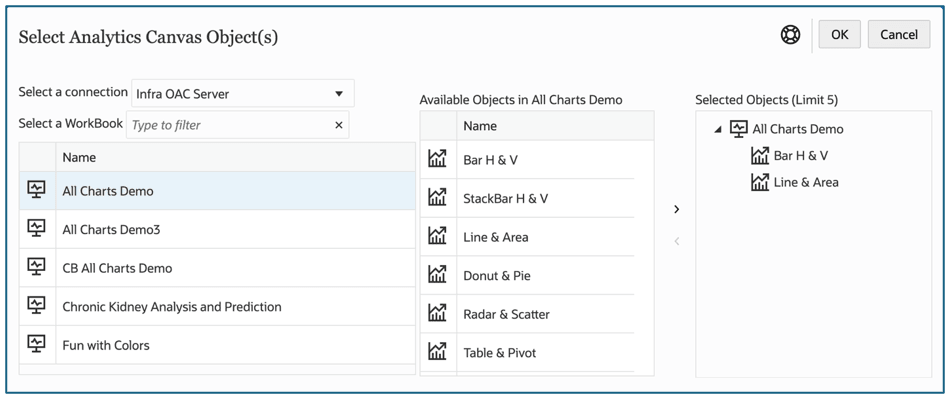
- In the Select Analytics Canvas Object(s) dialog, under Select a
connection, select an OAC Connection, and then select an OAC Workbook
from the list in the Select a Workbook pane on the left.
For more information on OAC connections, see Creating a Connection to Oracle Analytics Cloud.
-
In the middle pane, under Available Objects in… contains a list of all shared objects from the selected shared report. Select one or more objects from the Available Objects in… list, and click Move Right button -
 to move the desired objects to the Selected
Objects pane on the right.
to move the desired objects to the Selected
Objects pane on the right.
Note:
-
Using the Move Right -
and Move Left -  buttons, you can add or remove documents within the
Selected Objects pane on the
right.
buttons, you can add or remove documents within the
Selected Objects pane on the
right.
-
You cannot insert the same object multiple times into a report.
-
You can select a maximum of five objects.
-
You can select objects from only one workbook at a time, not multiple workbooks.
-
- Click OK to return to Report Designer.
- The selected OAC objects are inserted into the report.
Note:
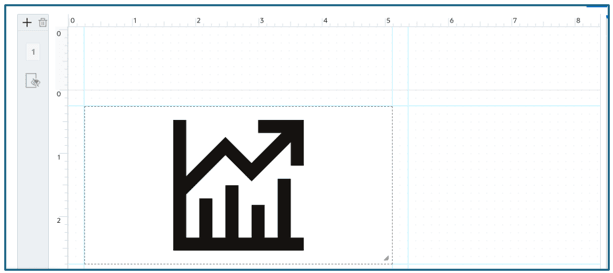
The report canvas preview does not display a preview of the OAC canvas. It displays the default icon. - Optional: You can move or resize the object either by dragging the report object manually with your mouse, or by selecting the report object and then clicking the Layout tab in the Report Designerproperties.
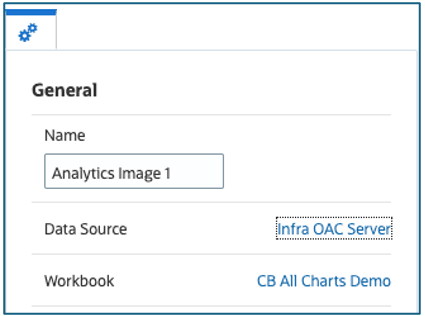
- Optional: When editing an Analytics Image, in the
General Properties panel you can change the object’s
name, Data Source, and Workbook.