Selecting Members Using the Cell-Based POV
You can select members directly from cells in the page dimension row of a grid rather than using the POV toolbar.
Cloud data source types: Oracle Essbase, Planning, Planning Modules, Enterprise Profitability and Cost Management, Financial Consolidation and Close, FreeForm, Tax Reporting
On-premises data source types: Oracle Essbase
The cell-based POV is available by clicking a page POV dimension cell, then selecting the down arrow,  , that appears to the right of the cell; it works the same as the POV toolbar.
Figure 7-5 Selecting a Dimension Cell and Clicking the Down Arrow
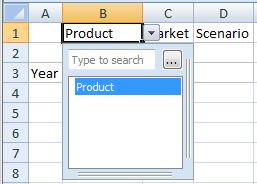
Click the ellipsis button,  , that appears in the cell-based POV and select members in the Member Selection dialog box, and then click OK. Now, look at the dimension cell again. The first member you selected appears in the dimension cell, and the other members are available by clicking the down-arrow in the cell-based POV and selecting them. After each selection, click Refresh to view the updated data.
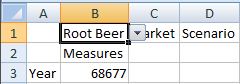
For example, for the Product dimension, if you select Root Beer, Cream Soda, and Fruit Soda in the Member Selection dialog box, then "Root Beer" appears in the dimension cell, as shown in Figure 7-6. Click Refresh to view the data for Root Beer.
Figure 7-6 Using Cell-Based POV to Change the Product Dimension POV to Root Beer
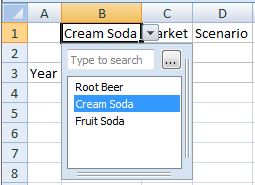
Now click the arrow next to the cell, , and you see all the three members that you selected in the
Member Selection dialog box. Make another selection from
the cell-based POV; for example, Cream Soda as shown in Figure 7-7.
Figure 7-7 Changing the POV to Cream Soda Using the Cell-Based POV
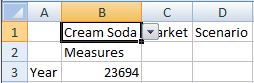
Click Refresh to update the data. Notice that the data has changed as shown in Figure 7-8.
Figure 7-8 Refreshed Data for Cream Soda
You can directly type a member name in the search box of the cell-based POV drop-down list. You can select only one member at a time. Click Refresh to view updated data. Type another member name in the search box to change the POV.
You can still use the POV toolbar as before by toggling the POV button on the provider ribbon. The cell-based POV and the POV toolbar selections are automatically synchronized, regardless of where the selections are made. If you change to a different alias table, the cell-based POV is populated with the proper alias names.
Searching for Members in POV
You can directly type a member name in the search box of the cell-based POV drop-down list. You can select only one member at a time. Click Refresh to view updated data. Type another member name in the search box to change the POV.
Starting Oracle Smart View for Office release 26.100+ and Cloud EPM 26.06+, you can experience look-ahead responsive search while searching for members in the cell-based POV search box. As you start typing in the search box, the results are displayed instantly, thus significantly reducing the time to locate the right member.
For example, when you click the arrow next to the cell, , the cell-based POV drop-down list initially displays the following
members.
- Desktop Computer
- Tablet Computer
- Sentinal Standard Notebook
- Envoy Custom Notebook
- Envoy Standard Netbook
In the search box, as you type "N", the POV list filters to display the following members.
- Sentinal Standard Notebook
- Envoy Custom Notebook
- Envoy Standard Netbook
As you continue typing "Ne", the POV list now displays only "Envoy Standard Netbook". You can select it and click Refresh to view the updated data.