Adding Available Content to Excel-based Reference Doclets Using the Panel
-
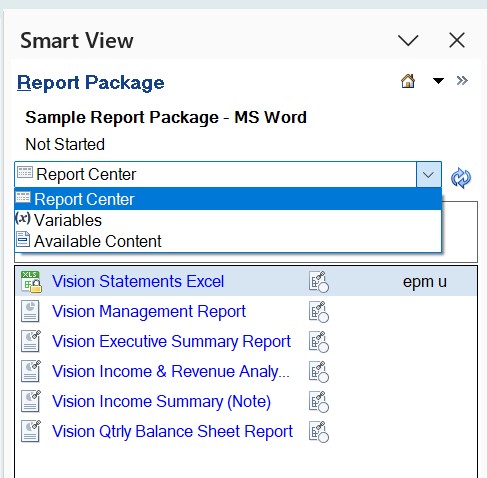
In the Report Package panel, select
Available Content from the drop-down menu.
-
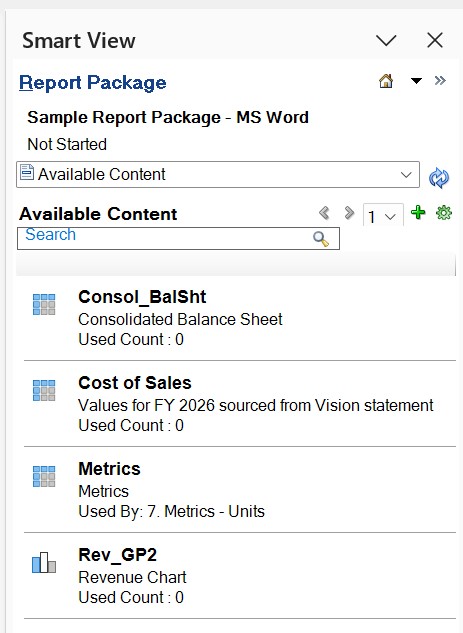
In the Available Content panel, click
 to launch the Add Report Content dialog.
-
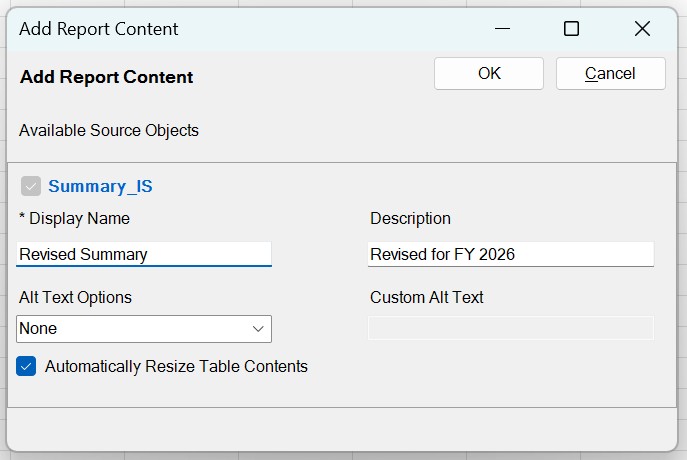
Click the link for the report content name to add as available content, then
click OK.
In the following example, the link for the report content "Summary_IS" is selected. You can modify the display name and description as required. The Automatically resize Table Contents check box is selected by default, and you may clear the check box at this time. The Alt Text Options is set as None by default and you can select an option to set the alt text as required.
-
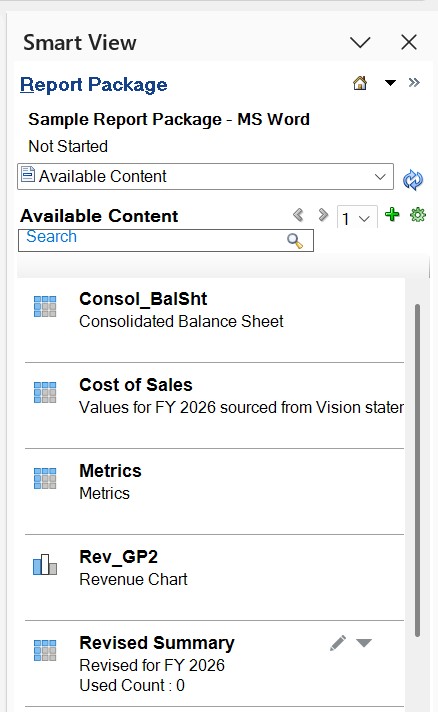
Click

next to the content selector drop-down to refresh the panel and view the newly added available content.The following example displays the new content added in the previous step, Revised Summary in the Available Content panel.