Analyzing Advanced Predictions in Smart View
Analyze Advanced Predictions forms in Oracle Smart View for Office using the Explain Prediction option to learn about the prediction models and key drivers used to derive prediction results.
The Explain Prediction option brings transparency and trust in AI-generated predictions by explaining how the data was predicted and what factors influenced the forecast the most.
To analyze Advanced Predictions data in Smart View:
- Open an Excel sheet and connect to your business process that has Advanced Predictions enabled.
- From the Smart View Panel, open the form that
contains Advanced Predictions results.
Note:
Advanced Predictions are available only in forms in Smart View. - In the form, display the POV toolbar and note the prediction model set in the Version page dimension. The prediction analysis will be generated for the selected model. You can change the model, if required, before proceeding with the next step.
- In the form, right-click on a data cell, and select Explain
Prediction in the right-click context menu.
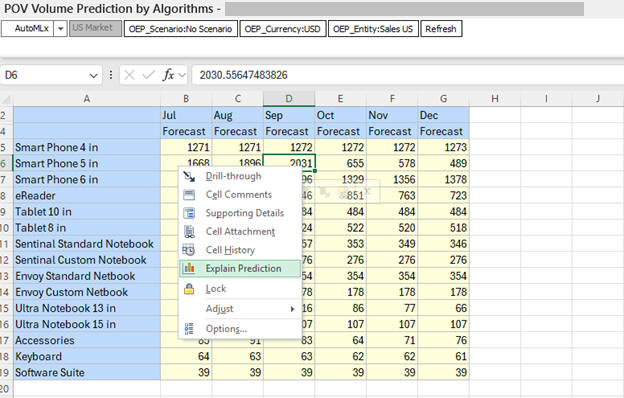
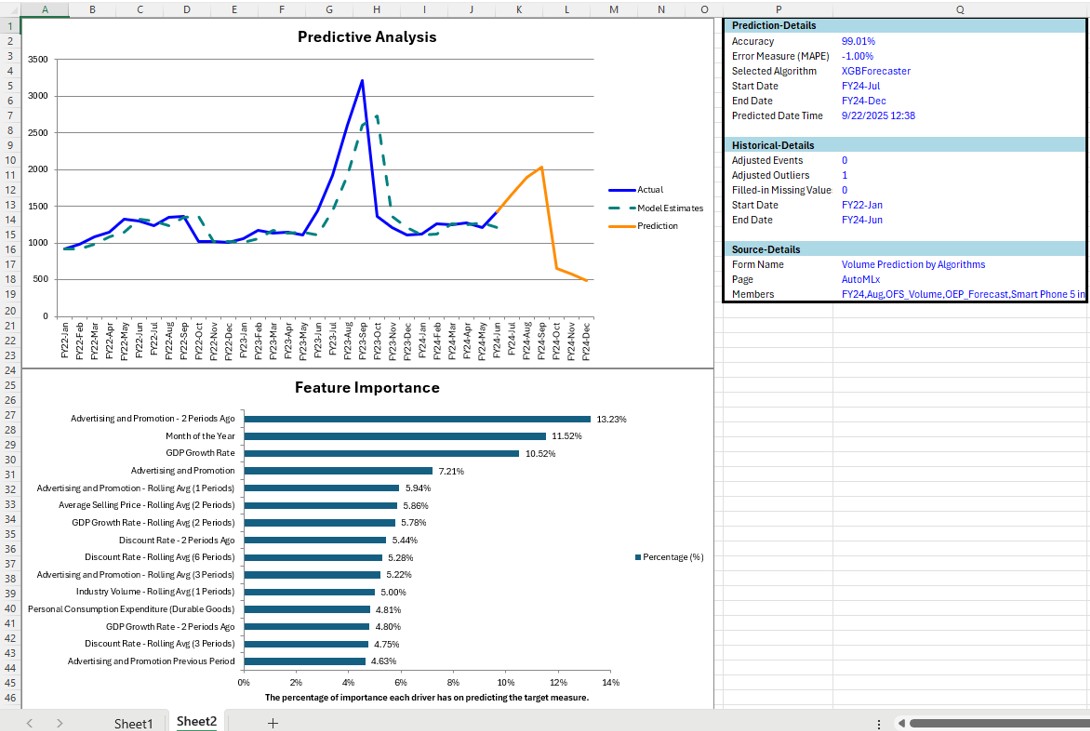
A new sheet opens the prediction analysis displaying the Predictive Analysis chart with details table, and the Feature Importance chart.
For the selected data cell, if there is no prediction analysis available, then on selecting Explain Prediction for that cell, an error message informs you that explainability is not available for this slice.
- Review the details in the prediction analysis sheet.
- Prediction Analysis chart with details table:
The Prediction Analysis chart shows the Actual data (represented by the solid line) and the Model Estimates (represented by the overlapping dotted line) for the given time period.
- This helps you compare and understand the accuracy of the prediction algorithm for historical data.
- The Prediction line displays for the prediction generated by the algorithm for the future time period.
- The table next to the chart displays Prediction Details such as accuracy percentage, error measure, selected algorithm, start and end of prediction period, and the data and time of prediction, Historical Details such as adjusted events and outliers, filled-in missing value, and start and end of historical period, and Source Details such as form name, page, and POV members.
- Feature Importance chart:
The Feature Importance chart shows the relative importance each key driver has on predicting the target measure for a particular slice of data. You can make informed decisions by knowing the drivers that most impact the predictions.
- The drivers featuring at the top of the chart are the biggest influencer for the prediction results.
- The chart highlights up to 10 key drivers or features.
- The minor features beyond the top 10 are grouped under the "Other" category.
- The Feature Importance chart appears for selected algorithms, based on how the Advanced Predictions have been configured by Service Administrators.
- Prediction Analysis chart with details table:
- Optional: To review prediction analysis using a different algorithm, go back to the Advanced Predictions form, select the required algorithm in the Version page dimension, and right-click on the data cell to select Explain Prediction. Note that the Prediction Analysis chart and details table now display the prediction explanation for the selected page and algorithm.
- Optional: In the prediction analysis sheet, click Sheet Info in the Smart View ribbon, and review the sheet details such as form name, URL, application, page, and POV under the Explain Prediction section.
For more information on analyzing advanced predictions in the web application of your business process, see:
- Analyzing Advanced Prediction Results in Working with Planning
- Analyzing Advanced Prediction Results in Working with FreeForm