Filtering Insights
Filter the list of insights in the IPM Insights dialog box based on insight type, POV, priority, status, custom hashtags, and user or group name tags.
Filtering Insights by Type, POV, Priority, and Status
You can filter the list of available insights based on insight type, POV, priority, and status to find a specific insight faster. In the filter box on top of the insights list, start typing "Type:", "POV:", or "Priority:" and you will see the filter parameters matching your searched term. Select the required parameter to view a filtered list of insights matching the parameter.
For example, to filter on an insight type, start typing "Type:" and select the required parameter from the list. In the following example, "Type: Anomaly" is selected.
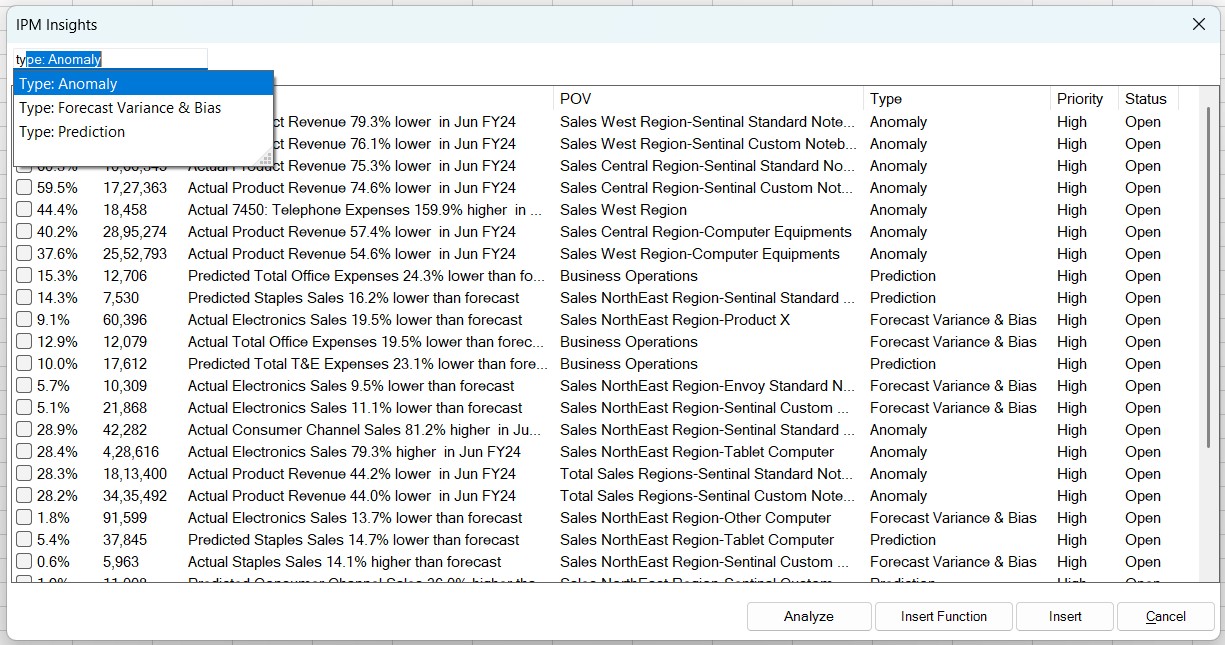
The insights list is filtered to display only anomaly type of insights. You can further filter this list, say as per priority, by typing "Priority:" and selecting the High parameter.
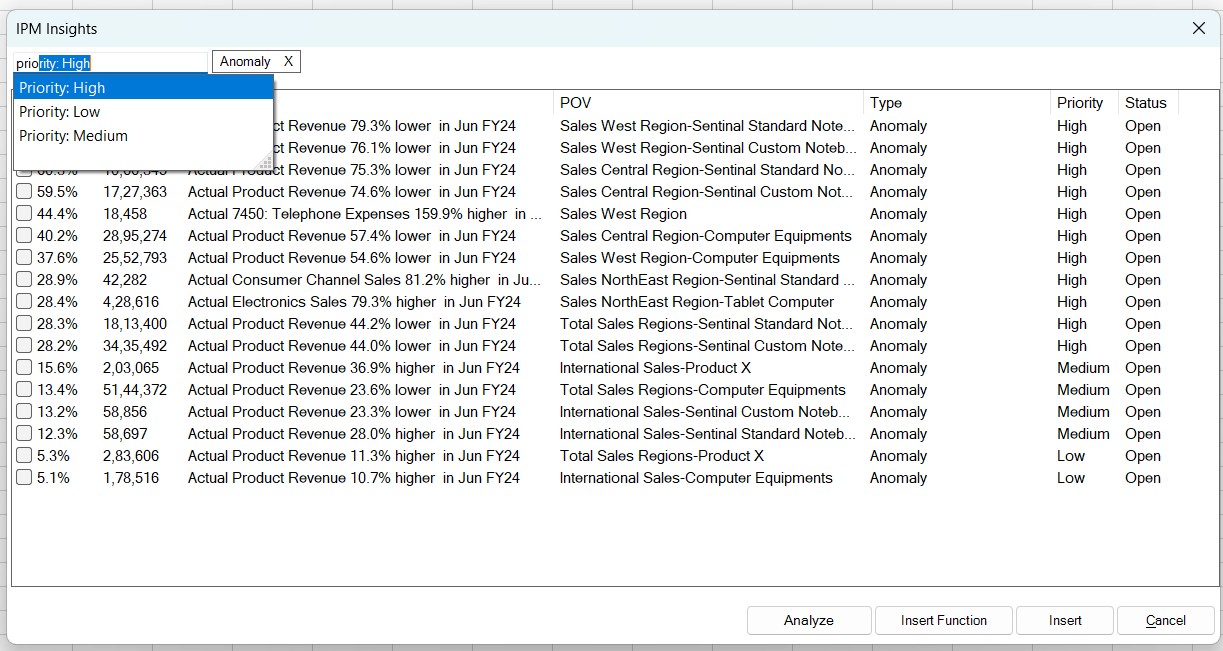
The list now displays anomaly type of insights with high priority.
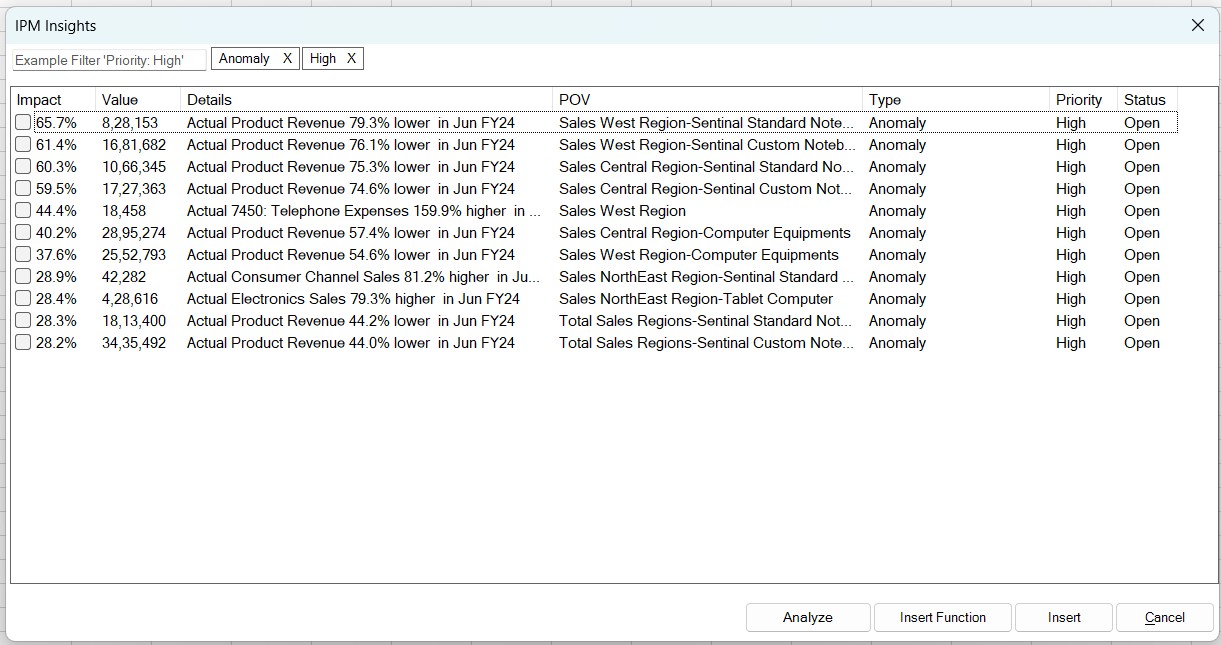
You can apply up to 5 filters at a time to see a list of insights matching different combinations of the applied filters. For example, if you apply the Type filter for Anomaly and Prediction values, and the Priority filter for High and Medium values, the filtered list displays insights for the following combinations:
- Anomaly and High
- Anomaly and Medium
- Prediction and High
- Prediction and Medium
To remove an applied filter, click the Close icon on the filter.
Filtering Insights by Custom Hashtags
You can use the custom hashtags to filter insights in the IPM Insights dialog box. In the filter box on top of the insights list, type # and select the hashtag you want to use to filter the insights list. The list of hashtags used in the available list of insights are displayed.
For example, you want to look for insights that are tagged as #new. Type #new in the filter box and select it. The list of insights is filtered to display only the insights that have been tagged as #new in the comments.
When you type # in the filter box, only the hashtags that are used in the available list of insights are displayed for selection. For example, a hashtag called #urgent exists but has not been used in comments in any of the insights available in the IPM Insights dialog box. On typing # in the filter box, this hashtag will not be listed for selection.
When you create and add a new hashtag in the comments text box in the Add/Delete Insight Comments dialog box, the new hashtag is not immediately available for filtering insights in the already open IPM Insights dialog box. You need to close the IPM Insights dialog box and open it again to view and use the new hashtag for filtering the list of insights.
To create and add custom hashtags, see Adding Custom Hashtags in Comments to Filter and Search Insights.
Filtering Insights by User or Group Name Tags
You can use the user name or group name tags to filter insights in the IPM Insights dialog box. In the filter box on top of the insights list, type @ to view the list of users and groups. For example, you want to look for insights where Jane is tagged in the comments. Type @Jane in the filter box and select it. The list of insights is filtered to display only the insights where Jane has been tagged in the comments.
You can apply only one user or group name tag at a time to filter insights. You cannot filter using multiple user or group name tags at once. Also, applying a user or group name tag filter clears all the other filters that you may have applied before such as type, POV, priority, status, or custom hashtag.
To add user or group name tags, see Adding User or Group Name Tags in Comments to Mention and Filter Insights by Users.