Using the Member Selection Dialog Box
The Member Selection dialog box enables you to view, search, filter, and select members in various tasks that you perform in Oracle Smart View for Office.
The Member Selection dialog box in Smart View appears in multiple workflows such as performing ad hoc analysis, selecting POV, working on flex forms, setting user variables, and so on. The Member Selection dialog box in these locations may vary slightly, and the options vary based on the connected data source provider.
Using the Member Selection dialog box, you can select members for one dimension at a time. The right pane in the dialog box lists the available members in a hierarchy view. You can view this list by hierarchy, attributes, or subsets depending on the data source provider. You can also filter this list by levels, generations, or relationships and can search and select the required members. You can select one or multiple members and move them to the left pane of the dialog box to apply the selected members for your task. In the left pane, you can sort and arrange the members in a desired order.
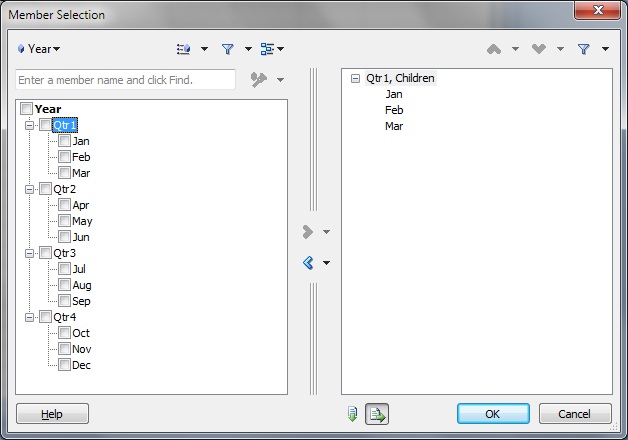
The following example shows the Member Selection dialog box with the Year dimension and its members.
Figure 7-1 The Member Selection Dialog Box
Best Practices for Selecting Members
- Oracle Hyperion Financial Management: An error occurs (Unknown
error 0x800A139D) when a member list containing double hyphens
(
--) in the name is selected. - Cloud EPM: While in "Member Name and Alias" mode:
- The dimension displayed in the Member Selection
dialog shows the default dimension, regardless of the dimension or
member you selected for an alias column on the grid. To change the
dimension, click the Dimension Selector drop-down
list (for example,
 ) and select the required dimension.
- After selecting a member using the Member Selection dialog box, users need to manually correct or delete the corresponding member or alias in the adjacent column in the sheet to ensure a successful refresh.
"Member Name and Alias" mode refers to the Member Name Display option being set to Member Name and Alias, described in Member Options.
- The dimension displayed in the Member Selection
dialog shows the default dimension, regardless of the dimension or
member you selected for an alias column on the grid. To change the
dimension, click the Dimension Selector drop-down
list (for example,
- Oracle Essbase and Cloud EPM:
To quickly add attribute dimensions onto an ad hoc or free-form grid, refer the instructions in Inserting Attribute Dimensions on the Sheet. You can then use the instructions in this topic to select and work with members from attribute dimensions.